5款遠端軟體實測:遠端工作、遊戲、看影片

/

/

已更新

因為工作關係,常常要用到遠端桌面軟體,因此花了一些時間測試 5 款免費遠端桌面軟體,包括 Teamviewer、DeskIn、Anydesk、Awesun 和 Parsec,這裡就分享實測下來幾款在遠端工作、遠端遊戲、遠端觀看影片上的表現,提供給在尋找好用的遠端軟體、或有遠端作業需求的人參考。作者大多數用手機遠端 PC,以及 MacBook 遠端 PC,所以下面的測試比較,都是這種使用環境為主。


免費遠端桌面軟體規格比較表
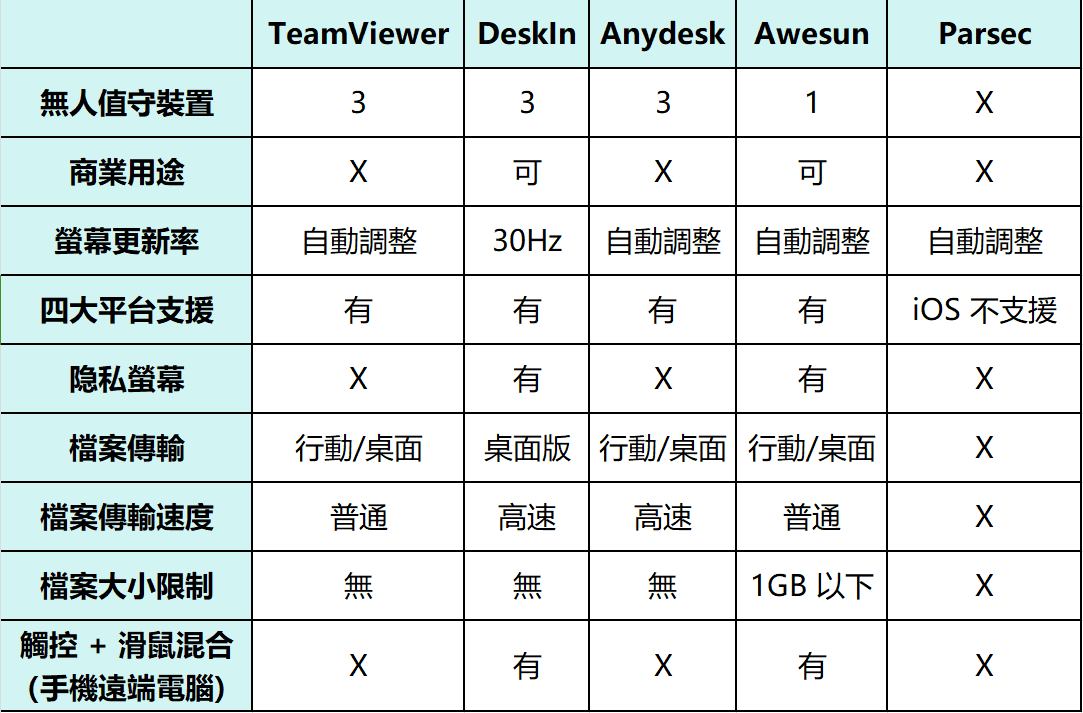
注: 這裡說的四大平台是 Windows、Mac、iOS 和 Android。


遠端工作:DeskIn優勝Awesun

這 5 款遠端桌面軟體,免費版只有 DeskIn 和 Awesun 可以商用,Teamviewer,Anydesk 和 Parsec 都必須升級付費版才可以,因此在遠端工作情境中,我主要比較 DeskIn 和 Awesun 這二個。

基本操作比較:DeskIn更加直覺順手

DeskIn 和 Awesun 電腦版的操作介面都比較簡潔,一些我會用到的功能都能很快找到,如:文字對話、快速切換雙螢幕畫面。但整體連缐速度和穩定性DeskIn會更高,Awesun相對卡頓感會更强。

操作上,Awesun 的滾輪滑動距離很短,不像 DeskIn 滑動很順,在瀏覽頁面和網頁時感受很明顯。

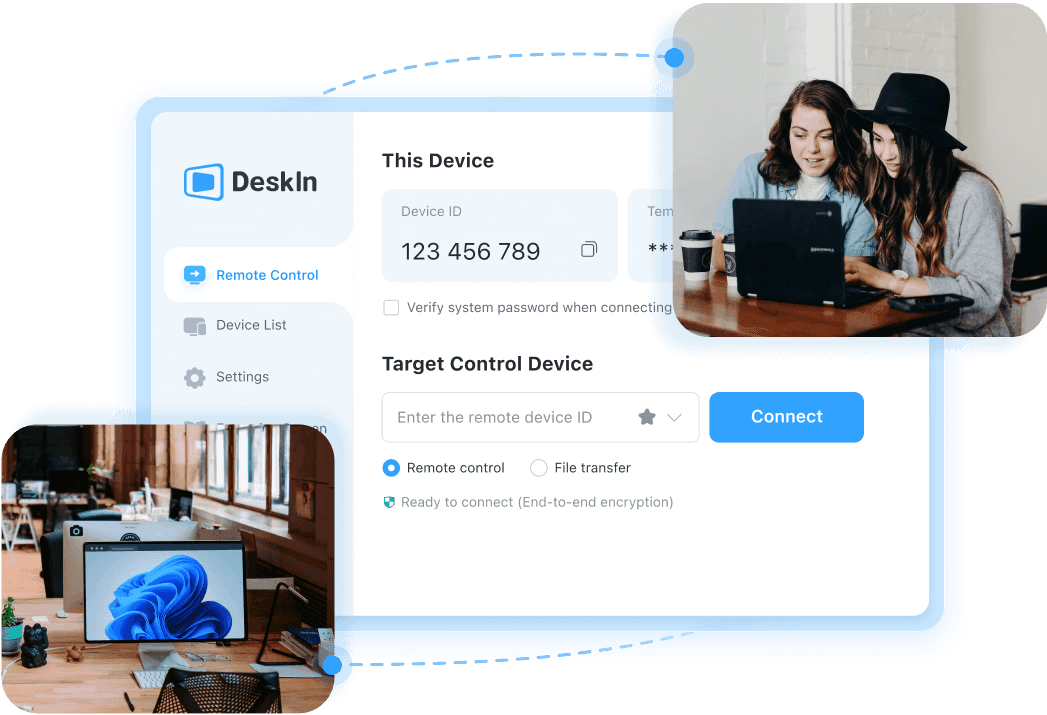
DeskIn桌面端

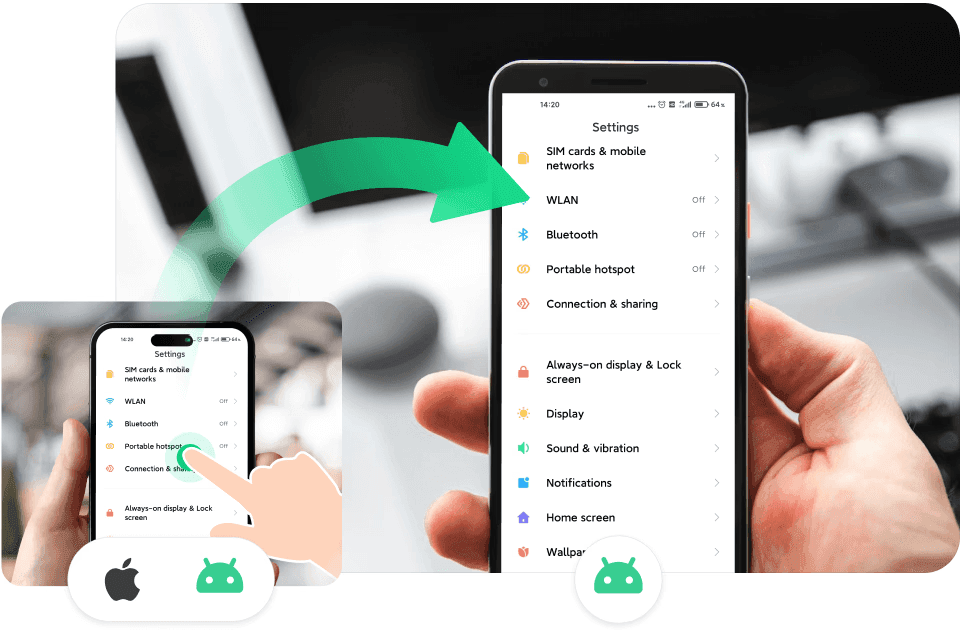
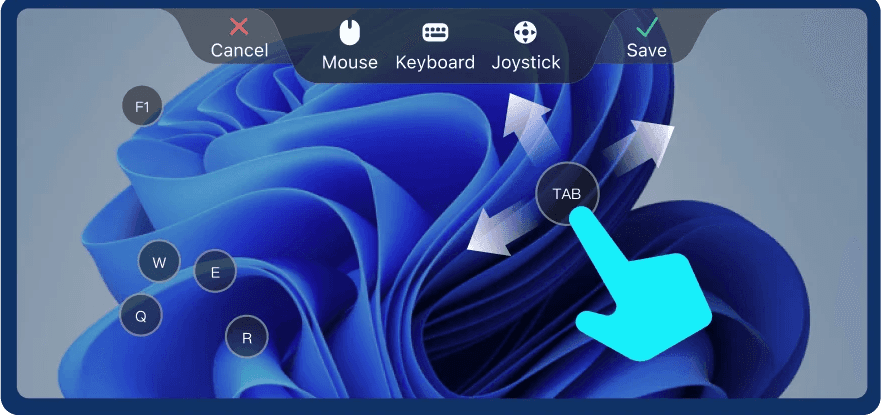
DeskIn 手機版可說是我用過最順手的一款,我非常喜歡它的觸控 + 滑鼠混合模式,可以隨時依不同需求快速切換,搭配一些手勢,瀏覽網頁,切換視窗都很方便:
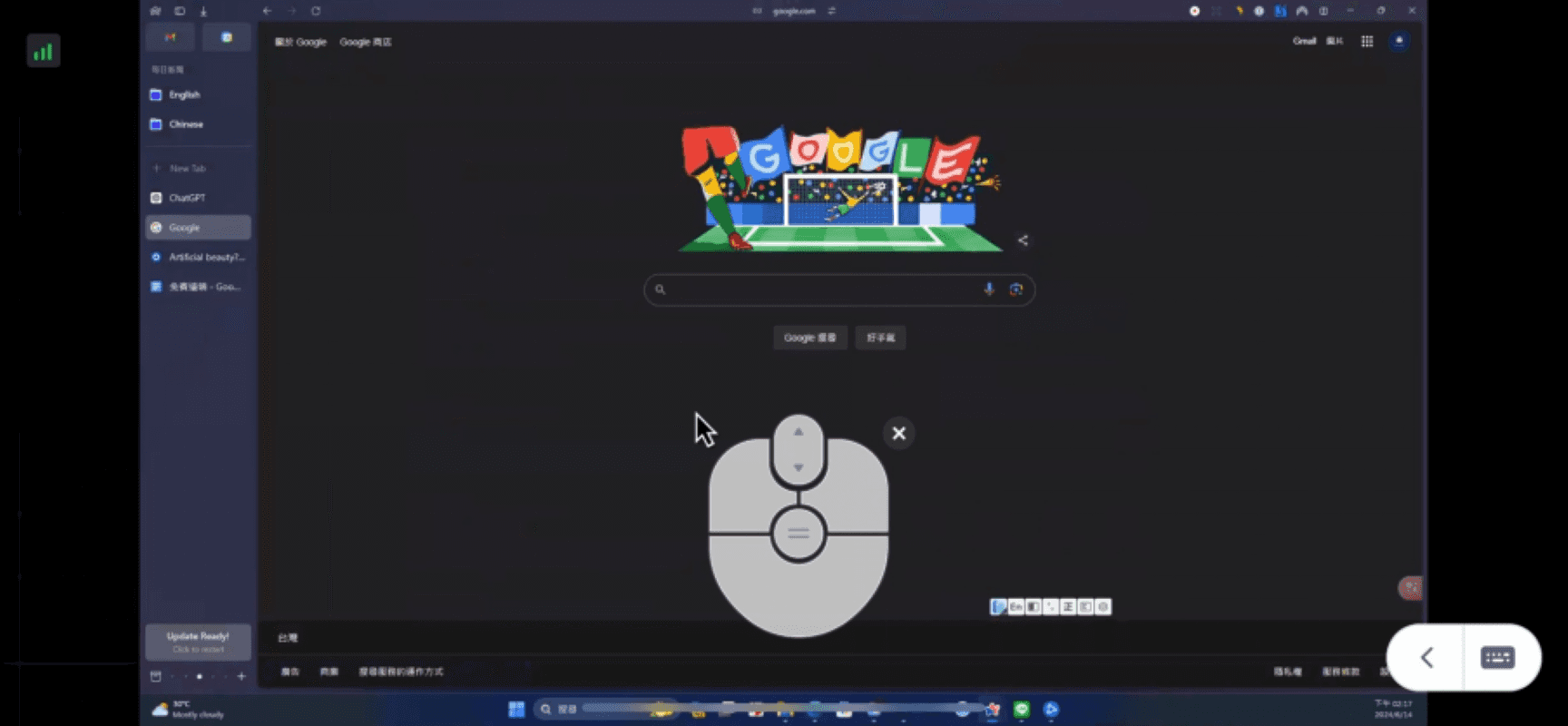

畫面反應速度也極快,就算是用手機,也能很順暢的完成遠端工作。也提供一些不錯的功能,像是跟遠端設備發訊息、語音通話,內建可快速切換視窗的「任務視圖」,這個我覺得非常好用,手機也能很容易切換其他要用的視窗:


Awesun 手機版也有觸控 + 滑鼠混合,另外我還蠻喜歡一點是,功能選單只有單層設計,對手機很友善,可很快找到要使用的功能。但相較於 DeskIn,Awesun 提供的實用功能比較少,尤其是沒有任務視圖快捷鍵,切換視窗就變得困難很多。也沒有跟遠端裝置溝通的功能比如語音通話,必須用其他 App,對於遠端協作來説比較不方便。


檔案傳輸比較:DeskIn無速度、檔案大小限制

DeskIn 手機版的傳輸檔案功能是付費會員專屬,這點比較可惜,但電腦版免費用戶就能用。傳輸速度還蠻快的,可以拖拽傳檔,同個網路,透過 Wi-Fi 傳輸 5GB 檔案大約僅花 3 分多鐘。Awesun 電腦版、手機版都能免費使用傳輸檔案功能,不過有檔案大小限制,超過 1GB 的檔案就不行,所以使用上有侷限。


遠端輸入比較:DeskIn快捷按鍵超順手

打字部分,電腦版都差不多,所以就不比較,只分享手機遠端電腦的體驗。

DeskIn 和 Awesun 手機版鍵盤都大約只佔畫面一半,所以用手機遠端打字起來都還蠻舒服的。

DeskIn 有一個很大的優點,它可以把常用快捷鍵固定懸浮在鍵盤上方或是遠端畫面,像是複製貼上,打字時,我可以很容易複製想要的內容,然後貼在需要的位置,也可以自訂快捷按鍵:
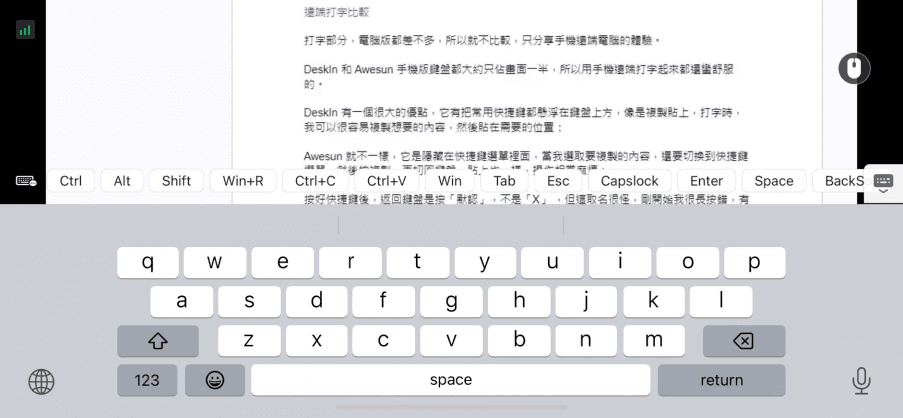
Awesun 就不一樣,它是隱藏在快捷鍵選單裡面,當我選取要複製的內容,還要切換到快捷鍵選單,然後按複製,再切回鍵盤,貼上也一樣,操作相當麻煩

另外,按好快捷鍵後,返回鍵盤是按「默認」,不是「X」 ,但這取名很怪,剛開始我很長按錯,有時候真的會抓狂。


另外三款的操作介面,這邊也簡短分享一下:

Teamviewer:功能齊全但傳檔龜速,手機端操作不順手

  • 連缐較慢:不知道是不是免費版原因,我用下來電腦版和手機版按連線之後都會慢半拍,特別是手機,一開始我還以為是沒點到,結果最後點太多下,顯示重複連線的錯誤。

  • 功能齊全:電腦版功能蠻齊全的,該有的都有,還有提供「留下訊息功能」,遠端階段結束後,訊息會保留下來,如果是幫別人修電腦、傳檔案之類,就能用這功能留下要告訴對方的內容:

  • 傳檔較慢:Teamviewer 電腦版和手機版都能使用傳輸檔案功能。不過,免費版傳檔速度有點驚訝的慢,5GB 竟然要花費 30 幾分鐘才完成。

  • 行動端操作不順手:手機版的滑鼠功能不支援觸控和鼠標共用,需要進到選單切換,操作上不是很方便。複製和貼上的快捷鍵也沒有跟鍵盤整合,而是在另一個選單裡,打字時不太容易複製或貼上內容:

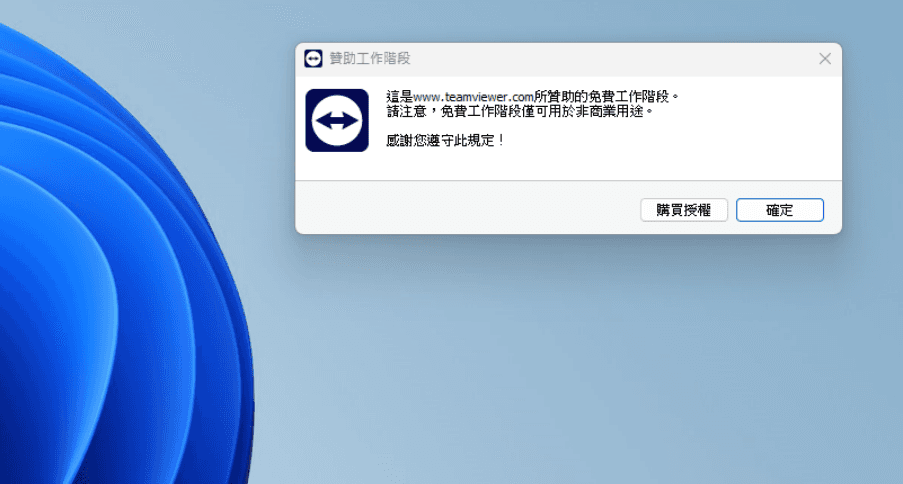
  • 誤判商用:另一個有點煩人的點是,免費版每次用完都會提醒不能用於商業用途,而且是二台設備都會跳出,沒辦法永久關掉

Anydesk:傳檔高速,中文輸入異常

Anydesk電腦版無需安裝登入即可使用,比較方便,但軟體的界面比較古早。很不錯的是檔案傳輸速度非常快,跟 DeskIn 有得拼,但連缐畫面就沒有很順暢,清晰度也不是很夠,特別是滑動頁面,可以明顯感受到慢個 1~2 秒,即便我設定「最佳化反應時間」也一樣。

手機版的功能表隱藏在右側,往左滑才會叫出,我還蠻喜歡這設計,遠端桌面的畫面更不受干擾,但 iPhone 和 Android 遠端 PC 都有一些輸入問題:

iPhone 的中文輸入法支援性不太好,我的 PC 是第三方的輸入法,遠端時沒辦法正常打字,只會出現注音符號,PC 必須切換到 Windows 內建輸入法才能正常打字;

Android 雖然可以正常輸入,但沒辦法操作刪除動作,必須關掉然後重新打開鍵盤才可以。另外切換中文、英文鍵盤時,有時候手機的鍵盤也會突然消失。


Parsec:適合遊戲,基本無辦公功能

Parsec 是唯一一款不支援中文的遠端桌面軟體,不過設置還蠻簡單,安裝好並登入帳號,就能開始遠端連線。

電腦版幾乎沒有什麼功能,連傳輸檔案都不行,只能調整畫面和傳輸設定。手機版僅支援 Android,所以 iPhone 沒辦法用,不過也沒差,因為這款的手機版非常陽春,就只能操控跟打字,畫面還無法放大、不能輸入中文,很不好用:

Parsec 比較適合用在遊戲用途,工作或一般使用完全不推薦。


遠端遊戲情境比較

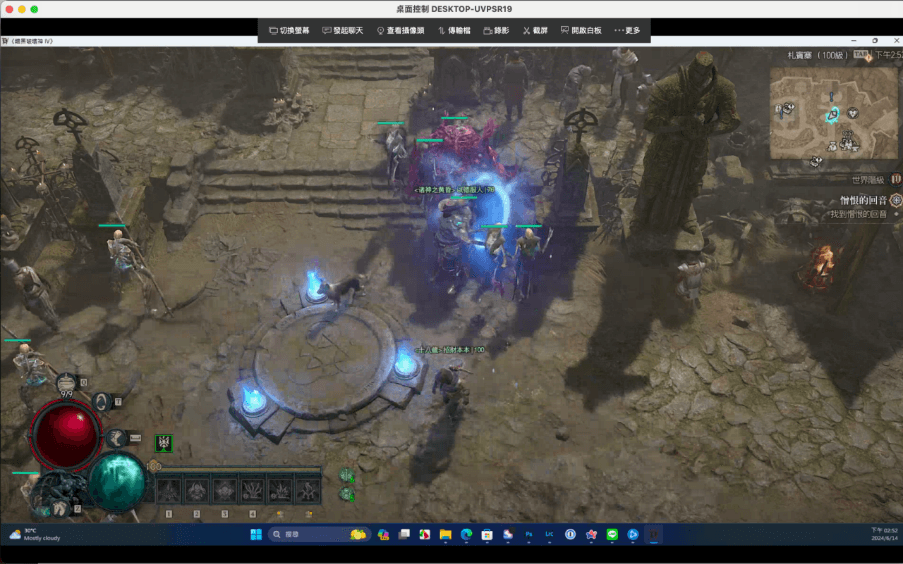
遊戲部分我測試「用 MacBook 遠端玩 PC 上的暗黑破壞神四」,來試試每一款的連線品質和延遲狀況。這也是我偶爾會用到的狀況,有時候帶 MacBook Pro 出門工作,休息時會想玩遊戲,而家裡的 PC 如果開著,就能用遠端軟體輕鬆實現。

Teamviewer

首先我測試 Teamviewer,雖然玩是沒問題,但明顯就是感覺到不順,有時候移動會慢半拍、甚至畫面頓了一下,玩起來體驗沒有那麼好,不太推薦。我也有測試過品質設定在「速度優先」,狀況一樣沒有改善。

DeskIn

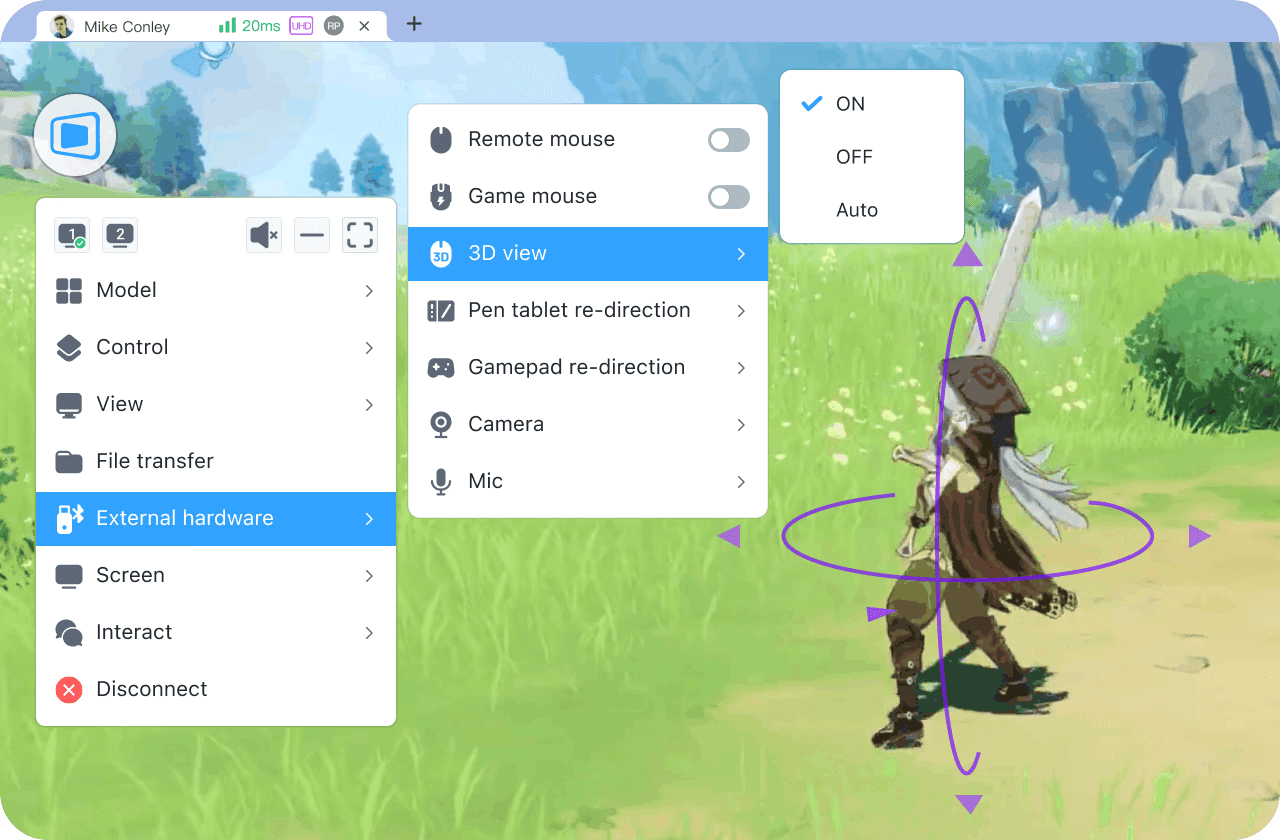
再來是 DeskIn,就讓我相當滿意,畫面清晰度高,遊玩 30 分鐘都很順,另外可以看到即時的幀率和延遲度,很不錯。它還有提供 4K 60fps、144fps 的選項,對遊戲應該會更加分,不過僅付費版:

Anydesk

Anydesk 的畫質可說是 5 款當中最好,玩起來也順,但我有發現一個比較麻煩的問題,玩的過程中,我遠端電腦 CPU 佔用率飆升到 70%~80%,導致電腦風扇快速運轉,聲音很大,讓人有點擔心玩久電腦會不會出狀況,不是很放心:

Awesun

Awesun 唯獨切換遊戲場景會稍微頓一下(如:回城),其他都還蠻順的。但這款的 Mac 版好像穩定性有問題,我遠端過一次後,下次再次打開就會當掉,需要重灌軟體才會修復,也沒有聲音:
Parsec

Parsec 遠端遊戲果然很不錯,玩暗黑四順暢度一流,而且有提供頻寬設定,可以根據當前狀況,調整使用的頻寬,進而讓畫面變得更順、延遲度更低。也可以創建房間進行多人遊戲,如果你只有遠端遊戲的需求,可以盲選這款。

遠端觀看影片比較

用手機遠端連回電腦看影片,可以很快速的測出每一款遠端軟體的延遲表現。

我測試多部影片,從 YouTube、Netflix、到電腦裡的影片都有,播放都很順暢的有三款:Teamviewer、DeskIn 以及 Parsec,不過 Teamviewer 和 Parsec 有一些問題。

Teamviewer 雖然速度很順暢,但遠端後聲音很小,就算我把手機聲音調到最大也一樣,而且沒辦法設定靜音,意味著如果電腦有聲音正在播放,那手機就會發出聲音。

Parsec 的速度和聲音品質都相當不錯,但因為手機版沒辦法縮放畫面,因此只能全螢幕播放。

DeskIn 就沒有以上這些問題,各方面都讓人滿意。

至於 Anydesk,畫面是很順,不過目前手機版的傳輸音效是壞的,iOS 和 Android 都是,我有確認過功能開啟,手機也調到最大聲且關閉靜音,還是沒有聲音。

Awesun 就蠻差的,聲音會斷斷續續,而且無法跟畫面同步,由此可見連線品質不是很好。

如何選擇遠端桌面軟體

在選擇遠端桌面軟體時,「功能」和「連線品質」可說是最重要,功能一定要能滿足你的使用需求,像是能不能傳輸檔案、跟遠端設備通訊、鍵盤打字順不順手。不同的軟體也會有一些不同的附加功能提高軟體可用性,像DeskIn就可以進行螢幕擴充和語音通話。

另外連線品質如果延遲太高,會大幅影響你的遠端操作效率,所以一定要延遲低的遠端軟體。

還有支援多平台,最好 iOS、Android、Windows、PC 都有,這樣未來無論換什麼平台,都能繼續進行遠端作業。

總結

我原本以為最有名的 Teamviewer,使用體驗上應該會最好,沒想到測試之後發現還蠻多缺點的,由此可見,真的要用過才知道哪一款最適合自己。

整體表現最讓我滿意的是 DeskIn,如果你正在找遠端桌面軟體,很推薦試試這款。
因為工作關係,常常要用到遠端桌面軟體,因此花了一些時間測試 5 款免費遠端桌面軟體,包括 Teamviewer、DeskIn、Anydesk、Awesun 和 Parsec,這裡就分享實測下來幾款在遠端工作、遠端遊戲、遠端觀看影片上的表現,提供給在尋找好用的遠端軟體、或有遠端作業需求的人參考。作者大多數用手機遠端 PC,以及 MacBook 遠端 PC,所以下面的測試比較,都是這種使用環境為主。


免費遠端桌面軟體規格比較表

注: 這裡說的四大平台是 Windows、Mac、iOS 和 Android。


遠端工作:DeskIn優勝Awesun

這 5 款遠端桌面軟體,免費版只有 DeskIn 和 Awesun 可以商用,Teamviewer,Anydesk 和 Parsec 都必須升級付費版才可以,因此在遠端工作情境中,我主要比較 DeskIn 和 Awesun 這二個。

基本操作比較:DeskIn更加直覺順手

DeskIn 和 Awesun 電腦版的操作介面都比較簡潔,一些我會用到的功能都能很快找到,如:文字對話、快速切換雙螢幕畫面。但整體連缐速度和穩定性DeskIn會更高,Awesun相對卡頓感會更强。

操作上,Awesun 的滾輪滑動距離很短,不像 DeskIn 滑動很順,在瀏覽頁面和網頁時感受很明顯。

DeskIn桌面端

DeskIn 手機版可說是我用過最順手的一款,我非常喜歡它的觸控 + 滑鼠混合模式,可以隨時依不同需求快速切換,搭配一些手勢,瀏覽網頁,切換視窗都很方便:


畫面反應速度也極快,就算是用手機,也能很順暢的完成遠端工作。也提供一些不錯的功能,像是跟遠端設備發訊息、語音通話,內建可快速切換視窗的「任務視圖」,這個我覺得非常好用,手機也能很容易切換其他要用的視窗:


Awesun 手機版也有觸控 + 滑鼠混合,另外我還蠻喜歡一點是,功能選單只有單層設計,對手機很友善,可很快找到要使用的功能。但相較於 DeskIn,Awesun 提供的實用功能比較少,尤其是沒有任務視圖快捷鍵,切換視窗就變得困難很多。也沒有跟遠端裝置溝通的功能比如語音通話,必須用其他 App,對於遠端協作來説比較不方便。


檔案傳輸比較:DeskIn無速度、檔案大小限制

DeskIn 手機版的傳輸檔案功能是付費會員專屬,這點比較可惜,但電腦版免費用戶就能用。傳輸速度還蠻快的,可以拖拽傳檔,同個網路,透過 Wi-Fi 傳輸 5GB 檔案大約僅花 3 分多鐘。Awesun 電腦版、手機版都能免費使用傳輸檔案功能,不過有檔案大小限制,超過 1GB 的檔案就不行,所以使用上有侷限。


遠端輸入比較:DeskIn快捷按鍵超順手

打字部分,電腦版都差不多,所以就不比較,只分享手機遠端電腦的體驗。

DeskIn 和 Awesun 手機版鍵盤都大約只佔畫面一半,所以用手機遠端打字起來都還蠻舒服的。

DeskIn 有一個很大的優點,它可以把常用快捷鍵固定懸浮在鍵盤上方或是遠端畫面,像是複製貼上,打字時,我可以很容易複製想要的內容,然後貼在需要的位置,也可以自訂快捷按鍵:

Awesun 就不一樣,它是隱藏在快捷鍵選單裡面,當我選取要複製的內容,還要切換到快捷鍵選單,然後按複製,再切回鍵盤,貼上也一樣,操作相當麻煩

另外,按好快捷鍵後,返回鍵盤是按「默認」,不是「X」 ,但這取名很怪,剛開始我很長按錯,有時候真的會抓狂。


另外三款的操作介面,這邊也簡短分享一下:

Teamviewer:功能齊全但傳檔龜速,手機端操作不順手

  • 連缐較慢:不知道是不是免費版原因,我用下來電腦版和手機版按連線之後都會慢半拍,特別是手機,一開始我還以為是沒點到,結果最後點太多下,顯示重複連線的錯誤。

  • 功能齊全:電腦版功能蠻齊全的,該有的都有,還有提供「留下訊息功能」,遠端階段結束後,訊息會保留下來,如果是幫別人修電腦、傳檔案之類,就能用這功能留下要告訴對方的內容:

  • 傳檔較慢:Teamviewer 電腦版和手機版都能使用傳輸檔案功能。不過,免費版傳檔速度有點驚訝的慢,5GB 竟然要花費 30 幾分鐘才完成。

  • 行動端操作不順手:手機版的滑鼠功能不支援觸控和鼠標共用,需要進到選單切換,操作上不是很方便。複製和貼上的快捷鍵也沒有跟鍵盤整合,而是在另一個選單裡,打字時不太容易複製或貼上內容:

  • 誤判商用:另一個有點煩人的點是,免費版每次用完都會提醒不能用於商業用途,而且是二台設備都會跳出,沒辦法永久關掉


Anydesk:傳檔高速,中文輸入異常

Anydesk電腦版無需安裝登入即可使用,比較方便,但軟體的界面比較古早。很不錯的是檔案傳輸速度非常快,跟 DeskIn 有得拼,但連缐畫面就沒有很順暢,清晰度也不是很夠,特別是滑動頁面,可以明顯感受到慢個 1~2 秒,即便我設定「最佳化反應時間」也一樣。

手機版的功能表隱藏在右側,往左滑才會叫出,我還蠻喜歡這設計,遠端桌面的畫面更不受干擾,但 iPhone 和 Android 遠端 PC 都有一些輸入問題:

iPhone 的中文輸入法支援性不太好,我的 PC 是第三方的輸入法,遠端時沒辦法正常打字,只會出現注音符號,PC 必須切換到 Windows 內建輸入法才能正常打字;

Android 雖然可以正常輸入,但沒辦法操作刪除動作,必須關掉然後重新打開鍵盤才可以。另外切換中文、英文鍵盤時,有時候手機的鍵盤也會突然消失。


Parsec:適合遊戲,基本無辦公功能

Parsec 是唯一一款不支援中文的遠端桌面軟體,不過設置還蠻簡單,安裝好並登入帳號,就能開始遠端連線。

電腦版幾乎沒有什麼功能,連傳輸檔案都不行,只能調整畫面和傳輸設定。手機版僅支援 Android,所以 iPhone 沒辦法用,不過也沒差,因為這款的手機版非常陽春,就只能操控跟打字,畫面還無法放大、不能輸入中文,很不好用:

Parsec 比較適合用在遊戲用途,工作或一般使用完全不推薦。


遠端遊戲情境比較

遊戲部分我測試「用 MacBook 遠端玩 PC 上的暗黑破壞神四」,來試試每一款的連線品質和延遲狀況。這也是我偶爾會用到的狀況,有時候帶 MacBook Pro 出門工作,休息時會想玩遊戲,而家裡的 PC 如果開著,就能用遠端軟體輕鬆實現。

Teamviewer

首先我測試 Teamviewer,雖然玩是沒問題,但明顯就是感覺到不順,有時候移動會慢半拍、甚至畫面頓了一下,玩起來體驗沒有那麼好,不太推薦。我也有測試過品質設定在「速度優先」,狀況一樣沒有改善。

DeskIn

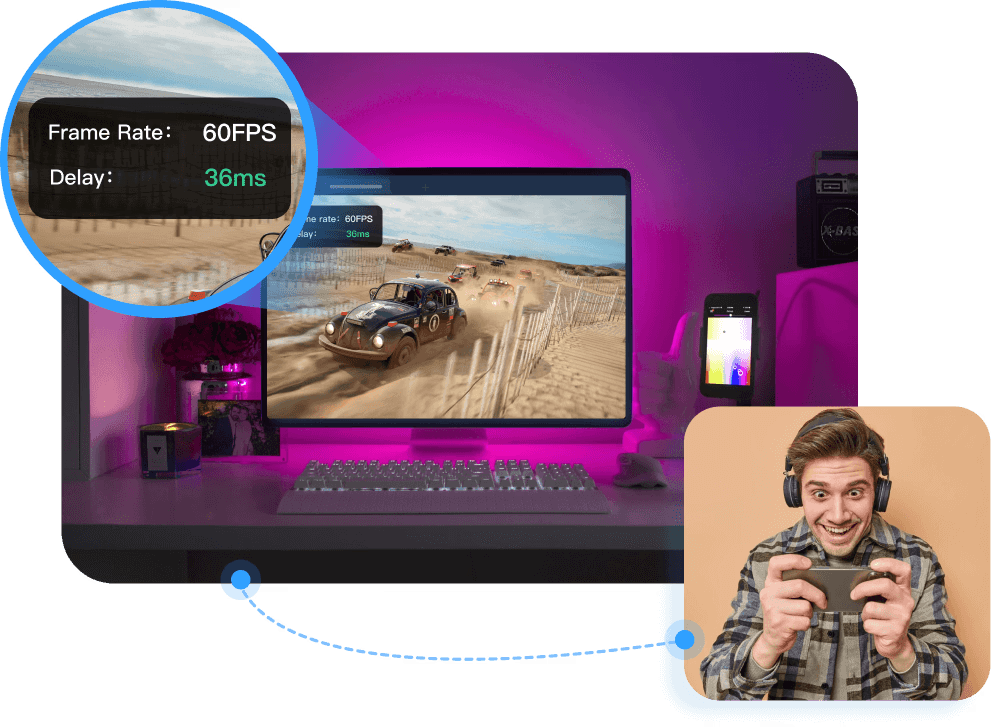
再來是 DeskIn,就讓我相當滿意,畫面清晰度高,遊玩 30 分鐘都很順,另外可以看到即時的幀率和延遲度,很不錯。它還有提供 4K 60fps、144fps 的選項,對遊戲應該會更加分,不過僅付費版:

Anydesk

Anydesk 的畫質可說是 5 款當中最好,玩起來也順,但我有發現一個比較麻煩的問題,玩的過程中,我遠端電腦 CPU 佔用率飆升到 70%~80%,導致電腦風扇快速運轉,聲音很大,讓人有點擔心玩久電腦會不會出狀況,不是很放心:

Awesun

Awesun 唯獨切換遊戲場景會稍微頓一下(如:回城),其他都還蠻順的。但這款的 Mac 版好像穩定性有問題,我遠端過一次後,下次再次打開就會當掉,需要重灌軟體才會修復,也沒有聲音:

Parsec

Parsec 遠端遊戲果然很不錯,玩暗黑四順暢度一流,而且有提供頻寬設定,可以根據當前狀況,調整使用的頻寬,進而讓畫面變得更順、延遲度更低。也可以創建房間進行多人遊戲,如果你只有遠端遊戲的需求,可以盲選這款。

遠端觀看影片比較

用手機遠端連回電腦看影片,可以很快速的測出每一款遠端軟體的延遲表現。

我測試多部影片,從 YouTube、Netflix、到電腦裡的影片都有,播放都很順暢的有三款:Teamviewer、DeskIn 以及 Parsec,不過 Teamviewer 和 Parsec 有一些問題。

Teamviewer 雖然速度很順暢,但遠端後聲音很小,就算我把手機聲音調到最大也一樣,而且沒辦法設定靜音,意味著如果電腦有聲音正在播放,那手機就會發出聲音。

Parsec 的速度和聲音品質都相當不錯,但因為手機版沒辦法縮放畫面,因此只能全螢幕播放。

DeskIn 就沒有以上這些問題,各方面都讓人滿意。

至於 Anydesk,畫面是很順,不過目前手機版的傳輸音效是壞的,iOS 和 Android 都是,我有確認過功能開啟,手機也調到最大聲且關閉靜音,還是沒有聲音。

Awesun 就蠻差的,聲音會斷斷續續,而且無法跟畫面同步,由此可見連線品質不是很好。

如何選擇遠端桌面軟體

在選擇遠端桌面軟體時,「功能」和「連線品質」可說是最重要,功能一定要能滿足你的使用需求,像是能不能傳輸檔案、跟遠端設備通訊、鍵盤打字順不順手。不同的軟體也會有一些不同的附加功能提高軟體可用性,像DeskIn就可以進行螢幕擴充和語音通話。

另外連線品質如果延遲太高,會大幅影響你的遠端操作效率,所以一定要延遲低的遠端軟體。

還有支援多平台,最好 iOS、Android、Windows、PC 都有,這樣未來無論換什麼平台,都能繼續進行遠端作業。

總結

我原本以為最有名的 Teamviewer,使用體驗上應該會最好,沒想到測試之後發現還蠻多缺點的,由此可見,真的要用過才知道哪一款最適合自己。

整體表現最讓我滿意的是 DeskIn,如果你正在找遠端桌面軟體,很推薦試試這款。

Play x Work
All at Once

DeskIn Remote Game

only $14.32 USD 🎉 Limited on July 16-31

Add promo code: deskinsummer1
5 Remote Desktop Software

章節目錄

1212 big sale
Benifits of remote access

How Different Users Benefit from DeskIn Remote Access Solutions: A Complete Guide

In today’s interconnected world, having a reliable remote access solution isn’t a luxury anymore; it’s baseline survival. Whether you’re gaming from your phone, editing your portfolio on an iPad, fixing your parents’ laptops (again), or simply trying to access files on your work PC while sipping coconut water on the beach, remote access has become an everyday tool we can no longer live without.

But there’s the real question:

How can one piece of technology serve gamers, creatives, IT pros, students, remote workers, and everyday families, all with completely different needs?

That’s where DeskIn comes in. A next-gen remote desktop tool that turns any device into your control center. It’s fast, flexible, intuitive, and powerful, but most importantly, it adapts to who you are and how you work.

Let’s break down how different types of users benefit from DeskIn’s modern, full-stack remote access software.

Free download DeskIn

What Is a Remote Access Solution?

Remote access

A remote access solution is a technology that lets you connect, access, view, and control another device, computer, tablet, or smartphone from anywhere. Imagine bringing your entire desktop around like it’s in your pocket. That’s the essence of remote PC access.

Typical use cases include:

  • Working from home and accessing office desktops

  • Helping family troubleshoot their devices

  • Pulling a file from your computer while traveling

  • Playing PC games on your mobile

  • Using a tablet as an extended screen

  • Running heavy software on a low-power laptop

  • Providing IT remote support far away

  • Sharing screens for teaching, collaboration, or presentations

But here’s the important thing: Different users need different things from a remote desktop software.

Gamers want high FPS. Designers want true color. IT teams want full-control tools. Students want access to specific applications. Families want something simple and secure.

DeskIn bridges all these needs in one user-friendly platform: low-latency engine, high-quality streaming, no paywall restrictions, and advanced features across every device.

Let’s explore how.

Free download DeskIn

How Different Users Benefit from DeskIn’s Remote Access Solutions

For Gamers: Play Without Limits

Remote desktop for gamers

If you’re a gamer, you already know the struggle: you finally have time to play, but you’re not near your gaming PC. Or worse, you are near it, but the TV is occupied, your desk is uncomfortable, or your rig isn’t even in the same city. Add classic issues like lag, frame drops, and poor compatibility from cloud platforms, and the fun disappears fast.

That’s where DeskIn becomes a game-changer, literally.

With Deskin’s Remote Game, gamers also get:

  • Adapt to game controller support

  • Smooth remote PC access for all types of games from mobile

  • Screen casting to bigger displays

  • The ability to use your mobile, tablet, and laptop as a second screen (maps, inventory, Discord, etc.)

  • Immersive Auto 3D view for a more lifelike gaming perspective

Play from the couch, airport, or your grandma’s house. DeskIn makes remote gaming feel local.

Read More:

For Designers: Create Seamlessly Across Devices

Remote access for designers

Designers live and breathe precision. You need accurate colors, responsive pen input, and the freedom to work on massive project files: none of which most traditional remote desktop software can handle well.

With DeskIn’s Remote Design, creatives can:

  • Use an iPad as a second screen or digital drawing tablet

  • Draw with pressure sensitivity and minimal latency

  • Share their screen for real-time client or team collaboration

  • Chat, annotate, and revise designs instantly

  • Transfer huge assets between devices, no size limits, no compression

Whether you’re designing a logo, editing a 4K video, or retouching photos on the go, DeskIn keeps your creative flow seamless across all your devices.

Read More: Remote Work Software for Creatives: True Color, Real Speed 

For Remote Workers: Work from Anywhere Like You’re at Your Desk

remote access for workers

Remote work is easy, until you realize your spreadsheet, accounting software, or internal system lives on your office PC. DeskIn turns any device into a portable workstation through secure, fast, and smooth remote PC access.

With DeskIn’s Remote Work, you can:

  • Access your work computer securely from home

  • Transfer files instantly using drag-and-drop

  • Run business applications with full performance

  • Log in to systems or tools only available on office networks

  • Wake-on-LAN for powering up your office PC from anywhere

  • Built-in voice chat for meetings

  • Hassle-free screen extension for multitasking

For IT Support & Technicians: Resolve Issues in Real Time

remote access for IT support

IT technicians know the pain of long commutes, on-site visits, or trying to guide non-tech users over the phone. DeskIn wipes out that frustration by giving IT teams a full command center for remote troubleshooting.

Through DeskIn’s Remote Support, support teams can:

  • Take full-screen control of any device

  • Access Task Manager, terminal, and system tools

  • Reboot, shutdown, or Wake-on-LAN remotely

  • Use unattended connections for always-available devices

  • Group devices and switch instantly between them

For Everyday Users – Simplify Daily Tech Tasks

remote desktop for mobile control

Not everyone needs advanced IT tools; sometimes you just need to fix something quickly. DeskIn makes everyday tech life easier for families, casual users, and anyone who wants to “get things done remotely.”

Imagine these scenarios:

  • Helping your parents install a printer

  • Fixing your kid’s tablet while you’re out

  • Retrieving a file from your home computer during a meeting

  • Using an old phone as a baby or pet cam

  • Sending photos from Android to iPhone (or vice versa) without drama

It’s the everyday, no-stress remote desktop tool your household didn’t know it needed, but will love once they try it.

For Students & Teachers — DeskIn Makes Remote Learning Actually Productive

remote leanring and teaching

Cloud tools like Canva, Docs, and Google Classroom are great, but they don’t replace full computer access. Students often need access to software that schools don’t provide in the cloud: AutoCAD, Adobe Suite, MATLAB, Unity, SPSS, and more. Teachers also need to demonstrate real software, run simulations, and review student work beyond PDFs and screenshots.

DeskIn fills that gap with powerful, classroom-grade remote desktop software:

  • Access school lab computers from home

  • Run heavy apps without owning a powerful PC

  • Use smooth, low-latency screen sharing for teaching

  • Collaborate in real time with remote control and annotations

  • Let students join lessons from any device

Cloud tools assist learning. DeskIn elevates it. With true remote file access, fast streaming, and high-quality visuals, students and educators get the full computer lab experience from anywhere.

For Families — DeskIn Solves Every “Tech Problem” in Minutes

remote access for family support

Here’s the truth: cloud tools are great for sharing documents, but they can’t fix devices. When your parents call to say “something popped up on my screen,” Google Drive can’t help. DeskIn can.

DeskIn gives families real, hands-on remote PC access so you can:

  • Fix relatives’ computers

  • Install their apps

  • Remove unwanted pop-ups

  • Adjust settings

  • Help them find files

  • Transfer documents for them

Instead of describing steps verbally (“Click the thing…no, not that thing!”), you can just take over their screen and solve it in seconds.

Free download DeskIn

Why Choose DeskIn for Remote Access?

Instead of relying on outdated, slow, or restricted platforms, users get modern remote desktop software that adapts to different devices, workstyles, and performance demands. DeskIn is powerful enough for advanced users yet simple enough for beginners: a rare balance in the world of remote access software.

Core Features That Benefit Every User

  • Cross-platform compatibility (Windows, Mac, iOS, Android)
    DeskIn connects every major OS seamlessly, ensuring smooth remote PC access whether you’re switching between your phone, tablet, laptop, or desktop.

  • Ultra-low latency (as low as 40ms)
    With the ZeroSync® Engine, DeskIn keeps interactions instant, perfect for gaming, design, or real-time troubleshooting.

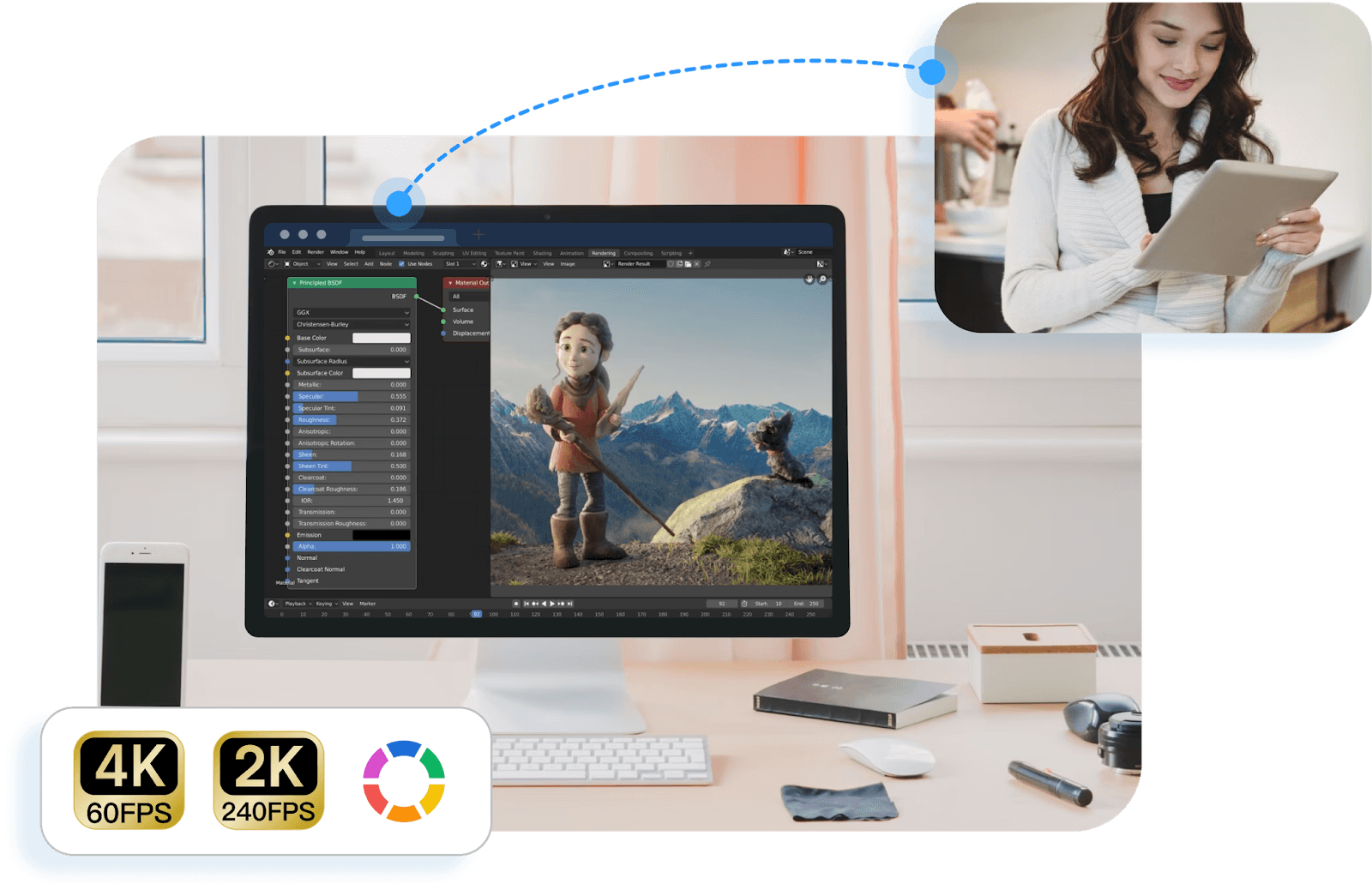
  • High performance (4K60FPS, 2K144FPS)
    Enjoy crisp visuals and buttery-smooth streaming that outperforms many traditional remote desktop tools.

  • Secure 256-bit encryption + privacy screen
    Advanced security ensures your sessions, files, and private data are fully protected during every connection.

  • Fast, reliable file transfer
    Move files between devices instantly, making remote file access as simple as drag-and-drop.

  • Built-in chat, voice call & whiteboard
    Communicate clearly during support sessions, collaboration, or remote teaching.

  • Wake-on-LAN
    Power on your work or home PC from anywhere, even if it’s asleep.

  • Unattended Access
    Perfect for IT support, remote work, or accessing personal devices without needing someone on the other end.

  • Remote printing
    Print documents from your remote computer to your local printer instantly.

  • Gaming features
    High FPS, low latency, controller support, and a smooth streaming pipeline make DeskIn a top-tier option for remote game sessions.

  • External device adaptation
    Use your tablet as a drawing surface, your phone as a controller, or attach peripherals seamlessly across devices.

  • Screen management modes
    Choose between screen extension, mirroring, or a virtual screen to boost multitasking and productivity on any setup.

DeskIn doesn’t lock advanced features behind subscriptions or device limitations. Everything from high-performance streaming to full remote desktop tool capabilities is included.

Try DeskIn free and unlock total control of your devices, anytime, anywhere.

Free download DeskIn

Get Started with DeskIn in 3 Easy Steps

Getting started with DeskIn is designed to be as simple as its powerful remote access solution capabilities. No complicated configurations, no technical setup, just instant connection across your devices.

Follow these three quick steps:

1. Download DeskIn on Both Devices

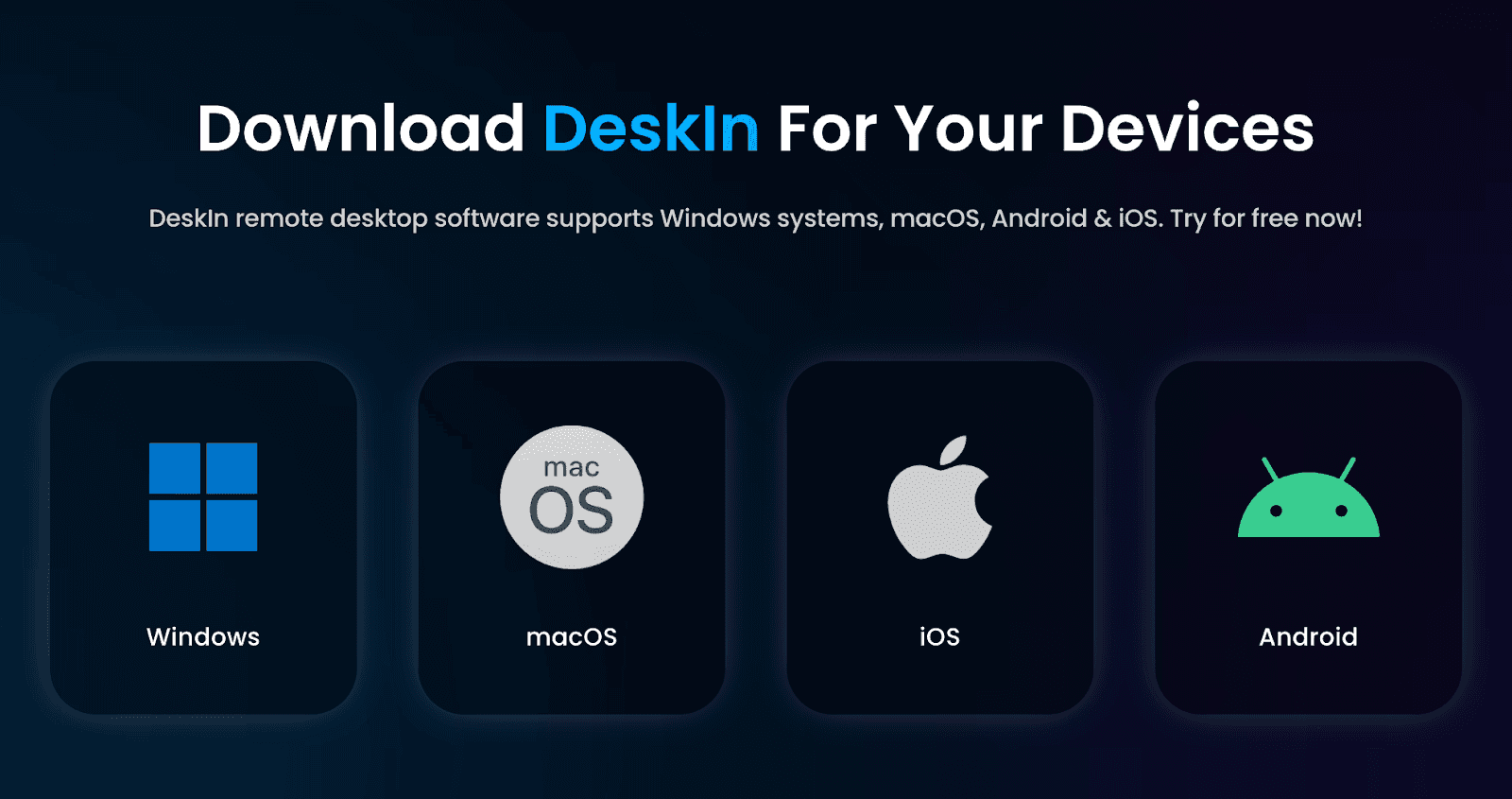
DeskIn download page

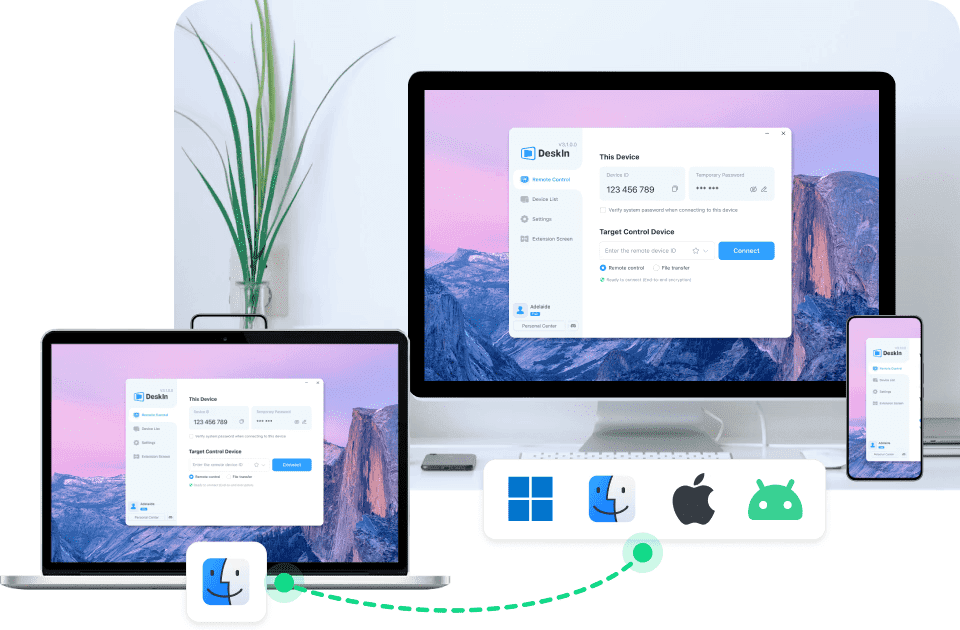
Install DeskIn on your desktop, laptop, phone, or tablet. It works across Windows, macOS, iOS, and Android for true cross-platform remote PC access.

2. Sign In to the Same DeskIn Account

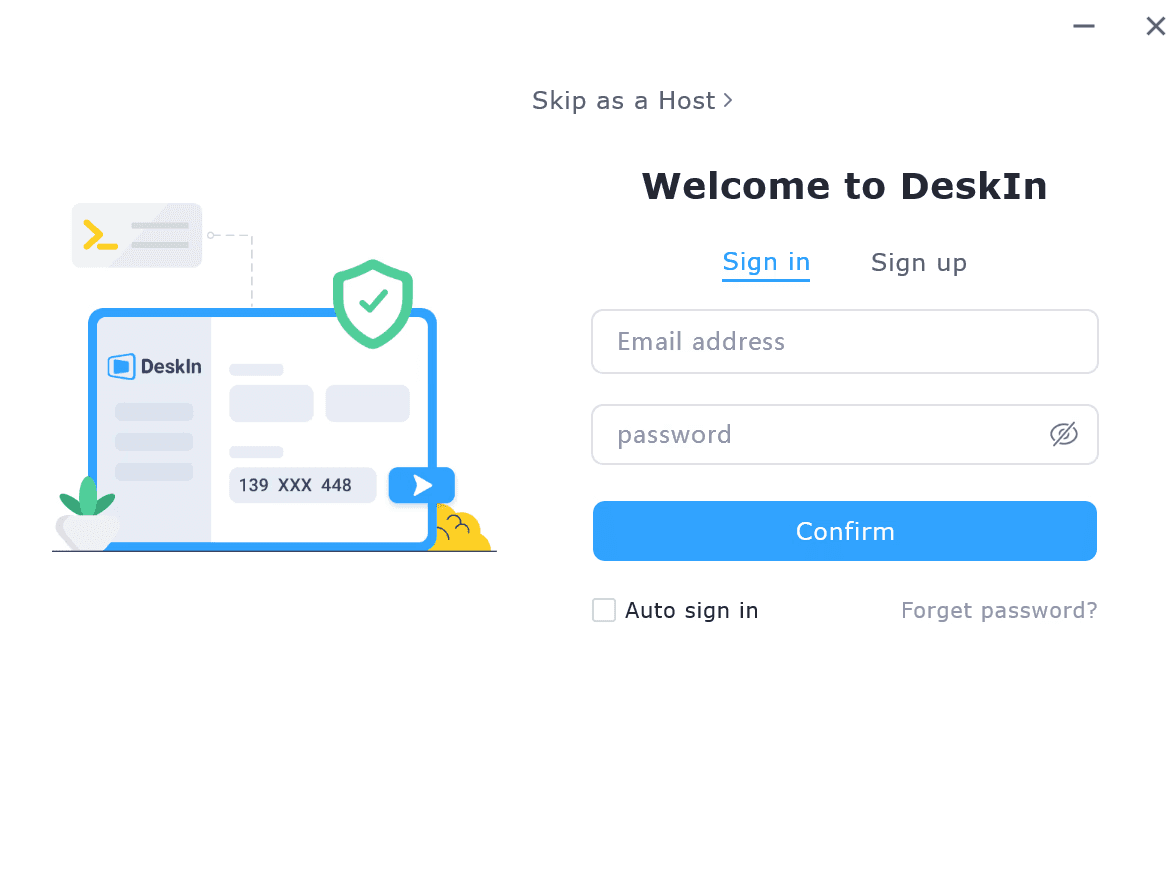
DeskIn sign-in page

Log in using your DeskIn account so your devices sync securely and appear in your device list.

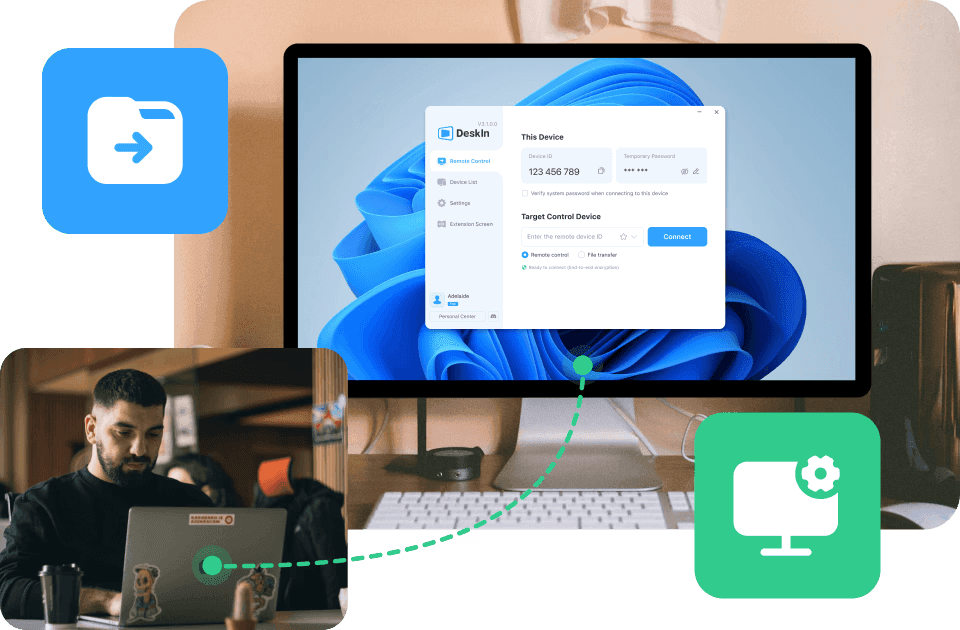
3. Enter the Remote Device’s Connect ID & Password

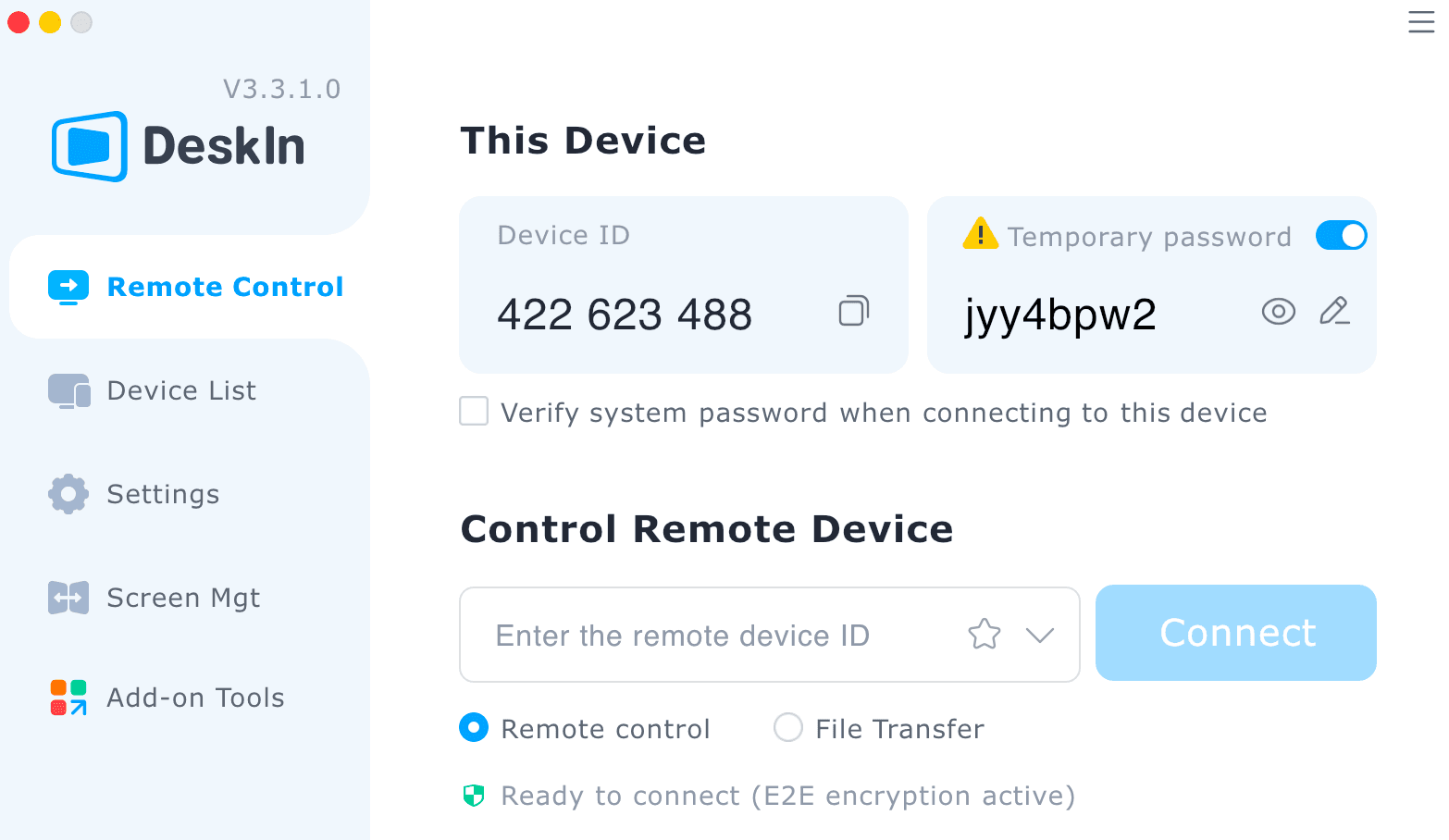
DeskIn remote desktop interface

For quick sessions or assisting someone else, simply input the Device ID and temporary password shown on their device to establish a secure session.

Once connected, choose exactly what you want to do:

Available Options

  • Remote Control — Full access to the desktop for work, support, productivity, or gaming

  • File Transfer — Move files across devices instantly with drag-and-drop convenience

  • Mirror Screen — View the remote screen in real time on any device

  • Screen Extension — Use your phone or tablet as an extended monitor for multitasking

  • Built-in Tools — Use draw mode, whiteboard, camera view, and chat for clearer communication

  • Customizable Settings — Adjust resolution, bitrate, and frame rate to match your network and performance needs


    Free download DeskIn

FAQ

  1. Is DeskIn secure for remote work and sensitive files?
    Yes. DeskIn uses 256-bit encryption, device authorization, and privacy screen mode to protect your data. Every remote session is fully encrypted, making it safe for work, IT support, and confidential file access.

  2. Can DeskIn be used for gaming?
    Absolutely. DeskIn is optimized for high-performance remote PC access, supporting up to 4K60FPS, low latency (as low as 40ms), controller input, and smooth streaming: perfect for remote gaming or playing PC titles on your mobile or tablet.

  3. Does DeskIn work across different operating systems?
    Yes. DeskIn is fully cross-platform, supporting Windows, macOS, iOS, and Android. You can connect and control any combination of devices with ease.

  4. What can I do once connected to a remote device with DeskIn?
    You can remotely control the device, transfer files, mirror screens, extend displays, access cameras, use built-in whiteboard tools, adjust resolution/frame rate, and even power on the device via Wake-on-LAN, all through one remote access software.

  5. Is DeskIn suitable for IT support and managing multiple devices?
    Yes. DeskIn includes powerful IT support features such as unattended access, device grouping, task manager/terminal access, multi-screen monitoring, and built-in chat/whiteboard tools for real-time troubleshooting.

  6. Do I need to pay to use advanced DeskIn features?
    No. Unlike many remote desktop tools, DeskIn provides all advanced features, screen extension, high FPS streaming, file transfer, Wake-on-LAN, and more, completely free with no time limitation or hidden fees.

Simplify Remote Access with DeskIn

DeskIn isn’t just another remote access solution: it’s a complete, user-focused platform built to adapt to how you work, play, create, and support others. From gamers and designers to remote workers, students, and families, it delivers fast speed, sharp visuals, cross-device compatibility, and easy-to-use features that make remote access feel effortless.

With secure encryption, a simple setup, and no-cost advanced features, anyone can get started in minutes and enjoy smooth remote PC access from anywhere.

Ready to take full control of your devices, no matter where you are? Try DeskIn’s remote access solutions, and see the difference.

Free download DeskIn
Benifits of remote access

How Different Users Benefit from DeskIn Remote Access Solutions: A Complete Guide

In today’s interconnected world, having a reliable remote access solution isn’t a luxury anymore; it’s baseline survival. Whether you’re gaming from your phone, editing your portfolio on an iPad, fixing your parents’ laptops (again), or simply trying to access files on your work PC while sipping coconut water on the beach, remote access has become an everyday tool we can no longer live without.

But there’s the real question:

How can one piece of technology serve gamers, creatives, IT pros, students, remote workers, and everyday families, all with completely different needs?

That’s where DeskIn comes in. A next-gen remote desktop tool that turns any device into your control center. It’s fast, flexible, intuitive, and powerful, but most importantly, it adapts to who you are and how you work.

Let’s break down how different types of users benefit from DeskIn’s modern, full-stack remote access software.

Free download DeskIn

What Is a Remote Access Solution?

Remote access

A remote access solution is a technology that lets you connect, access, view, and control another device, computer, tablet, or smartphone from anywhere. Imagine bringing your entire desktop around like it’s in your pocket. That’s the essence of remote PC access.

Typical use cases include:

  • Working from home and accessing office desktops

  • Helping family troubleshoot their devices

  • Pulling a file from your computer while traveling

  • Playing PC games on your mobile

  • Using a tablet as an extended screen

  • Running heavy software on a low-power laptop

  • Providing IT remote support far away

  • Sharing screens for teaching, collaboration, or presentations

But here’s the important thing: Different users need different things from a remote desktop software.

Gamers want high FPS. Designers want true color. IT teams want full-control tools. Students want access to specific applications. Families want something simple and secure.

DeskIn bridges all these needs in one user-friendly platform: low-latency engine, high-quality streaming, no paywall restrictions, and advanced features across every device.

Let’s explore how.

Free download DeskIn

How Different Users Benefit from DeskIn’s Remote Access Solutions

For Gamers: Play Without Limits

Remote desktop for gamers

If you’re a gamer, you already know the struggle: you finally have time to play, but you’re not near your gaming PC. Or worse, you are near it, but the TV is occupied, your desk is uncomfortable, or your rig isn’t even in the same city. Add classic issues like lag, frame drops, and poor compatibility from cloud platforms, and the fun disappears fast.

That’s where DeskIn becomes a game-changer, literally.

With Deskin’s Remote Game, gamers also get:

  • Adapt to game controller support

  • Smooth remote PC access for all types of games from mobile

  • Screen casting to bigger displays

  • The ability to use your mobile, tablet, and laptop as a second screen (maps, inventory, Discord, etc.)

  • Immersive Auto 3D view for a more lifelike gaming perspective

Play from the couch, airport, or your grandma’s house. DeskIn makes remote gaming feel local.

Read More:

For Designers: Create Seamlessly Across Devices

Remote access for designers

Designers live and breathe precision. You need accurate colors, responsive pen input, and the freedom to work on massive project files: none of which most traditional remote desktop software can handle well.

With DeskIn’s Remote Design, creatives can:

  • Use an iPad as a second screen or digital drawing tablet

  • Draw with pressure sensitivity and minimal latency

  • Share their screen for real-time client or team collaboration

  • Chat, annotate, and revise designs instantly

  • Transfer huge assets between devices, no size limits, no compression

Whether you’re designing a logo, editing a 4K video, or retouching photos on the go, DeskIn keeps your creative flow seamless across all your devices.

Read More: Remote Work Software for Creatives: True Color, Real Speed 

For Remote Workers: Work from Anywhere Like You’re at Your Desk

remote access for workers

Remote work is easy, until you realize your spreadsheet, accounting software, or internal system lives on your office PC. DeskIn turns any device into a portable workstation through secure, fast, and smooth remote PC access.

With DeskIn’s Remote Work, you can:

  • Access your work computer securely from home

  • Transfer files instantly using drag-and-drop

  • Run business applications with full performance

  • Log in to systems or tools only available on office networks

  • Wake-on-LAN for powering up your office PC from anywhere

  • Built-in voice chat for meetings

  • Hassle-free screen extension for multitasking

For IT Support & Technicians: Resolve Issues in Real Time

remote access for IT support

IT technicians know the pain of long commutes, on-site visits, or trying to guide non-tech users over the phone. DeskIn wipes out that frustration by giving IT teams a full command center for remote troubleshooting.

Through DeskIn’s Remote Support, support teams can:

  • Take full-screen control of any device

  • Access Task Manager, terminal, and system tools

  • Reboot, shutdown, or Wake-on-LAN remotely

  • Use unattended connections for always-available devices

  • Group devices and switch instantly between them

For Everyday Users – Simplify Daily Tech Tasks

remote desktop for mobile control

Not everyone needs advanced IT tools; sometimes you just need to fix something quickly. DeskIn makes everyday tech life easier for families, casual users, and anyone who wants to “get things done remotely.”

Imagine these scenarios:

  • Helping your parents install a printer

  • Fixing your kid’s tablet while you’re out

  • Retrieving a file from your home computer during a meeting

  • Using an old phone as a baby or pet cam

  • Sending photos from Android to iPhone (or vice versa) without drama

It’s the everyday, no-stress remote desktop tool your household didn’t know it needed, but will love once they try it.

For Students & Teachers — DeskIn Makes Remote Learning Actually Productive

remote leanring and teaching

Cloud tools like Canva, Docs, and Google Classroom are great, but they don’t replace full computer access. Students often need access to software that schools don’t provide in the cloud: AutoCAD, Adobe Suite, MATLAB, Unity, SPSS, and more. Teachers also need to demonstrate real software, run simulations, and review student work beyond PDFs and screenshots.

DeskIn fills that gap with powerful, classroom-grade remote desktop software:

  • Access school lab computers from home

  • Run heavy apps without owning a powerful PC

  • Use smooth, low-latency screen sharing for teaching

  • Collaborate in real time with remote control and annotations

  • Let students join lessons from any device

Cloud tools assist learning. DeskIn elevates it. With true remote file access, fast streaming, and high-quality visuals, students and educators get the full computer lab experience from anywhere.

For Families — DeskIn Solves Every “Tech Problem” in Minutes

remote access for family support

Here’s the truth: cloud tools are great for sharing documents, but they can’t fix devices. When your parents call to say “something popped up on my screen,” Google Drive can’t help. DeskIn can.

DeskIn gives families real, hands-on remote PC access so you can:

  • Fix relatives’ computers

  • Install their apps

  • Remove unwanted pop-ups

  • Adjust settings

  • Help them find files

  • Transfer documents for them

Instead of describing steps verbally (“Click the thing…no, not that thing!”), you can just take over their screen and solve it in seconds.

Free download DeskIn

Why Choose DeskIn for Remote Access?

Instead of relying on outdated, slow, or restricted platforms, users get modern remote desktop software that adapts to different devices, workstyles, and performance demands. DeskIn is powerful enough for advanced users yet simple enough for beginners: a rare balance in the world of remote access software.

Core Features That Benefit Every User

  • Cross-platform compatibility (Windows, Mac, iOS, Android)
    DeskIn connects every major OS seamlessly, ensuring smooth remote PC access whether you’re switching between your phone, tablet, laptop, or desktop.

  • Ultra-low latency (as low as 40ms)
    With the ZeroSync® Engine, DeskIn keeps interactions instant, perfect for gaming, design, or real-time troubleshooting.

  • High performance (4K60FPS, 2K144FPS)
    Enjoy crisp visuals and buttery-smooth streaming that outperforms many traditional remote desktop tools.

  • Secure 256-bit encryption + privacy screen
    Advanced security ensures your sessions, files, and private data are fully protected during every connection.

  • Fast, reliable file transfer
    Move files between devices instantly, making remote file access as simple as drag-and-drop.

  • Built-in chat, voice call & whiteboard
    Communicate clearly during support sessions, collaboration, or remote teaching.

  • Wake-on-LAN
    Power on your work or home PC from anywhere, even if it’s asleep.

  • Unattended Access
    Perfect for IT support, remote work, or accessing personal devices without needing someone on the other end.

  • Remote printing
    Print documents from your remote computer to your local printer instantly.

  • Gaming features
    High FPS, low latency, controller support, and a smooth streaming pipeline make DeskIn a top-tier option for remote game sessions.

  • External device adaptation
    Use your tablet as a drawing surface, your phone as a controller, or attach peripherals seamlessly across devices.

  • Screen management modes
    Choose between screen extension, mirroring, or a virtual screen to boost multitasking and productivity on any setup.

DeskIn doesn’t lock advanced features behind subscriptions or device limitations. Everything from high-performance streaming to full remote desktop tool capabilities is included.

Try DeskIn free and unlock total control of your devices, anytime, anywhere.

Free download DeskIn

Get Started with DeskIn in 3 Easy Steps

Getting started with DeskIn is designed to be as simple as its powerful remote access solution capabilities. No complicated configurations, no technical setup, just instant connection across your devices.

Follow these three quick steps:

1. Download DeskIn on Both Devices

DeskIn download page

Install DeskIn on your desktop, laptop, phone, or tablet. It works across Windows, macOS, iOS, and Android for true cross-platform remote PC access.

2. Sign In to the Same DeskIn Account

DeskIn sign-in page

Log in using your DeskIn account so your devices sync securely and appear in your device list.

3. Enter the Remote Device’s Connect ID & Password

DeskIn remote desktop interface

For quick sessions or assisting someone else, simply input the Device ID and temporary password shown on their device to establish a secure session.

Once connected, choose exactly what you want to do:

Available Options

  • Remote Control — Full access to the desktop for work, support, productivity, or gaming

  • File Transfer — Move files across devices instantly with drag-and-drop convenience

  • Mirror Screen — View the remote screen in real time on any device

  • Screen Extension — Use your phone or tablet as an extended monitor for multitasking

  • Built-in Tools — Use draw mode, whiteboard, camera view, and chat for clearer communication

  • Customizable Settings — Adjust resolution, bitrate, and frame rate to match your network and performance needs


    Free download DeskIn

FAQ

  1. Is DeskIn secure for remote work and sensitive files?
    Yes. DeskIn uses 256-bit encryption, device authorization, and privacy screen mode to protect your data. Every remote session is fully encrypted, making it safe for work, IT support, and confidential file access.

  2. Can DeskIn be used for gaming?
    Absolutely. DeskIn is optimized for high-performance remote PC access, supporting up to 4K60FPS, low latency (as low as 40ms), controller input, and smooth streaming: perfect for remote gaming or playing PC titles on your mobile or tablet.

  3. Does DeskIn work across different operating systems?
    Yes. DeskIn is fully cross-platform, supporting Windows, macOS, iOS, and Android. You can connect and control any combination of devices with ease.

  4. What can I do once connected to a remote device with DeskIn?
    You can remotely control the device, transfer files, mirror screens, extend displays, access cameras, use built-in whiteboard tools, adjust resolution/frame rate, and even power on the device via Wake-on-LAN, all through one remote access software.

  5. Is DeskIn suitable for IT support and managing multiple devices?
    Yes. DeskIn includes powerful IT support features such as unattended access, device grouping, task manager/terminal access, multi-screen monitoring, and built-in chat/whiteboard tools for real-time troubleshooting.

  6. Do I need to pay to use advanced DeskIn features?
    No. Unlike many remote desktop tools, DeskIn provides all advanced features, screen extension, high FPS streaming, file transfer, Wake-on-LAN, and more, completely free with no time limitation or hidden fees.

Simplify Remote Access with DeskIn

DeskIn isn’t just another remote access solution: it’s a complete, user-focused platform built to adapt to how you work, play, create, and support others. From gamers and designers to remote workers, students, and families, it delivers fast speed, sharp visuals, cross-device compatibility, and easy-to-use features that make remote access feel effortless.

With secure encryption, a simple setup, and no-cost advanced features, anyone can get started in minutes and enjoy smooth remote PC access from anywhere.

Ready to take full control of your devices, no matter where you are? Try DeskIn’s remote access solutions, and see the difference.

Free download DeskIn
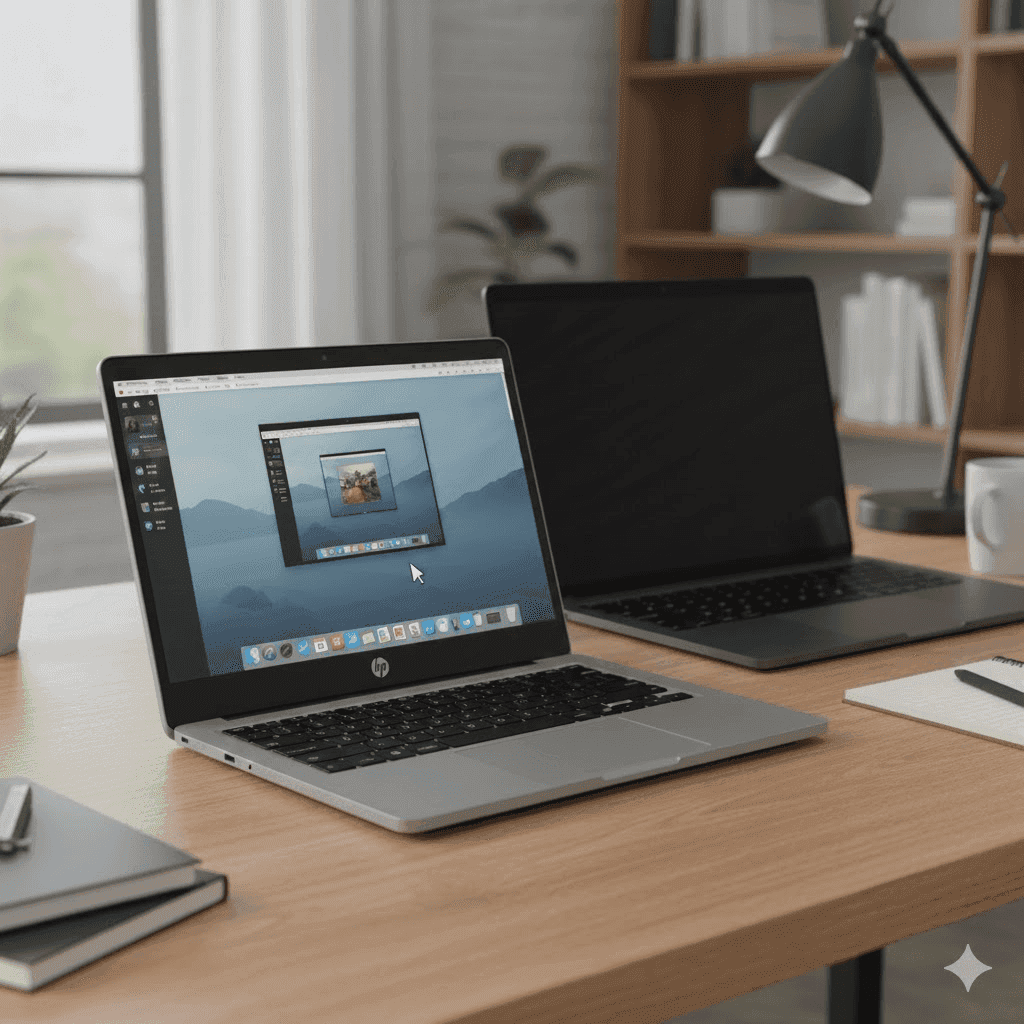
remote access mac from hp chromebook

How to Remotely Access Your Mac From HP Chromebook: The Ultimate Guide

You know that feeling when you’re sitting in a coffee shop with your lightweight HP Chromebook and you really need that one file on your Mac at home? Or when you dream that you could just open up a Mac-only app, say, Final Cut Pro or Logic Pro, or Xcode, on your Chromebook, without schlepping two computers around?

Whether you’ve spent time researching how to get Mac on Chromebook, have a desire for Mac remote desktop access, or want the easiest way to access Mac from an HP Chromebook, this guide is for you. 

Why Access Your Mac from a Chromebook?

So why even bother connecting your Mac to a HP Chromebook? Simple, you get the flexibility of ChromeOS with the power and ecosystem of macOS. When you combine both, your workflow instantly becomes lighter, faster, and way more convenient.

Software Incompatibility & Access to Exclusive Apps

Chromebooks are great to carry, but they can’t run Mac-only apps. And with remote access, you can boot up Logic Pro or Sketch or Xcode (or any Apple-developed software for that matter) straight from a Chromebook: no hacks, no dual-booting, no bizarre workarounds. It’s the easiest way to enjoy true Mac remote desktop freedom.

File and Ecosystem Access

Your files, workflows, and preferred tools are deeply integrated into the macOS ecosystem (iCloud Drive, native Mac-specific workflows, certain peripherals). With remote access, you can jump into your Mac anytime and pull whatever you need: no waiting, no converting, no stress. It’s the most straightforward answer to how to get Mac on Chromebook without dealing with storage limits.

Hardware Leverage: Using High-Performance Macs

Your Mac is a high-end machine. Your Chromebook is a lightweight champion. These two together are just the perfect match. Remote access allows the Chromebook to become a thin client. All heavy processing (video rendering, coding compilation) happens on the Mac back home or in the office.

Cost-Effective and Secure Work/Study Setup

Organizations or students standardize on affordable, secure, and easy-to-manage Chromebooks, but occasionally require specialized Mac software for certain tasks (graphic design, iOS app development, music production). Instead of buying a Mac for every user, they can provide a few shared Macs in a lab or server room that are accessed remotely by Chromebook users on demand.

Technical Support and Administration

An IT administrator needs to manage or troubleshoot a Mac in another room, building, or for a remote employee, but only has a Chromebook handy. Remote desktop software allows for instant support sessions without physical access to the Mac.

Who Actually Needs This?

This setup helps a wide range of users:

  • Video editors who need to open or tweak Final Cut Pro timelines

  • Developers who must use Mac-only tools like Xcode

  • Students with a Chromebook who keep major projects saved on a home iMac

  • Remote workers logging into their office Mac from anywhere

  • Designers accessing Sketch, Figma plugins, or color-sensitive files

  • IT helpers / tech-savvy friends doing remote support or troubleshooting via Mac screen share to Chromebook

  • Travelers who leave the heavy MacBook Pro at home but still need full macOS access

Whatever the job, having instant access to Mac from an HP Chromebook removes friction and keeps you connected to everything you need.

What About Chromebook Limitations?

Chromebooks can’t run macOS apps natively, don’t work with pro-grade software, and lean heavily on browser-based workflows. And that’s where DeskIn comes in handy very nicely. It turns your Chromebook into a high-performance window into your Mac, bypassing ChromeOS limitations with fast, smooth, and secure remote desktop performance.

With DeskIn, your Chromebook doesn’t require extra power. It only takes one connection.

Free download DeskIn

Meet DeskIn: Your Bridge Between Mac and Chromebook

DeskIn remote desktop for mac and hp chromebook

If you’re looking for a smooth, quick, and frustration-free means to manage your Mac from an HP Chromebook, then DeskIn is the app that makes it easy. It’s a lightweight, secure, and beginner-friendly remote desktop software that runs on all of the most popular platforms: Windows, macOS, Android, iOS, as well as Chrome OS. No compatibility drama. No complicated setup. Just instant, reliable access.

DeskIn’s Free Features You’ll Actually Use

DeskIn isn’t one of those “free-but-basically-useless” remote desktop apps. Even on the free plan, you get a genuinely powerful toolkit that makes accessing your Mac from a HP Chromebook feel natural, fast, and frustration-free:

  • Unattended Access – Leave your Mac at home, sleeping or awake, and still log in anytime without someone clicking “Allow.” Ideal when you’re traveling with only your Chromebook or need quick late-night access to files on your iMac.

  • Two-Way File Transfer – Move files between devices instantly. No USB drives, no cloud uploads, no awkward file conversions. Just drag, drop, done. It’s a huge win for anyone figuring out how to get a Mac on a Chromebook without extra steps.

    Recommended read: How to Transfer Files Over Remote Desktop Easily & Smoothly 

  • Remote Printing – Got a document sitting on your Mac but want to print it from your Chromebook? DeskIn routes print jobs through your Mac seamlessly, perfect for homework, forms, contracts, or office tasks.

  • Remote Shutdown & Reboot – Forgot to turn off your Mac before leaving the house, or need to reboot from across the country? DeskIn lets you manage your Mac’s power remotely with one click.

These free features alone make DeskIn feel like a premium tool, and once you try it, going back to old-school remote desktop software will feel impossible.

DeskIn’s advanced rendering and low-latency streaming keep everything smooth, even on average Wi-Fi. With strong encryption and a flexible, intuitive interface, it delivers a reliable Mac for everyone: students juggling assignments, designers reviewing visuals, developers working across devices, travelers on the move, and everyday users who simply want seamless Mac access from a HP Chromebook.

If you want remote access that actually feels like using your real Mac, give DeskIn a try, just download it and follow the quick setup steps below.

Free download DeskIn

Step-by-Step: How to Set Up DeskIn for HP Chromebook-to-MacAccess

Getting DeskIn running between your Mac and HP Chromebook takes just a few minutes. Follow these simple steps, and you’ll be connected in no time:

1. Install DeskIn on Your HP Chromebook and Mac

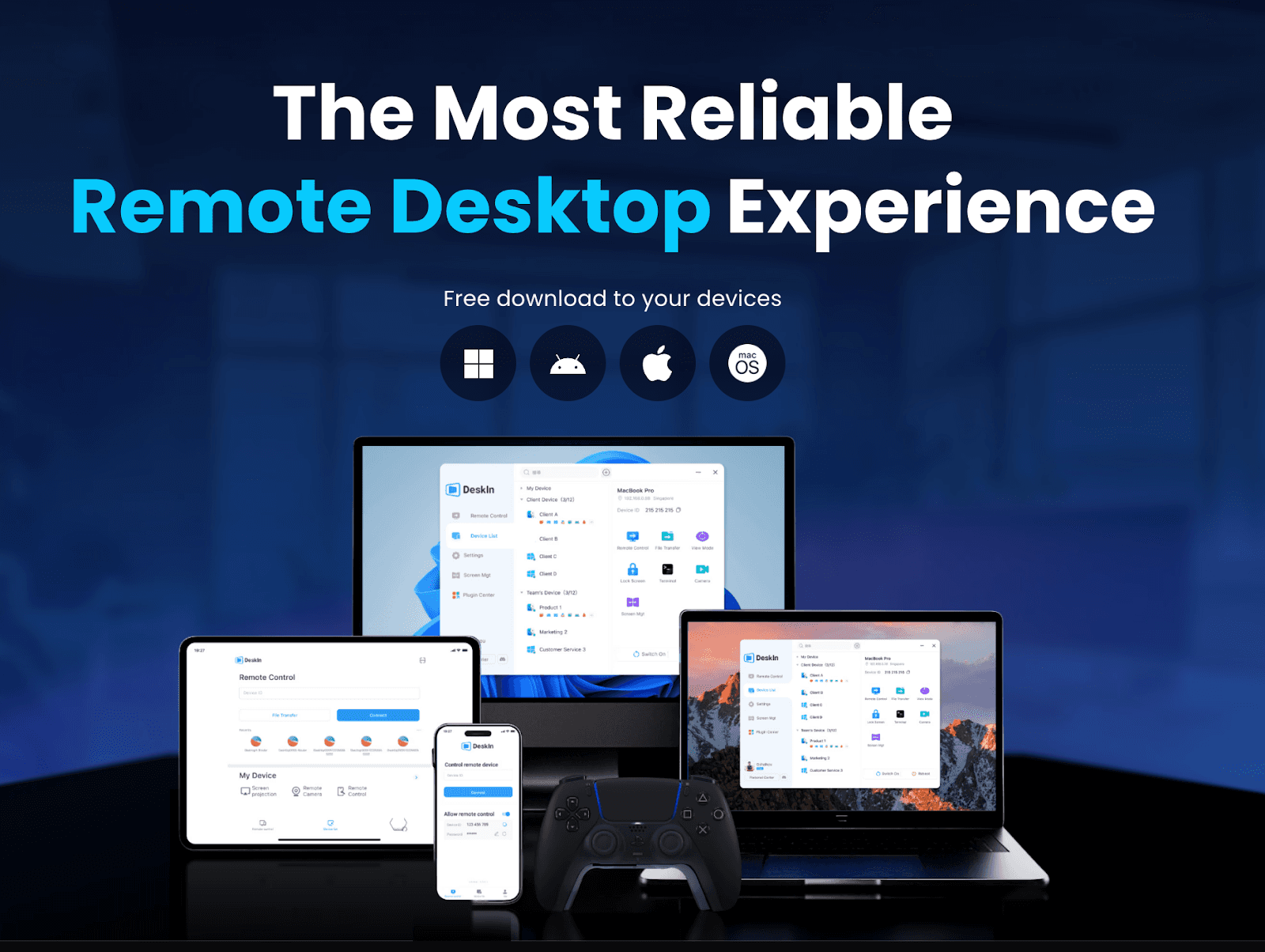
DeskIn download page

Head to the DeskIn website and download the Android app and macOS app. 


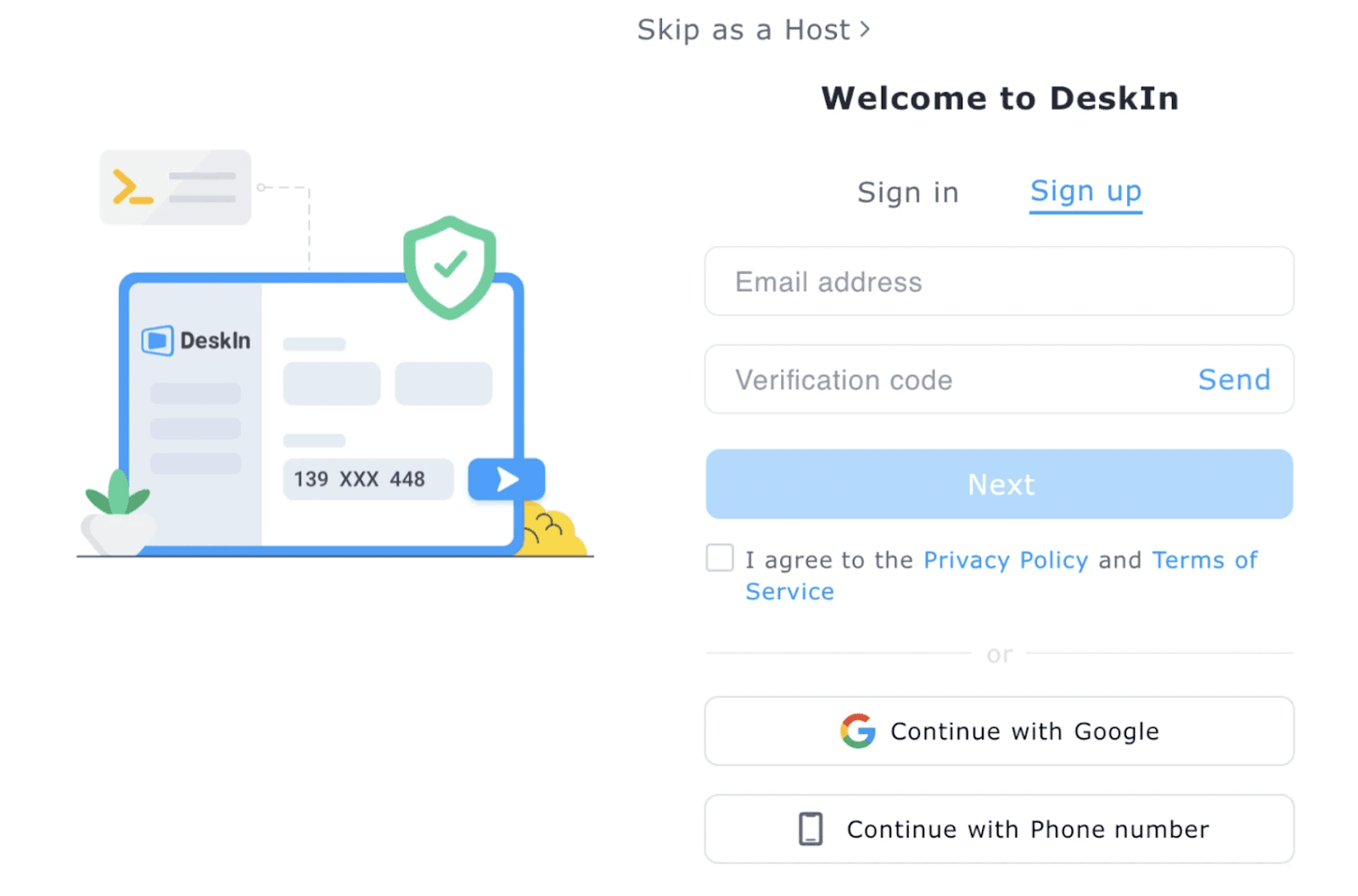
2. Create an Account and Log in

DeskIn sign-up page

Open DeskIn on your HP Chromebook and Mac and create a new account and log into the same account on both devices.

3. Enable macOS Access Permissions

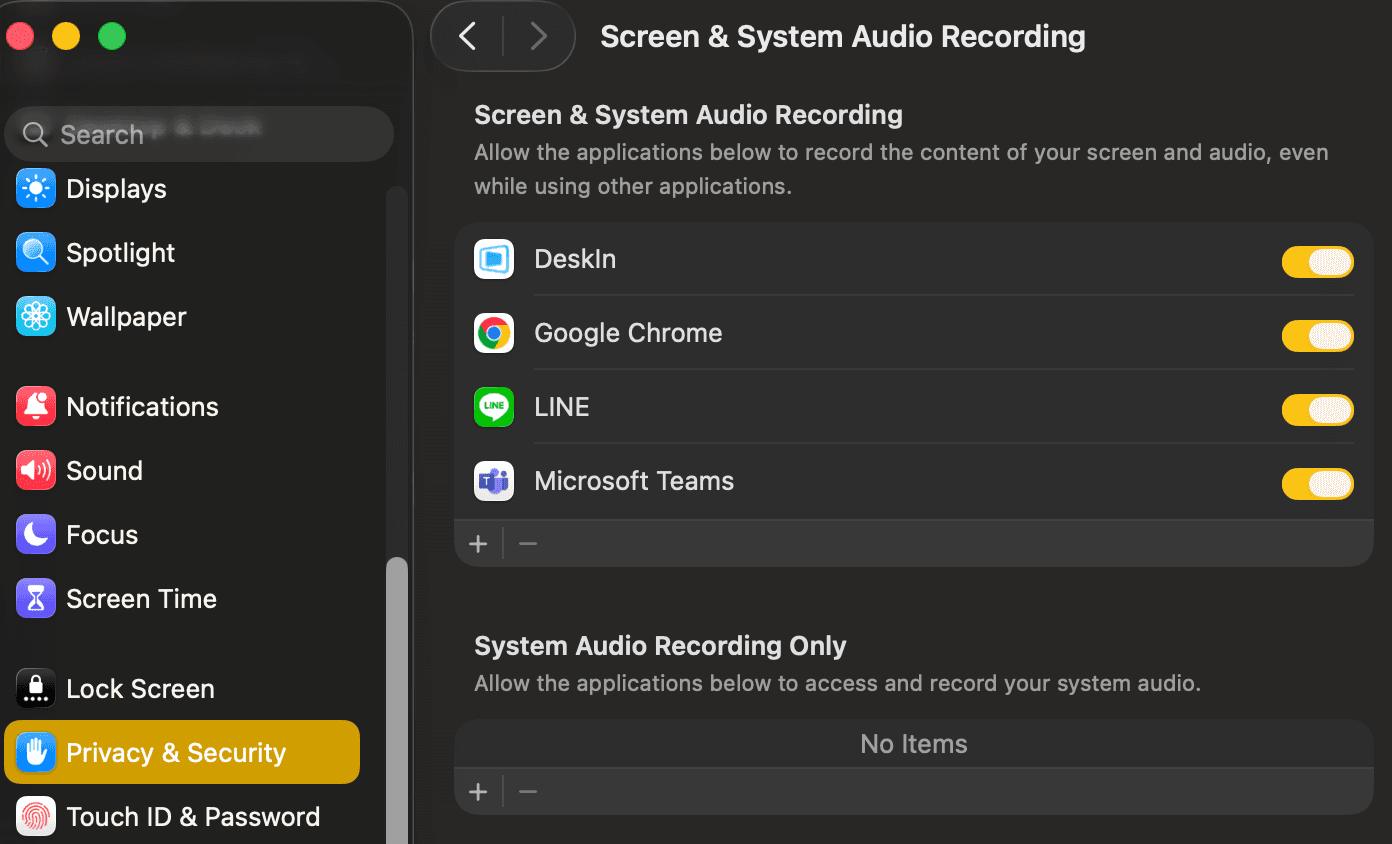
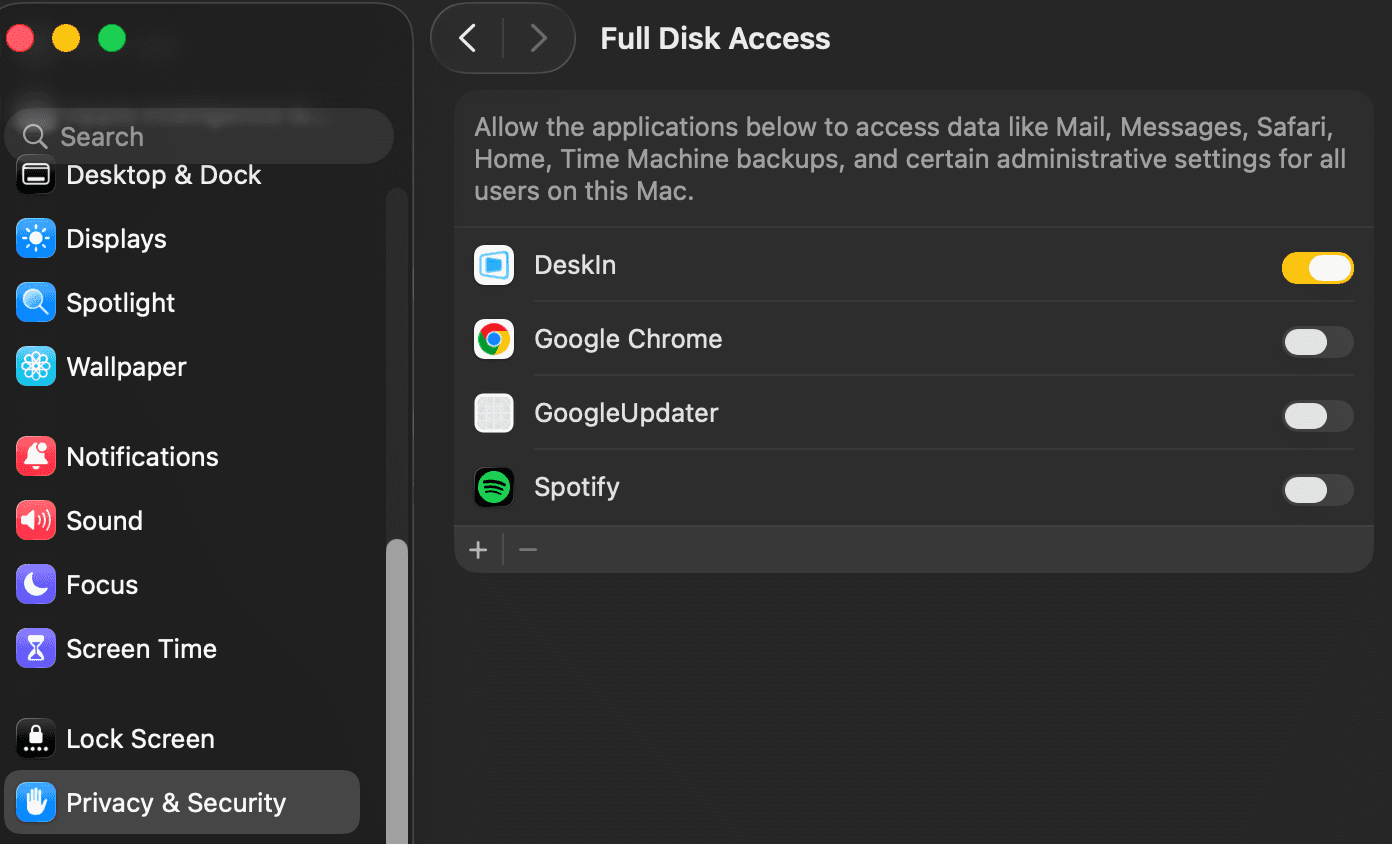
Enable DeskIn for mac screen and system audio recordingEnable DeskIn for mac accessibilityEnable DeskIn for mac full disk access

For the remote control to work properly, macOS will prompt you to grant:

  • Screen Recording

  • Accessibility

  • Full Disk Access (optional, but recommended for file transfer)

Just follow the on-screen steps. DeskIn guides you through everything.

4. Select Your Mac and Click “Connect.”

Your Mac will appear in the device list on your HP Chromebook. Tap Connect,  you’ll be controlling your macOS desktop right from your HP Chromebook.

Why DeskIn Is the Best Remote Desktop for Mac and HP Chromebook Users

DeskIn remote desktop software

DeskIn outperforms most remote desktop software by offering speed, clarity, and stability that feel almost like using your actual Mac, just through a HP Chromebook. Here’s what makes it stand out:

  • Ultra-Low Latency (≤40ms)
    Actions happen almost instantly. No lag, no cursor delay: just smooth control whether you’re editing, coding, or browsing.

  • 4K60FPS / 2K240FPS Streaming
    High frame rates mean your Mac feels responsive and fluid on your Chromebook, even during video editing, 3D previews, or fast-paced workflows.

  • Cross-Platform Compatibility
    macOS, Windows, Android, iOS, ChromeOS: DeskIn plays nicely with everything. It turns your HP Chromebook into a true command center for your Mac.

  • Secure & Stable Connection
    DeskIn uses bank-level AES-256 encryption and intelligent routing to keep your sessions stable, even on public Wi-Fi. Your files and screen data stay protected at all times.

  • Enhanced Productivity Tools
    Multi-monitor switching, clipboard sync, file transfer, and crisp Mac screen share support help you move fast and work smarter, no matter the task.

With these highlights, DeskIn is the ideal solution for anyone who needs to access a Mac from an HP Chromebook without sacrificing performance, clarity, or security.

DeskIn isn’t just another remote desktop; it’s the one that actually performs. Try it free and see the difference for yourself.

Free download DeskIn

Alternative Method: Chrome Remote Desktop

If you prefer an uncomplicated and no-fuss approach to connecting your Mac and HP Chromebook, there is also Chrome Remote Desktop worth mentioning. It gets the job done, but with some trade-offs.

Pros

  • Completely free

  • Quick, beginner-friendly setup

  • Runs directly in the Chrome browser

Cons

  • Requires a Google account for both devices

  • No 4K, high FPS, or true-color support

  • Can feel laggy during heavy tasks

  • Limited features (no file transfer, no remote printing)

  • Not ideal for creative work, coding, or pro workflows

Chrome Remote Desktop is fine for light control or checking basic files, but if you need smooth performance, crisp visuals, and reliable remote desktop access between a Mac and an HP Chromebook, DeskIn easily outshines it.

If you want a deeper dive into Chrome Remote Desktop’s unattended setup, check out our quick guide on how to set it up smoothly and securely.

FAQ

  1. Can I wake my sleeping Mac remotely?
    Not exactly. Wake-on-LAN works only for Windows PCs. A fully sleeping Mac can’t be woken remotely, but DeskIn can reboot your Mac or connect as long as it stays powered on.

    Want the full Wake-on-LAN walkthrough? We also have a step-by-step guide on remotely booting your PC with DeskIn.

  2. What about accessing my Mac from outside my home network?
    Absolutely. DeskIn uses cloud relay technology, so you don’t need port forwarding or static IPs. You can connect to your Mac from school, work, a café, or even across the globe.

  3. How is the performance for video editing or graphic design work?
    Surprisingly smooth. With 4K60FPS streaming and ultra-low latency, DeskIn handles creative tasks far better than typical remote desktop tools. Perfect for scrubbing timelines, checking color, or reviewing high-res assets.

  4. Is the connection secure for sensitive work files?
    Yes, DeskIn uses strong encryption and secure routing to protect your data. Whether you’re working with client projects or confidential documents, your Mac remote desktop session stays private.

  5. Do I need to install anything on my HP Chromebook?
    No installation required. You can use DeskIn Web directly in your Chrome browser, or install the Android app if you prefer an app-like experience. Either way, you can easily access Mac from a HP Chromebook without extra setup.

Simplify Remote Access with DeskIn

It used to be impossible to get a Mac and a HP Chromebook to work with each other: two different worlds, two different ecosystems. But with DeskIn, that gap disappears. You get smooth performance, true-to-color visuals, reliable file access, and a setup so simple it feels like your devices were designed to work together.

Whether you’re editing videos, coding in a Mac-only environment, grabbing forgotten files, or offering remote support, DeskIn makes remote desktop access fast, secure, and genuinely enjoyable. The combo of Chromebook portability + Mac power becomes an unbeatable workflow once DeskIn ties them together.

Try DeskIn now! The best way to access your Mac from any Chromebook. No hassle. No fees. Just performance.

Free download DeskIn
remote access mac from hp chromebook

How to Remotely Access Your Mac From HP Chromebook: The Ultimate Guide

You know that feeling when you’re sitting in a coffee shop with your lightweight HP Chromebook and you really need that one file on your Mac at home? Or when you dream that you could just open up a Mac-only app, say, Final Cut Pro or Logic Pro, or Xcode, on your Chromebook, without schlepping two computers around?

Whether you’ve spent time researching how to get Mac on Chromebook, have a desire for Mac remote desktop access, or want the easiest way to access Mac from an HP Chromebook, this guide is for you. 

Why Access Your Mac from a Chromebook?

So why even bother connecting your Mac to a HP Chromebook? Simple, you get the flexibility of ChromeOS with the power and ecosystem of macOS. When you combine both, your workflow instantly becomes lighter, faster, and way more convenient.

Software Incompatibility & Access to Exclusive Apps

Chromebooks are great to carry, but they can’t run Mac-only apps. And with remote access, you can boot up Logic Pro or Sketch or Xcode (or any Apple-developed software for that matter) straight from a Chromebook: no hacks, no dual-booting, no bizarre workarounds. It’s the easiest way to enjoy true Mac remote desktop freedom.

File and Ecosystem Access

Your files, workflows, and preferred tools are deeply integrated into the macOS ecosystem (iCloud Drive, native Mac-specific workflows, certain peripherals). With remote access, you can jump into your Mac anytime and pull whatever you need: no waiting, no converting, no stress. It’s the most straightforward answer to how to get Mac on Chromebook without dealing with storage limits.

Hardware Leverage: Using High-Performance Macs

Your Mac is a high-end machine. Your Chromebook is a lightweight champion. These two together are just the perfect match. Remote access allows the Chromebook to become a thin client. All heavy processing (video rendering, coding compilation) happens on the Mac back home or in the office.

Cost-Effective and Secure Work/Study Setup

Organizations or students standardize on affordable, secure, and easy-to-manage Chromebooks, but occasionally require specialized Mac software for certain tasks (graphic design, iOS app development, music production). Instead of buying a Mac for every user, they can provide a few shared Macs in a lab or server room that are accessed remotely by Chromebook users on demand.

Technical Support and Administration

An IT administrator needs to manage or troubleshoot a Mac in another room, building, or for a remote employee, but only has a Chromebook handy. Remote desktop software allows for instant support sessions without physical access to the Mac.

Who Actually Needs This?

This setup helps a wide range of users:

  • Video editors who need to open or tweak Final Cut Pro timelines

  • Developers who must use Mac-only tools like Xcode

  • Students with a Chromebook who keep major projects saved on a home iMac

  • Remote workers logging into their office Mac from anywhere

  • Designers accessing Sketch, Figma plugins, or color-sensitive files

  • IT helpers / tech-savvy friends doing remote support or troubleshooting via Mac screen share to Chromebook

  • Travelers who leave the heavy MacBook Pro at home but still need full macOS access

Whatever the job, having instant access to Mac from an HP Chromebook removes friction and keeps you connected to everything you need.

What About Chromebook Limitations?

Chromebooks can’t run macOS apps natively, don’t work with pro-grade software, and lean heavily on browser-based workflows. And that’s where DeskIn comes in handy very nicely. It turns your Chromebook into a high-performance window into your Mac, bypassing ChromeOS limitations with fast, smooth, and secure remote desktop performance.

With DeskIn, your Chromebook doesn’t require extra power. It only takes one connection.

Free download DeskIn

Meet DeskIn: Your Bridge Between Mac and Chromebook

DeskIn remote desktop for mac and hp chromebook

If you’re looking for a smooth, quick, and frustration-free means to manage your Mac from an HP Chromebook, then DeskIn is the app that makes it easy. It’s a lightweight, secure, and beginner-friendly remote desktop software that runs on all of the most popular platforms: Windows, macOS, Android, iOS, as well as Chrome OS. No compatibility drama. No complicated setup. Just instant, reliable access.

DeskIn’s Free Features You’ll Actually Use

DeskIn isn’t one of those “free-but-basically-useless” remote desktop apps. Even on the free plan, you get a genuinely powerful toolkit that makes accessing your Mac from a HP Chromebook feel natural, fast, and frustration-free:

  • Unattended Access – Leave your Mac at home, sleeping or awake, and still log in anytime without someone clicking “Allow.” Ideal when you’re traveling with only your Chromebook or need quick late-night access to files on your iMac.

  • Two-Way File Transfer – Move files between devices instantly. No USB drives, no cloud uploads, no awkward file conversions. Just drag, drop, done. It’s a huge win for anyone figuring out how to get a Mac on a Chromebook without extra steps.

    Recommended read: How to Transfer Files Over Remote Desktop Easily & Smoothly 

  • Remote Printing – Got a document sitting on your Mac but want to print it from your Chromebook? DeskIn routes print jobs through your Mac seamlessly, perfect for homework, forms, contracts, or office tasks.

  • Remote Shutdown & Reboot – Forgot to turn off your Mac before leaving the house, or need to reboot from across the country? DeskIn lets you manage your Mac’s power remotely with one click.

These free features alone make DeskIn feel like a premium tool, and once you try it, going back to old-school remote desktop software will feel impossible.

DeskIn’s advanced rendering and low-latency streaming keep everything smooth, even on average Wi-Fi. With strong encryption and a flexible, intuitive interface, it delivers a reliable Mac for everyone: students juggling assignments, designers reviewing visuals, developers working across devices, travelers on the move, and everyday users who simply want seamless Mac access from a HP Chromebook.

If you want remote access that actually feels like using your real Mac, give DeskIn a try, just download it and follow the quick setup steps below.

Free download DeskIn

Step-by-Step: How to Set Up DeskIn for HP Chromebook-to-MacAccess

Getting DeskIn running between your Mac and HP Chromebook takes just a few minutes. Follow these simple steps, and you’ll be connected in no time:

1. Install DeskIn on Your HP Chromebook and Mac

DeskIn download page

Head to the DeskIn website and download the Android app and macOS app. 


2. Create an Account and Log in

DeskIn sign-up page

Open DeskIn on your HP Chromebook and Mac and create a new account and log into the same account on both devices.

3. Enable macOS Access Permissions

Enable DeskIn for mac screen and system audio recordingEnable DeskIn for mac accessibilityEnable DeskIn for mac full disk access

For the remote control to work properly, macOS will prompt you to grant:

  • Screen Recording

  • Accessibility

  • Full Disk Access (optional, but recommended for file transfer)

Just follow the on-screen steps. DeskIn guides you through everything.

4. Select Your Mac and Click “Connect.”

Your Mac will appear in the device list on your HP Chromebook. Tap Connect,  you’ll be controlling your macOS desktop right from your HP Chromebook.

Why DeskIn Is the Best Remote Desktop for Mac and HP Chromebook Users

DeskIn remote desktop software

DeskIn outperforms most remote desktop software by offering speed, clarity, and stability that feel almost like using your actual Mac, just through a HP Chromebook. Here’s what makes it stand out:

  • Ultra-Low Latency (≤40ms)
    Actions happen almost instantly. No lag, no cursor delay: just smooth control whether you’re editing, coding, or browsing.

  • 4K60FPS / 2K240FPS Streaming
    High frame rates mean your Mac feels responsive and fluid on your Chromebook, even during video editing, 3D previews, or fast-paced workflows.

  • Cross-Platform Compatibility
    macOS, Windows, Android, iOS, ChromeOS: DeskIn plays nicely with everything. It turns your HP Chromebook into a true command center for your Mac.

  • Secure & Stable Connection
    DeskIn uses bank-level AES-256 encryption and intelligent routing to keep your sessions stable, even on public Wi-Fi. Your files and screen data stay protected at all times.

  • Enhanced Productivity Tools
    Multi-monitor switching, clipboard sync, file transfer, and crisp Mac screen share support help you move fast and work smarter, no matter the task.

With these highlights, DeskIn is the ideal solution for anyone who needs to access a Mac from an HP Chromebook without sacrificing performance, clarity, or security.

DeskIn isn’t just another remote desktop; it’s the one that actually performs. Try it free and see the difference for yourself.

Free download DeskIn

Alternative Method: Chrome Remote Desktop

If you prefer an uncomplicated and no-fuss approach to connecting your Mac and HP Chromebook, there is also Chrome Remote Desktop worth mentioning. It gets the job done, but with some trade-offs.

Pros

  • Completely free

  • Quick, beginner-friendly setup

  • Runs directly in the Chrome browser

Cons

  • Requires a Google account for both devices

  • No 4K, high FPS, or true-color support

  • Can feel laggy during heavy tasks

  • Limited features (no file transfer, no remote printing)

  • Not ideal for creative work, coding, or pro workflows

Chrome Remote Desktop is fine for light control or checking basic files, but if you need smooth performance, crisp visuals, and reliable remote desktop access between a Mac and an HP Chromebook, DeskIn easily outshines it.

If you want a deeper dive into Chrome Remote Desktop’s unattended setup, check out our quick guide on how to set it up smoothly and securely.

FAQ

  1. Can I wake my sleeping Mac remotely?
    Not exactly. Wake-on-LAN works only for Windows PCs. A fully sleeping Mac can’t be woken remotely, but DeskIn can reboot your Mac or connect as long as it stays powered on.

    Want the full Wake-on-LAN walkthrough? We also have a step-by-step guide on remotely booting your PC with DeskIn.

  2. What about accessing my Mac from outside my home network?
    Absolutely. DeskIn uses cloud relay technology, so you don’t need port forwarding or static IPs. You can connect to your Mac from school, work, a café, or even across the globe.

  3. How is the performance for video editing or graphic design work?
    Surprisingly smooth. With 4K60FPS streaming and ultra-low latency, DeskIn handles creative tasks far better than typical remote desktop tools. Perfect for scrubbing timelines, checking color, or reviewing high-res assets.

  4. Is the connection secure for sensitive work files?
    Yes, DeskIn uses strong encryption and secure routing to protect your data. Whether you’re working with client projects or confidential documents, your Mac remote desktop session stays private.

  5. Do I need to install anything on my HP Chromebook?
    No installation required. You can use DeskIn Web directly in your Chrome browser, or install the Android app if you prefer an app-like experience. Either way, you can easily access Mac from a HP Chromebook without extra setup.

Simplify Remote Access with DeskIn

It used to be impossible to get a Mac and a HP Chromebook to work with each other: two different worlds, two different ecosystems. But with DeskIn, that gap disappears. You get smooth performance, true-to-color visuals, reliable file access, and a setup so simple it feels like your devices were designed to work together.

Whether you’re editing videos, coding in a Mac-only environment, grabbing forgotten files, or offering remote support, DeskIn makes remote desktop access fast, secure, and genuinely enjoyable. The combo of Chromebook portability + Mac power becomes an unbeatable workflow once DeskIn ties them together.

Try DeskIn now! The best way to access your Mac from any Chromebook. No hassle. No fees. Just performance.

Free download DeskIn
remote gaming with controller adaption

Remote Gaming vs Cloud Gaming: Which One’s Better?

In the ideal world, you’d never be further from your decked-out gaming rig with a display so clear that colors are practically dripping off the screen.

But in reality, you’re traveling, stuck outside, or halfway across the house on a couch that’s way more comfortable than your gaming chair.

Yet the urge to jump back into your world, your characters, your setup, hits hard

Thankfully, modern gaming has evolved. You now have two major ways to play from anywhere: remote gaming and cloud gaming.

Both promise freedom. Both promise convenience. But only one gives you true control, real speed, and zero compromises. 

Let’s break the two down, creatively, technically, and honestly, to find out which one truly delivers.

What Is Remote Gaming?

DeskIn Remote Game

Remote gaming is pretty much what it sounds like: playing a game that you have installed on your local PC while controlling it from somewhere else. Instead of pulling from a cloud server in some far-off data center, you’re connecting directly to your home gaming rig with remote desktop software.

And the biggest advantage is you’re not relying on a rented server with limits, you’re harnessing your hardware, your settings, your mods, your saves, your performance. Everything runs on the PC you already own.

And this is where DeskIn makes remote gaming feel almost magical.

DeskIn is Designed for Gamers, Not Just Remote Workers

While many remote tools are meant for Excel sheets and screen sharing, DeskIn is built differently. It’s optimized for low-latency gaming, high FPS streaming, and real-time responsiveness, the stuff that actually matters when every frame counts.

The base version is free to use, and the Gaming Edition unlocks advanced features for high-performance play—still far more affordable than most cloud gaming subscriptions.

Free download DeskIn

Why DeskIn Is Perfect for Cross-System Remote Gaming

DeskIn’s Remote Game includes powerful features that make it stand out:

  • Cross-System Compatibility
    Play across Windows, macOS, Android, and iOS seamlessly. DeskIn lets you start a game on your PC, continue on your phone, or switch to a tablet or Mac without compatibility issues: true flexibility for multi-device gamers.

DeskIn 4K streaming
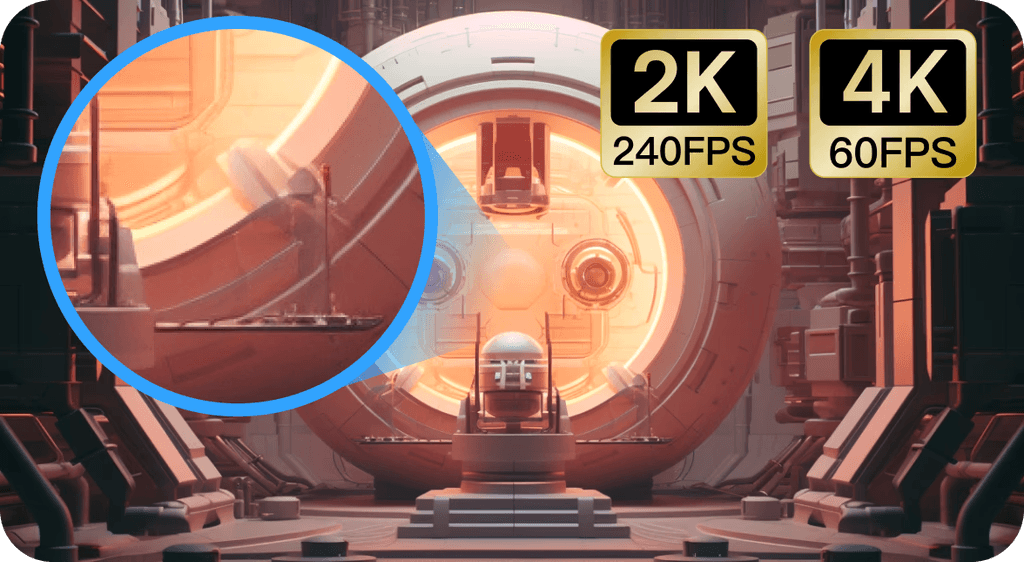
  • 4K60FPS or 2K240FPS Streaming
    Ultra-sharp resolution + high frame rates = gameplay that feels local, not remote. No blur, no stutter, just pure smoothness.


  • 200+ Global Network Nodes with <40 ms Latency
    Speed that keeps up with you. Whether you’re clicking heads or timing perfect parries, DeskIn keeps your inputs instant.

DeskIn mobile cutomized keys combinationsDeskIn Game Controller Support
  • Full Game Controller Support
    Prefer Xbox? PlayStation? Third-party brands? DeskIn syncs with them all, just plug in and play.

DeskIn 3D View Control
  • 3D View Control Mode
    Shift perspectives on the fly. Navigate complex scenes or control angles with a more intuitive, dynamic view. 

  • Screen Mirroring & Multi-Screen Extension
    Turn any screen into part of your gaming setup. Mirror your display or extend it for multitasking, map viewing, or streaming.

  • Project Mobile Screen Back to PC
    Reverse-stream your phone to your PC when you need quick streaming layouts or mobile game capture.

  • High-Speed File Transfer
    Mods, shaders, save files, screenshots, patches; transfer them instantly. No cables, no hassle.

If you want remote gaming that feels truly responsive, customized, and unrestricted, DeskIn is the way to go. Try it for free today and experience the difference for yourself.

Read More: 

What Is Cloud Gaming?

Cloud gaming takes a very different approach from remote gaming. Rather than reaching into your gaming PC, cloud gaming streams games directly from a remote server: con­trolled and maintained by someone else. Imagine it like Netflix for gaming: click, stream, play.

Major platforms leading the space include:

  • Xbox Cloud Gaming 

  • NVIDIA GeForce Now

  • PlayStation Now

  • Amazon Luna

These services run powerful GPUs and CPUs in data centers, render the game there, then stream the video output to your device. All the computation happens offsite, while your device simply displays the stream and sends back your inputs.

Why People Love Cloud Gaming

Cloud gaming shines when it comes to convenience:

  • Minimal setup — open the app and start playing

  • No gaming PC required — even low-end laptops or mobile devices can run AAA titles

  • Hardware-free experience — no upgrades, no maintenance, no GPU shortages

For casual or occasional gamers, this is a massive win.

Where Cloud Gaming Falls Short

But compared to remote gaming, cloud gaming comes with trade-offs you’ll feel in both performance and control.

  • Higher latency
    Your inputs have to travel further to reach the cloud server, and performance depends heavily on server distance and congestion. High ping is common.

  • Lower control over graphics and settings
    Since the game runs on cloud hardware, you’re limited by the provider’s configuration.

  • Limited game libraries
    Your personal modded Skyrim or obscure indie game might not exist on these platforms at all.

  • Subscription fees
    Cloud gaming requires ongoing monthly costs, sometimes multiple tiers to unlock better performance.

  • No mods, no customization
    The environment is locked, meaning no texture packs, no ENBs, no personal tweaks.

Cloud Gaming = Convenience at the Cost of Control

Since every bit of rendering, processing, and encoding is done in the cloud, you’re at the mercy of server distance, network stability, and platform limitations. It’s fast to start, but not always fast to respond, and that matters when gameplay gets intense.

Cloud gaming is great for players who want quick access and zero hardware headaches. Still, if you care about speed, fidelity, ownership, or flexibility, it’s a world apart from remote gaming.

Read More: How to Play Xbox Games on Your Phone Easily (Full Guide) 

Key Differences Between Remote Gaming and Cloud Gaming

Cloud gaming and remote gaming may sound like they’d work the same way on the surface; you get to play games from anywhere, after all, but under the hood, they operate in very different ways. And those differences have implications for everything from speed and control to cost and long-term flexibility.

To add some context here, let’s take a look at what these factors mean for players: hardware ownership, latency, freedom of game library choice, privacy, control over performance, and overall cost.

Below is a clean side-by-side of the two so you can immediately decide which one wins.

Remote Gaming vs Cloud Gaming: Quick Comparison

Category

Remote Gaming (DeskIn)

Cloud Gaming (GeForce Now, Xbox, Luna)

Hardware Ownership

You use your own gaming PC; full control over specs

Hardware is owned by the provider; shared servers

Latency & Input Lag

Much lower (LAN: 5–20 ms; online: <40 ms with DeskIn)

Higher latency (40–100+ ms depending on server distance)

Graphics & FPS

2K240FPS/4K60FPS

Often capped or compressed; variable image quality

Game Library

Unlimited; anything installed on your PC, including mods

Limited to platform-supported titles; no modding

Performance Control

Full control: settings, tweaks, overclocks, shaders

Only platform presets; no hardware or deep settings access

Costs

Free or low-cost (DeskIn’s base is free)

Recurring subscription fees; multiple tiers for performance

Best For

All gamer types (casual players, competitive pros, modders, streamers), travelers, multi-device users, creators, and developers.

Only suitable for casual players, low-end device users, and those who prioritize convenience over performance, mods, or low latency.

How to Choose Remote Gaming vs Cloud Gaming

Now that we’ve broken down how remote gaming and cloud gaming work, let’s make the choice easier. The best option for you depends on what you own, how you play, and what kind of experience you expect. 

Here’s a scenario-based guide that uses real-world gaming habits to show when each option makes sense, especially if you’re considering DeskIn, a powerful tool for remote desktop for gaming and low-latency streaming.

Choose Remote Gaming with DeskIn if…

  • You own a gaming PC or a remote PC
    Remote gaming lets you use every ounce of your hardware power. No limits, no caps, just your full rig streaming to any device.

  • You care about latency, responsiveness, and visual quality
    If input timing matters to you, or you want crisp graphics without compression, remote gaming desktop performance is unbeatable.

  • You want to play modded, customized, or local-only games
    Cloud game services don’t support mods, custom files, ENBs, or niche titles. Remote gaming runs exactly what’s installed on your PC, including heavily modded setups.

  • You want full control over your library and settings
    Your saves, your settings, your shaders, your launchers: it all carries over when you stream games remotely.

  • You value flexibility
    Whether you’re streaming from your bedroom PC to your living room TV, gaming on a tablet in a café, or accessing your setup while traveling, DeskIn gives you full control wherever you are.

Remote gaming is for gamers who refuse to make such compromises, especially when low-latency streaming, full customization, and experiencing PC-quality remote games with local performance are a big part of the picture.

Free download DeskIn

Choose Cloud Gaming if…

  • You don’t own a gaming PC
    Cloud gaming is perfect if your laptop or mobile device can’t run AAA titles. The heavy lifting is done remotely.

  • You only need casual play
    If you’re playing slower-paced games or don’t mind a bit of latency, cloud game services can work fine.

  • You’re okay with monthly subscriptions
    Cloud gaming platforms come with recurring fees—and sometimes multiple tiers for better performance.

  • You don’t need mods or full library access
    Game availability depends entirely on the provider, and modding is off the table.

Cloud gaming is about convenience, not control. It’s ideal if you want quick access but don’t care about custom builds, powerful GPUs, or ultra-smooth responsiveness.

So Which Fits You Best?

  • If you want speed, precision, your full game library, and unlimited remote gaming freedom, DeskIn remote gaming is the clear winner.

  • If you want simplicity and don’t own a gaming PC, Cloud gaming is the more practical option.

Both can let you play on the go, but only one gives you the performance of your actual PC and the flexibility to game anywhere with zero restrictions.

FAQ: Remote Gaming vs Cloud Gaming

  1. Is remote gaming better than cloud gaming for low latency?
    Yes. Remote gaming uses your own PC for processing, giving you low-latency streaming as low as 5–20 ms. Cloud gaming depends on server distance and often ranges from 40–100+ ms.

  2. Can I play my modded or local-only games through remote gaming?
    Absolutely. With remote gaming, you can access your full game library—including mods, custom files, and local-only titles—because everything runs on your own remote PC. Cloud gaming does not support mods.

  3. Do I need a powerful device to stream games remotely?
    No. Your device only needs to display the stream. As long as you use a remote desktop for gaming like DeskIn, you can stream games remotely on low-end laptops, tablets, or phones.

  4. Is cloud gaming good for competitive games?
    Usually not. Due to higher latency and input delay, cloud gaming can struggle with shooters, rhythm games, and other precision-heavy titles. Remote gaming offers a more responsive experience for competitive players.

  5. Can I use a controller when streaming games remotely?
    Yes. DeskIn supports full game controller adaptation, letting you use PlayStation, Xbox, or third-party controllers when streaming from your remote gaming desktop.

Remote Gaming (with DeskIn) or Cloud Gaming?

Remote gaming and cloud gaming both allow you to play anywhere, but only one puts the hardware in your hands. Cloud gaming offers convenience, but it has its latency issues, subscription and library limitations, and performance constraints when you’re using someone else’s hardware.

DeskIn offers the reverse of that in a remote gaming context: speed, stability, and full ownership. What you have is ultra-low latency and your entire game library (including mods), as well as the ability to stream from your own powerful PC without having to pay for access over and over again. It’s a quicker, more versatile, and cost-effective way to play while offering zero fair-usage policy or compromise on quality, and near-zero lag.

Ready to play your favorite PC games from anywhere? Download DeskIn now and start your remote gaming today: fast, free, and made for gamers.

Free download DeskIn
remote gaming with controller adaption

Remote Gaming vs Cloud Gaming: Which One’s Better?

In the ideal world, you’d never be further from your decked-out gaming rig with a display so clear that colors are practically dripping off the screen.

But in reality, you’re traveling, stuck outside, or halfway across the house on a couch that’s way more comfortable than your gaming chair.

Yet the urge to jump back into your world, your characters, your setup, hits hard

Thankfully, modern gaming has evolved. You now have two major ways to play from anywhere: remote gaming and cloud gaming.

Both promise freedom. Both promise convenience. But only one gives you true control, real speed, and zero compromises. 

Let’s break the two down, creatively, technically, and honestly, to find out which one truly delivers.

What Is Remote Gaming?

DeskIn Remote Game

Remote gaming is pretty much what it sounds like: playing a game that you have installed on your local PC while controlling it from somewhere else. Instead of pulling from a cloud server in some far-off data center, you’re connecting directly to your home gaming rig with remote desktop software.

And the biggest advantage is you’re not relying on a rented server with limits, you’re harnessing your hardware, your settings, your mods, your saves, your performance. Everything runs on the PC you already own.

And this is where DeskIn makes remote gaming feel almost magical.

DeskIn is Designed for Gamers, Not Just Remote Workers

While many remote tools are meant for Excel sheets and screen sharing, DeskIn is built differently. It’s optimized for low-latency gaming, high FPS streaming, and real-time responsiveness, the stuff that actually matters when every frame counts.

The base version is free to use, and the Gaming Edition unlocks advanced features for high-performance play—still far more affordable than most cloud gaming subscriptions.

Free download DeskIn

Why DeskIn Is Perfect for Cross-System Remote Gaming

DeskIn’s Remote Game includes powerful features that make it stand out:

  • Cross-System Compatibility
    Play across Windows, macOS, Android, and iOS seamlessly. DeskIn lets you start a game on your PC, continue on your phone, or switch to a tablet or Mac without compatibility issues: true flexibility for multi-device gamers.

DeskIn 4K streaming
  • 4K60FPS or 2K240FPS Streaming
    Ultra-sharp resolution + high frame rates = gameplay that feels local, not remote. No blur, no stutter, just pure smoothness.


  • 200+ Global Network Nodes with <40 ms Latency
    Speed that keeps up with you. Whether you’re clicking heads or timing perfect parries, DeskIn keeps your inputs instant.

DeskIn mobile cutomized keys combinationsDeskIn Game Controller Support
  • Full Game Controller Support
    Prefer Xbox? PlayStation? Third-party brands? DeskIn syncs with them all, just plug in and play.

DeskIn 3D View Control
  • 3D View Control Mode
    Shift perspectives on the fly. Navigate complex scenes or control angles with a more intuitive, dynamic view. 

  • Screen Mirroring & Multi-Screen Extension
    Turn any screen into part of your gaming setup. Mirror your display or extend it for multitasking, map viewing, or streaming.

  • Project Mobile Screen Back to PC
    Reverse-stream your phone to your PC when you need quick streaming layouts or mobile game capture.

  • High-Speed File Transfer
    Mods, shaders, save files, screenshots, patches; transfer them instantly. No cables, no hassle.

If you want remote gaming that feels truly responsive, customized, and unrestricted, DeskIn is the way to go. Try it for free today and experience the difference for yourself.

Read More: 

What Is Cloud Gaming?

Cloud gaming takes a very different approach from remote gaming. Rather than reaching into your gaming PC, cloud gaming streams games directly from a remote server: con­trolled and maintained by someone else. Imagine it like Netflix for gaming: click, stream, play.

Major platforms leading the space include:

  • Xbox Cloud Gaming 

  • NVIDIA GeForce Now

  • PlayStation Now

  • Amazon Luna

These services run powerful GPUs and CPUs in data centers, render the game there, then stream the video output to your device. All the computation happens offsite, while your device simply displays the stream and sends back your inputs.

Why People Love Cloud Gaming

Cloud gaming shines when it comes to convenience:

  • Minimal setup — open the app and start playing

  • No gaming PC required — even low-end laptops or mobile devices can run AAA titles

  • Hardware-free experience — no upgrades, no maintenance, no GPU shortages

For casual or occasional gamers, this is a massive win.

Where Cloud Gaming Falls Short

But compared to remote gaming, cloud gaming comes with trade-offs you’ll feel in both performance and control.

  • Higher latency
    Your inputs have to travel further to reach the cloud server, and performance depends heavily on server distance and congestion. High ping is common.

  • Lower control over graphics and settings
    Since the game runs on cloud hardware, you’re limited by the provider’s configuration.

  • Limited game libraries
    Your personal modded Skyrim or obscure indie game might not exist on these platforms at all.

  • Subscription fees
    Cloud gaming requires ongoing monthly costs, sometimes multiple tiers to unlock better performance.

  • No mods, no customization
    The environment is locked, meaning no texture packs, no ENBs, no personal tweaks.

Cloud Gaming = Convenience at the Cost of Control

Since every bit of rendering, processing, and encoding is done in the cloud, you’re at the mercy of server distance, network stability, and platform limitations. It’s fast to start, but not always fast to respond, and that matters when gameplay gets intense.

Cloud gaming is great for players who want quick access and zero hardware headaches. Still, if you care about speed, fidelity, ownership, or flexibility, it’s a world apart from remote gaming.

Read More: How to Play Xbox Games on Your Phone Easily (Full Guide) 

Key Differences Between Remote Gaming and Cloud Gaming

Cloud gaming and remote gaming may sound like they’d work the same way on the surface; you get to play games from anywhere, after all, but under the hood, they operate in very different ways. And those differences have implications for everything from speed and control to cost and long-term flexibility.

To add some context here, let’s take a look at what these factors mean for players: hardware ownership, latency, freedom of game library choice, privacy, control over performance, and overall cost.

Below is a clean side-by-side of the two so you can immediately decide which one wins.

Remote Gaming vs Cloud Gaming: Quick Comparison

Category

Remote Gaming (DeskIn)

Cloud Gaming (GeForce Now, Xbox, Luna)

Hardware Ownership

You use your own gaming PC; full control over specs

Hardware is owned by the provider; shared servers

Latency & Input Lag

Much lower (LAN: 5–20 ms; online: <40 ms with DeskIn)

Higher latency (40–100+ ms depending on server distance)

Graphics & FPS

2K240FPS/4K60FPS

Often capped or compressed; variable image quality

Game Library

Unlimited; anything installed on your PC, including mods

Limited to platform-supported titles; no modding

Performance Control

Full control: settings, tweaks, overclocks, shaders

Only platform presets; no hardware or deep settings access

Costs

Free or low-cost (DeskIn’s base is free)

Recurring subscription fees; multiple tiers for performance

Best For

All gamer types (casual players, competitive pros, modders, streamers), travelers, multi-device users, creators, and developers.

Only suitable for casual players, low-end device users, and those who prioritize convenience over performance, mods, or low latency.

How to Choose Remote Gaming vs Cloud Gaming

Now that we’ve broken down how remote gaming and cloud gaming work, let’s make the choice easier. The best option for you depends on what you own, how you play, and what kind of experience you expect. 

Here’s a scenario-based guide that uses real-world gaming habits to show when each option makes sense, especially if you’re considering DeskIn, a powerful tool for remote desktop for gaming and low-latency streaming.

Choose Remote Gaming with DeskIn if…

  • You own a gaming PC or a remote PC
    Remote gaming lets you use every ounce of your hardware power. No limits, no caps, just your full rig streaming to any device.

  • You care about latency, responsiveness, and visual quality
    If input timing matters to you, or you want crisp graphics without compression, remote gaming desktop performance is unbeatable.

  • You want to play modded, customized, or local-only games
    Cloud game services don’t support mods, custom files, ENBs, or niche titles. Remote gaming runs exactly what’s installed on your PC, including heavily modded setups.

  • You want full control over your library and settings
    Your saves, your settings, your shaders, your launchers: it all carries over when you stream games remotely.

  • You value flexibility
    Whether you’re streaming from your bedroom PC to your living room TV, gaming on a tablet in a café, or accessing your setup while traveling, DeskIn gives you full control wherever you are.

Remote gaming is for gamers who refuse to make such compromises, especially when low-latency streaming, full customization, and experiencing PC-quality remote games with local performance are a big part of the picture.

Free download DeskIn

Choose Cloud Gaming if…

  • You don’t own a gaming PC
    Cloud gaming is perfect if your laptop or mobile device can’t run AAA titles. The heavy lifting is done remotely.

  • You only need casual play
    If you’re playing slower-paced games or don’t mind a bit of latency, cloud game services can work fine.

  • You’re okay with monthly subscriptions
    Cloud gaming platforms come with recurring fees—and sometimes multiple tiers for better performance.

  • You don’t need mods or full library access
    Game availability depends entirely on the provider, and modding is off the table.

Cloud gaming is about convenience, not control. It’s ideal if you want quick access but don’t care about custom builds, powerful GPUs, or ultra-smooth responsiveness.

So Which Fits You Best?

  • If you want speed, precision, your full game library, and unlimited remote gaming freedom, DeskIn remote gaming is the clear winner.

  • If you want simplicity and don’t own a gaming PC, Cloud gaming is the more practical option.

Both can let you play on the go, but only one gives you the performance of your actual PC and the flexibility to game anywhere with zero restrictions.

FAQ: Remote Gaming vs Cloud Gaming

  1. Is remote gaming better than cloud gaming for low latency?
    Yes. Remote gaming uses your own PC for processing, giving you low-latency streaming as low as 5–20 ms. Cloud gaming depends on server distance and often ranges from 40–100+ ms.

  2. Can I play my modded or local-only games through remote gaming?
    Absolutely. With remote gaming, you can access your full game library—including mods, custom files, and local-only titles—because everything runs on your own remote PC. Cloud gaming does not support mods.

  3. Do I need a powerful device to stream games remotely?
    No. Your device only needs to display the stream. As long as you use a remote desktop for gaming like DeskIn, you can stream games remotely on low-end laptops, tablets, or phones.

  4. Is cloud gaming good for competitive games?
    Usually not. Due to higher latency and input delay, cloud gaming can struggle with shooters, rhythm games, and other precision-heavy titles. Remote gaming offers a more responsive experience for competitive players.

  5. Can I use a controller when streaming games remotely?
    Yes. DeskIn supports full game controller adaptation, letting you use PlayStation, Xbox, or third-party controllers when streaming from your remote gaming desktop.

Remote Gaming (with DeskIn) or Cloud Gaming?

Remote gaming and cloud gaming both allow you to play anywhere, but only one puts the hardware in your hands. Cloud gaming offers convenience, but it has its latency issues, subscription and library limitations, and performance constraints when you’re using someone else’s hardware.

DeskIn offers the reverse of that in a remote gaming context: speed, stability, and full ownership. What you have is ultra-low latency and your entire game library (including mods), as well as the ability to stream from your own powerful PC without having to pay for access over and over again. It’s a quicker, more versatile, and cost-effective way to play while offering zero fair-usage policy or compromise on quality, and near-zero lag.

Ready to play your favorite PC games from anywhere? Download DeskIn now and start your remote gaming today: fast, free, and made for gamers.

Free download DeskIn
Benifits of remote access

How Different Users Benefit from DeskIn Remote Access Solutions: A Complete Guide

In today’s interconnected world, having a reliable remote access solution isn’t a luxury anymore; it’s baseline survival. Whether you’re gaming from your phone, editing your portfolio on an iPad, fixing your parents’ laptops (again), or simply trying to access files on your work PC while sipping coconut water on the beach, remote access has become an everyday tool we can no longer live without.

But there’s the real question:

How can one piece of technology serve gamers, creatives, IT pros, students, remote workers, and everyday families, all with completely different needs?

That’s where DeskIn comes in. A next-gen remote desktop tool that turns any device into your control center. It’s fast, flexible, intuitive, and powerful, but most importantly, it adapts to who you are and how you work.

Let’s break down how different types of users benefit from DeskIn’s modern, full-stack remote access software.

Free download DeskIn

What Is a Remote Access Solution?

Remote access

A remote access solution is a technology that lets you connect, access, view, and control another device, computer, tablet, or smartphone from anywhere. Imagine bringing your entire desktop around like it’s in your pocket. That’s the essence of remote PC access.

Typical use cases include:

  • Working from home and accessing office desktops

  • Helping family troubleshoot their devices

  • Pulling a file from your computer while traveling

  • Playing PC games on your mobile

  • Using a tablet as an extended screen

  • Running heavy software on a low-power laptop

  • Providing IT remote support far away

  • Sharing screens for teaching, collaboration, or presentations

But here’s the important thing: Different users need different things from a remote desktop software.

Gamers want high FPS. Designers want true color. IT teams want full-control tools. Students want access to specific applications. Families want something simple and secure.

DeskIn bridges all these needs in one user-friendly platform: low-latency engine, high-quality streaming, no paywall restrictions, and advanced features across every device.

Let’s explore how.

Free download DeskIn

How Different Users Benefit from DeskIn’s Remote Access Solutions

For Gamers: Play Without Limits

Remote desktop for gamers

If you’re a gamer, you already know the struggle: you finally have time to play, but you’re not near your gaming PC. Or worse, you are near it, but the TV is occupied, your desk is uncomfortable, or your rig isn’t even in the same city. Add classic issues like lag, frame drops, and poor compatibility from cloud platforms, and the fun disappears fast.

That’s where DeskIn becomes a game-changer, literally.

With Deskin’s Remote Game, gamers also get:

  • Adapt to game controller support

  • Smooth remote PC access for all types of games from mobile

  • Screen casting to bigger displays

  • The ability to use your mobile, tablet, and laptop as a second screen (maps, inventory, Discord, etc.)

  • Immersive Auto 3D view for a more lifelike gaming perspective

Play from the couch, airport, or your grandma’s house. DeskIn makes remote gaming feel local.

Read More:

For Designers: Create Seamlessly Across Devices

Remote access for designers

Designers live and breathe precision. You need accurate colors, responsive pen input, and the freedom to work on massive project files: none of which most traditional remote desktop software can handle well.

With DeskIn’s Remote Design, creatives can:

  • Use an iPad as a second screen or digital drawing tablet

  • Draw with pressure sensitivity and minimal latency

  • Share their screen for real-time client or team collaboration

  • Chat, annotate, and revise designs instantly

  • Transfer huge assets between devices, no size limits, no compression

Whether you’re designing a logo, editing a 4K video, or retouching photos on the go, DeskIn keeps your creative flow seamless across all your devices.

Read More: Remote Work Software for Creatives: True Color, Real Speed 

For Remote Workers: Work from Anywhere Like You’re at Your Desk

remote access for workers

Remote work is easy, until you realize your spreadsheet, accounting software, or internal system lives on your office PC. DeskIn turns any device into a portable workstation through secure, fast, and smooth remote PC access.

With DeskIn’s Remote Work, you can:

  • Access your work computer securely from home

  • Transfer files instantly using drag-and-drop

  • Run business applications with full performance

  • Log in to systems or tools only available on office networks

  • Wake-on-LAN for powering up your office PC from anywhere

  • Built-in voice chat for meetings

  • Hassle-free screen extension for multitasking

For IT Support & Technicians: Resolve Issues in Real Time

remote access for IT support

IT technicians know the pain of long commutes, on-site visits, or trying to guide non-tech users over the phone. DeskIn wipes out that frustration by giving IT teams a full command center for remote troubleshooting.

Through DeskIn’s Remote Support, support teams can:

  • Take full-screen control of any device

  • Access Task Manager, terminal, and system tools

  • Reboot, shutdown, or Wake-on-LAN remotely

  • Use unattended connections for always-available devices

  • Group devices and switch instantly between them

For Everyday Users – Simplify Daily Tech Tasks

remote desktop for mobile control

Not everyone needs advanced IT tools; sometimes you just need to fix something quickly. DeskIn makes everyday tech life easier for families, casual users, and anyone who wants to “get things done remotely.”

Imagine these scenarios:

  • Helping your parents install a printer

  • Fixing your kid’s tablet while you’re out

  • Retrieving a file from your home computer during a meeting

  • Using an old phone as a baby or pet cam

  • Sending photos from Android to iPhone (or vice versa) without drama

It’s the everyday, no-stress remote desktop tool your household didn’t know it needed, but will love once they try it.

For Students & Teachers — DeskIn Makes Remote Learning Actually Productive

remote leanring and teaching

Cloud tools like Canva, Docs, and Google Classroom are great, but they don’t replace full computer access. Students often need access to software that schools don’t provide in the cloud: AutoCAD, Adobe Suite, MATLAB, Unity, SPSS, and more. Teachers also need to demonstrate real software, run simulations, and review student work beyond PDFs and screenshots.

DeskIn fills that gap with powerful, classroom-grade remote desktop software:

  • Access school lab computers from home

  • Run heavy apps without owning a powerful PC

  • Use smooth, low-latency screen sharing for teaching

  • Collaborate in real time with remote control and annotations

  • Let students join lessons from any device

Cloud tools assist learning. DeskIn elevates it. With true remote file access, fast streaming, and high-quality visuals, students and educators get the full computer lab experience from anywhere.

For Families — DeskIn Solves Every “Tech Problem” in Minutes

remote access for family support

Here’s the truth: cloud tools are great for sharing documents, but they can’t fix devices. When your parents call to say “something popped up on my screen,” Google Drive can’t help. DeskIn can.

DeskIn gives families real, hands-on remote PC access so you can:

  • Fix relatives’ computers

  • Install their apps

  • Remove unwanted pop-ups

  • Adjust settings

  • Help them find files

  • Transfer documents for them

Instead of describing steps verbally (“Click the thing…no, not that thing!”), you can just take over their screen and solve it in seconds.

Free download DeskIn

Why Choose DeskIn for Remote Access?

Instead of relying on outdated, slow, or restricted platforms, users get modern remote desktop software that adapts to different devices, workstyles, and performance demands. DeskIn is powerful enough for advanced users yet simple enough for beginners: a rare balance in the world of remote access software.

Core Features That Benefit Every User

  • Cross-platform compatibility (Windows, Mac, iOS, Android)
    DeskIn connects every major OS seamlessly, ensuring smooth remote PC access whether you’re switching between your phone, tablet, laptop, or desktop.

  • Ultra-low latency (as low as 40ms)
    With the ZeroSync® Engine, DeskIn keeps interactions instant, perfect for gaming, design, or real-time troubleshooting.

  • High performance (4K60FPS, 2K144FPS)
    Enjoy crisp visuals and buttery-smooth streaming that outperforms many traditional remote desktop tools.

  • Secure 256-bit encryption + privacy screen
    Advanced security ensures your sessions, files, and private data are fully protected during every connection.

  • Fast, reliable file transfer
    Move files between devices instantly, making remote file access as simple as drag-and-drop.

  • Built-in chat, voice call & whiteboard
    Communicate clearly during support sessions, collaboration, or remote teaching.

  • Wake-on-LAN
    Power on your work or home PC from anywhere, even if it’s asleep.

  • Unattended Access
    Perfect for IT support, remote work, or accessing personal devices without needing someone on the other end.

  • Remote printing
    Print documents from your remote computer to your local printer instantly.

  • Gaming features
    High FPS, low latency, controller support, and a smooth streaming pipeline make DeskIn a top-tier option for remote game sessions.

  • External device adaptation
    Use your tablet as a drawing surface, your phone as a controller, or attach peripherals seamlessly across devices.

  • Screen management modes
    Choose between screen extension, mirroring, or a virtual screen to boost multitasking and productivity on any setup.

DeskIn doesn’t lock advanced features behind subscriptions or device limitations. Everything from high-performance streaming to full remote desktop tool capabilities is included.

Try DeskIn free and unlock total control of your devices, anytime, anywhere.

Free download DeskIn

Get Started with DeskIn in 3 Easy Steps

Getting started with DeskIn is designed to be as simple as its powerful remote access solution capabilities. No complicated configurations, no technical setup, just instant connection across your devices.

Follow these three quick steps:

1. Download DeskIn on Both Devices

DeskIn download page

Install DeskIn on your desktop, laptop, phone, or tablet. It works across Windows, macOS, iOS, and Android for true cross-platform remote PC access.

2. Sign In to the Same DeskIn Account

DeskIn sign-in page

Log in using your DeskIn account so your devices sync securely and appear in your device list.

3. Enter the Remote Device’s Connect ID & Password

DeskIn remote desktop interface

For quick sessions or assisting someone else, simply input the Device ID and temporary password shown on their device to establish a secure session.

Once connected, choose exactly what you want to do:

Available Options

  • Remote Control — Full access to the desktop for work, support, productivity, or gaming

  • File Transfer — Move files across devices instantly with drag-and-drop convenience

  • Mirror Screen — View the remote screen in real time on any device

  • Screen Extension — Use your phone or tablet as an extended monitor for multitasking

  • Built-in Tools — Use draw mode, whiteboard, camera view, and chat for clearer communication

  • Customizable Settings — Adjust resolution, bitrate, and frame rate to match your network and performance needs


    Free download DeskIn

FAQ

  1. Is DeskIn secure for remote work and sensitive files?
    Yes. DeskIn uses 256-bit encryption, device authorization, and privacy screen mode to protect your data. Every remote session is fully encrypted, making it safe for work, IT support, and confidential file access.

  2. Can DeskIn be used for gaming?
    Absolutely. DeskIn is optimized for high-performance remote PC access, supporting up to 4K60FPS, low latency (as low as 40ms), controller input, and smooth streaming: perfect for remote gaming or playing PC titles on your mobile or tablet.

  3. Does DeskIn work across different operating systems?
    Yes. DeskIn is fully cross-platform, supporting Windows, macOS, iOS, and Android. You can connect and control any combination of devices with ease.

  4. What can I do once connected to a remote device with DeskIn?
    You can remotely control the device, transfer files, mirror screens, extend displays, access cameras, use built-in whiteboard tools, adjust resolution/frame rate, and even power on the device via Wake-on-LAN, all through one remote access software.

  5. Is DeskIn suitable for IT support and managing multiple devices?
    Yes. DeskIn includes powerful IT support features such as unattended access, device grouping, task manager/terminal access, multi-screen monitoring, and built-in chat/whiteboard tools for real-time troubleshooting.

  6. Do I need to pay to use advanced DeskIn features?
    No. Unlike many remote desktop tools, DeskIn provides all advanced features, screen extension, high FPS streaming, file transfer, Wake-on-LAN, and more, completely free with no time limitation or hidden fees.

Simplify Remote Access with DeskIn

DeskIn isn’t just another remote access solution: it’s a complete, user-focused platform built to adapt to how you work, play, create, and support others. From gamers and designers to remote workers, students, and families, it delivers fast speed, sharp visuals, cross-device compatibility, and easy-to-use features that make remote access feel effortless.

With secure encryption, a simple setup, and no-cost advanced features, anyone can get started in minutes and enjoy smooth remote PC access from anywhere.

Ready to take full control of your devices, no matter where you are? Try DeskIn’s remote access solutions, and see the difference.

Free download DeskIn
remote access mac from hp chromebook

How to Remotely Access Your Mac From HP Chromebook: The Ultimate Guide

You know that feeling when you’re sitting in a coffee shop with your lightweight HP Chromebook and you really need that one file on your Mac at home? Or when you dream that you could just open up a Mac-only app, say, Final Cut Pro or Logic Pro, or Xcode, on your Chromebook, without schlepping two computers around?

Whether you’ve spent time researching how to get Mac on Chromebook, have a desire for Mac remote desktop access, or want the easiest way to access Mac from an HP Chromebook, this guide is for you. 

Why Access Your Mac from a Chromebook?

So why even bother connecting your Mac to a HP Chromebook? Simple, you get the flexibility of ChromeOS with the power and ecosystem of macOS. When you combine both, your workflow instantly becomes lighter, faster, and way more convenient.

Software Incompatibility & Access to Exclusive Apps

Chromebooks are great to carry, but they can’t run Mac-only apps. And with remote access, you can boot up Logic Pro or Sketch or Xcode (or any Apple-developed software for that matter) straight from a Chromebook: no hacks, no dual-booting, no bizarre workarounds. It’s the easiest way to enjoy true Mac remote desktop freedom.

File and Ecosystem Access

Your files, workflows, and preferred tools are deeply integrated into the macOS ecosystem (iCloud Drive, native Mac-specific workflows, certain peripherals). With remote access, you can jump into your Mac anytime and pull whatever you need: no waiting, no converting, no stress. It’s the most straightforward answer to how to get Mac on Chromebook without dealing with storage limits.

Hardware Leverage: Using High-Performance Macs

Your Mac is a high-end machine. Your Chromebook is a lightweight champion. These two together are just the perfect match. Remote access allows the Chromebook to become a thin client. All heavy processing (video rendering, coding compilation) happens on the Mac back home or in the office.

Cost-Effective and Secure Work/Study Setup

Organizations or students standardize on affordable, secure, and easy-to-manage Chromebooks, but occasionally require specialized Mac software for certain tasks (graphic design, iOS app development, music production). Instead of buying a Mac for every user, they can provide a few shared Macs in a lab or server room that are accessed remotely by Chromebook users on demand.

Technical Support and Administration

An IT administrator needs to manage or troubleshoot a Mac in another room, building, or for a remote employee, but only has a Chromebook handy. Remote desktop software allows for instant support sessions without physical access to the Mac.

Who Actually Needs This?

This setup helps a wide range of users:

  • Video editors who need to open or tweak Final Cut Pro timelines

  • Developers who must use Mac-only tools like Xcode

  • Students with a Chromebook who keep major projects saved on a home iMac

  • Remote workers logging into their office Mac from anywhere

  • Designers accessing Sketch, Figma plugins, or color-sensitive files

  • IT helpers / tech-savvy friends doing remote support or troubleshooting via Mac screen share to Chromebook

  • Travelers who leave the heavy MacBook Pro at home but still need full macOS access

Whatever the job, having instant access to Mac from an HP Chromebook removes friction and keeps you connected to everything you need.

What About Chromebook Limitations?

Chromebooks can’t run macOS apps natively, don’t work with pro-grade software, and lean heavily on browser-based workflows. And that’s where DeskIn comes in handy very nicely. It turns your Chromebook into a high-performance window into your Mac, bypassing ChromeOS limitations with fast, smooth, and secure remote desktop performance.

With DeskIn, your Chromebook doesn’t require extra power. It only takes one connection.

Free download DeskIn

Meet DeskIn: Your Bridge Between Mac and Chromebook

DeskIn remote desktop for mac and hp chromebook

If you’re looking for a smooth, quick, and frustration-free means to manage your Mac from an HP Chromebook, then DeskIn is the app that makes it easy. It’s a lightweight, secure, and beginner-friendly remote desktop software that runs on all of the most popular platforms: Windows, macOS, Android, iOS, as well as Chrome OS. No compatibility drama. No complicated setup. Just instant, reliable access.

DeskIn’s Free Features You’ll Actually Use

DeskIn isn’t one of those “free-but-basically-useless” remote desktop apps. Even on the free plan, you get a genuinely powerful toolkit that makes accessing your Mac from a HP Chromebook feel natural, fast, and frustration-free:

  • Unattended Access – Leave your Mac at home, sleeping or awake, and still log in anytime without someone clicking “Allow.” Ideal when you’re traveling with only your Chromebook or need quick late-night access to files on your iMac.

  • Two-Way File Transfer – Move files between devices instantly. No USB drives, no cloud uploads, no awkward file conversions. Just drag, drop, done. It’s a huge win for anyone figuring out how to get a Mac on a Chromebook without extra steps.

    Recommended read: How to Transfer Files Over Remote Desktop Easily & Smoothly 

  • Remote Printing – Got a document sitting on your Mac but want to print it from your Chromebook? DeskIn routes print jobs through your Mac seamlessly, perfect for homework, forms, contracts, or office tasks.

  • Remote Shutdown & Reboot – Forgot to turn off your Mac before leaving the house, or need to reboot from across the country? DeskIn lets you manage your Mac’s power remotely with one click.

These free features alone make DeskIn feel like a premium tool, and once you try it, going back to old-school remote desktop software will feel impossible.

DeskIn’s advanced rendering and low-latency streaming keep everything smooth, even on average Wi-Fi. With strong encryption and a flexible, intuitive interface, it delivers a reliable Mac for everyone: students juggling assignments, designers reviewing visuals, developers working across devices, travelers on the move, and everyday users who simply want seamless Mac access from a HP Chromebook.

If you want remote access that actually feels like using your real Mac, give DeskIn a try, just download it and follow the quick setup steps below.

Free download DeskIn

Step-by-Step: How to Set Up DeskIn for HP Chromebook-to-MacAccess

Getting DeskIn running between your Mac and HP Chromebook takes just a few minutes. Follow these simple steps, and you’ll be connected in no time:

1. Install DeskIn on Your HP Chromebook and Mac

DeskIn download page

Head to the DeskIn website and download the Android app and macOS app. 


2. Create an Account and Log in

DeskIn sign-up page

Open DeskIn on your HP Chromebook and Mac and create a new account and log into the same account on both devices.

3. Enable macOS Access Permissions

Enable DeskIn for mac screen and system audio recordingEnable DeskIn for mac accessibilityEnable DeskIn for mac full disk access

For the remote control to work properly, macOS will prompt you to grant:

  • Screen Recording

  • Accessibility

  • Full Disk Access (optional, but recommended for file transfer)

Just follow the on-screen steps. DeskIn guides you through everything.

4. Select Your Mac and Click “Connect.”

Your Mac will appear in the device list on your HP Chromebook. Tap Connect,  you’ll be controlling your macOS desktop right from your HP Chromebook.

Why DeskIn Is the Best Remote Desktop for Mac and HP Chromebook Users

DeskIn remote desktop software

DeskIn outperforms most remote desktop software by offering speed, clarity, and stability that feel almost like using your actual Mac, just through a HP Chromebook. Here’s what makes it stand out:

  • Ultra-Low Latency (≤40ms)
    Actions happen almost instantly. No lag, no cursor delay: just smooth control whether you’re editing, coding, or browsing.

  • 4K60FPS / 2K240FPS Streaming
    High frame rates mean your Mac feels responsive and fluid on your Chromebook, even during video editing, 3D previews, or fast-paced workflows.

  • Cross-Platform Compatibility
    macOS, Windows, Android, iOS, ChromeOS: DeskIn plays nicely with everything. It turns your HP Chromebook into a true command center for your Mac.

  • Secure & Stable Connection
    DeskIn uses bank-level AES-256 encryption and intelligent routing to keep your sessions stable, even on public Wi-Fi. Your files and screen data stay protected at all times.

  • Enhanced Productivity Tools
    Multi-monitor switching, clipboard sync, file transfer, and crisp Mac screen share support help you move fast and work smarter, no matter the task.

With these highlights, DeskIn is the ideal solution for anyone who needs to access a Mac from an HP Chromebook without sacrificing performance, clarity, or security.

DeskIn isn’t just another remote desktop; it’s the one that actually performs. Try it free and see the difference for yourself.

Free download DeskIn

Alternative Method: Chrome Remote Desktop

If you prefer an uncomplicated and no-fuss approach to connecting your Mac and HP Chromebook, there is also Chrome Remote Desktop worth mentioning. It gets the job done, but with some trade-offs.

Pros

  • Completely free

  • Quick, beginner-friendly setup

  • Runs directly in the Chrome browser

Cons

  • Requires a Google account for both devices

  • No 4K, high FPS, or true-color support

  • Can feel laggy during heavy tasks

  • Limited features (no file transfer, no remote printing)

  • Not ideal for creative work, coding, or pro workflows

Chrome Remote Desktop is fine for light control or checking basic files, but if you need smooth performance, crisp visuals, and reliable remote desktop access between a Mac and an HP Chromebook, DeskIn easily outshines it.

If you want a deeper dive into Chrome Remote Desktop’s unattended setup, check out our quick guide on how to set it up smoothly and securely.

FAQ

  1. Can I wake my sleeping Mac remotely?
    Not exactly. Wake-on-LAN works only for Windows PCs. A fully sleeping Mac can’t be woken remotely, but DeskIn can reboot your Mac or connect as long as it stays powered on.

    Want the full Wake-on-LAN walkthrough? We also have a step-by-step guide on remotely booting your PC with DeskIn.

  2. What about accessing my Mac from outside my home network?
    Absolutely. DeskIn uses cloud relay technology, so you don’t need port forwarding or static IPs. You can connect to your Mac from school, work, a café, or even across the globe.

  3. How is the performance for video editing or graphic design work?
    Surprisingly smooth. With 4K60FPS streaming and ultra-low latency, DeskIn handles creative tasks far better than typical remote desktop tools. Perfect for scrubbing timelines, checking color, or reviewing high-res assets.

  4. Is the connection secure for sensitive work files?
    Yes, DeskIn uses strong encryption and secure routing to protect your data. Whether you’re working with client projects or confidential documents, your Mac remote desktop session stays private.

  5. Do I need to install anything on my HP Chromebook?
    No installation required. You can use DeskIn Web directly in your Chrome browser, or install the Android app if you prefer an app-like experience. Either way, you can easily access Mac from a HP Chromebook without extra setup.

Simplify Remote Access with DeskIn

It used to be impossible to get a Mac and a HP Chromebook to work with each other: two different worlds, two different ecosystems. But with DeskIn, that gap disappears. You get smooth performance, true-to-color visuals, reliable file access, and a setup so simple it feels like your devices were designed to work together.

Whether you’re editing videos, coding in a Mac-only environment, grabbing forgotten files, or offering remote support, DeskIn makes remote desktop access fast, secure, and genuinely enjoyable. The combo of Chromebook portability + Mac power becomes an unbeatable workflow once DeskIn ties them together.

Try DeskIn now! The best way to access your Mac from any Chromebook. No hassle. No fees. Just performance.

Free download DeskIn

專業、穩定、安全。

專業、穩定、安全。

專業、穩定、安全。

聯絡我們

電子郵件: support@deskin.io

總部: 991D Alexandra Road #02-17, Singapore 119972

版權所有 © 2025 Zuler Technology PTE. LTD. 保留所有權利。

版權所有 © 2025 Zuler Technology PTE. LTD. 保留所有權利。

聯絡我們

電子郵件: support@deskin.io

總部: 991D Alexandra Road #02-17, Singapore 119972

版權所有 © 2025 Zuler Technology PTE. LTD. 保留所有權利。

1212 雙重折扣

年付折扣 62% + 促銷再減 20% 🚀 每月只要 $3.33USD 起

👉 請使用折扣碼 [DESKIN1212]

62% + 20% OFF

🚀 每月只要 $3.33USD 起

👉 請使用折扣碼 [DESKIN1212]

1212 雙重折扣

62% + 20% OFF 🚀 每月只要 $3.33USD 起

👉 請使用折扣碼 [DESKIN1212]