Anydesk「個人版」最佳替代品:功能相同價格只要⅕,延遲還更低

DeskIn

/

10 minutes

/

已更新

不少人爲了管理更多裝置以及避開免費版的連線時長限制,會選擇Anydesk的「個人版」。但以7900臺幣/年的價格(22.9美金/月),Anydesk的「個人版」所含的功能並不多,而且高串流時的連線品質很不穩定。如果你正在使用Anydesk的「個人版」並尋求替代品,DeskIn遠端桌面絕對是你的最佳解決方案。作爲平替,其「標準版」覆蓋所有Anydesk的「個人版」的功能,價格還只要⅕。價格平替不代表性能打折,你可能沒有聽過DeskIn,但它的連線品質一直收到用戶好評。本文將詳細對比DeskIn遠端桌面和Anydesk遠端桌面,告訴你爲什麽DeskIn是Anydesk的最佳替代方案。

💻立即下載更具性價比、連線更順暢的DeskIn遠端桌面

選擇遠端桌面方案時應對比的5個方面:

在選擇遠端桌面Anydesk的替代方案,或是選擇其他遠端工具時,以下5個方面最爲重要,能幫助你選出最適合自己需求的遠端桌面解決方案:

  1. 支援的解析度和延遲度:越高的解析度和越低的延遲,遠端體驗越好,不同的使用情景對清晰度和延遲度的要求不同,要根據自己的需求對比不同方案產品的效能。

  2. 包含的功能:遠端工具或方案所含功能越多,能滿足的使用情境也越多,性價比越高。

  3. 價格:遠端是長期工具,比較不同產品的定價、付費方式、以及所包含功能,挑選更具性價比的方案。

  4. 兼容性:遠程桌面工具應支持多種操作系統和設備,以便于跨平台使用。

  5. 安全性:遠程桌面涉及個人隱私,應比較不同遠端桌面的安全功能以及加密方式,選擇安全係數更高的遠端桌面。

為什麼AnyDesk不是你最好的選擇?

AnyDesk遠端桌面在穩定性和跨平台支援上的表現都比較出色,也容易使用,但他同時也存在一些限制和不足,導致使用者需要尋找替代方案  :

  1. 商業使用限制:AnyDesk免費版不可商業,有連線時長限制或廣告,容易掉缐。

  2. 性能一般:AnyDesk的解析度和幀率只支援自動調整,網路狀況不佳時,畫面卡頓、模糊嚴重,而且無法支援對色彩表現要求較高及高串流的設計作業和遊戲場景。

  3. 功能較爲有限:AnyDesk的功能較爲有限且基礎,缺乏語音通話、螢幕管理、遊戲等功能,影響可用性。

  4. 價格昂貴:AnyDesk的付費版價格相對較高,且都必須按年訂閲,門檻較高。

  5. 安全性:Anydesk資安事件頻繁,例如,幾年AnyDesk披露其遭遇網絡攻擊,生產系統被入侵,對使用者帶來了潛在的風險。

  6. 中文輸入法支援不足:Anydesk在手機上的中文輸入法無法使用注音輸入,還有切換鍵盤時鍵盤會消失等問題,影響使用體驗。

Anydesk「免費版」和「個人版」的區別

詳細對比了Anydesk官方的「免費版」和「個人版」對比表格,2個方案主要在管理裝置數和管理方式上存在區別,而這些「個人版」中的付費功能,部分DeskIn的免費版本就已經提供。

區別項目

Anydesk「免費版」

Anydesk「個人版」

受管設備 (無人值守連接)

3

100

TCP通道

1(已註冊帳號)

1 個正向及反向

自定義別名

×

通訊錄

1 個通訊錄,5 個條目

1 個通訊錄,100 個條目

工作階段記錄

僅限本裝置查看

可以記錄線上,只記錄最近5條

可定義自動更新

×

私隱模式

×

DeskIn遠端桌面——最佳的Anydesk「個人版」替代品

DeskIn「標準版」與AnyDesk「個人版」完整對比

下圖完整對比了Anydesk的個人版和DeskIn的標準版,標黃部分為兩個版本都提供的功能,標黃的是兩者的不同以及Anydesk缺少的功能。作爲Anydesk的平替解決方案,DeskIn的「標準版」方案對比AnyDesk唯一不足的地方是支援的操作系統比較少,但整體覆蓋最多人用的4個操作系統。DeskIn不僅價格更低,功能也比Anydesk更多,一看就知道爲什麽你需要選擇DeskIn「標準版」而不是AnyDesk「個人版」了吧。
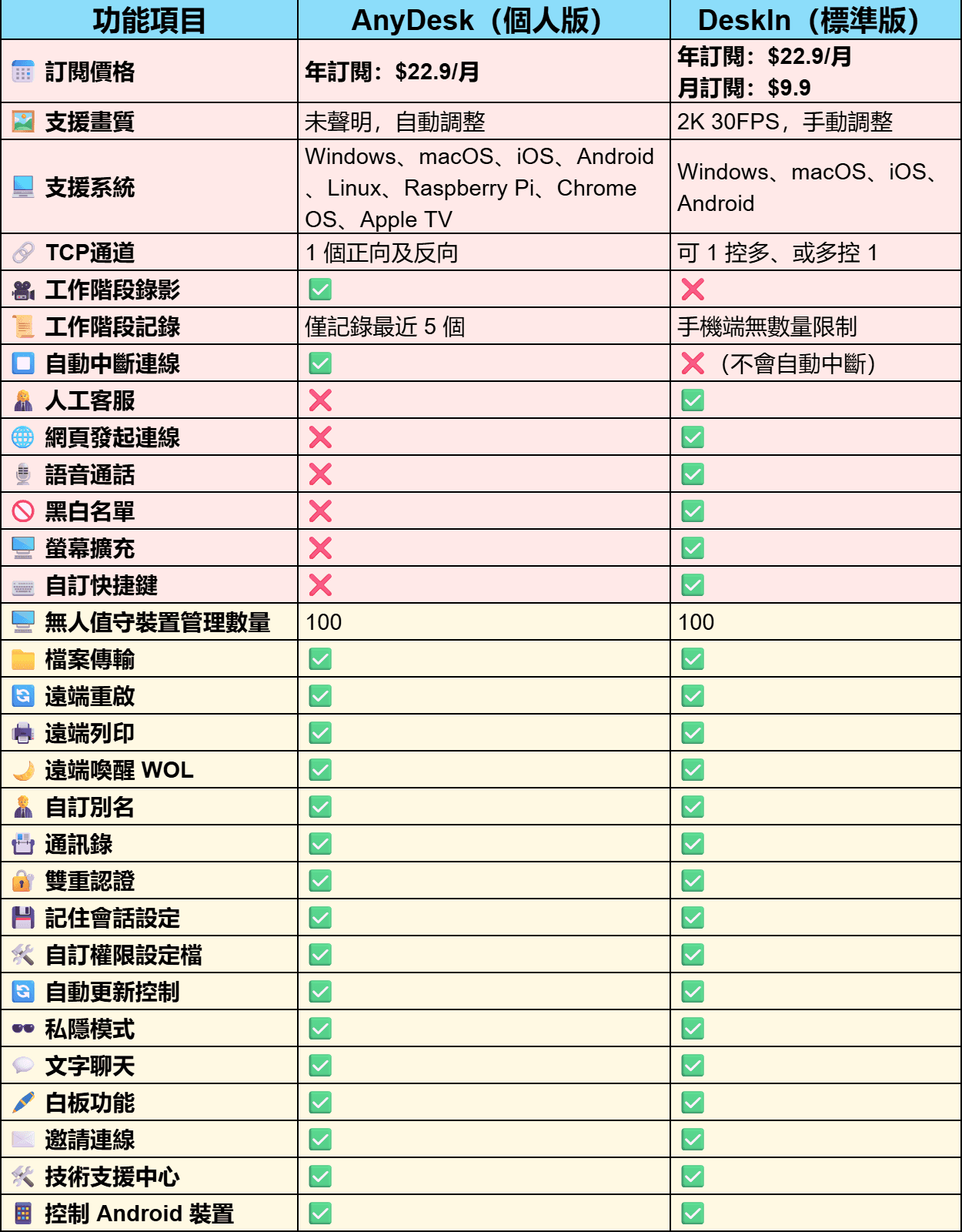
DesIn標準版vsAnydesk個人版

👀想瞭解更詳細的Anydesk和DeskIn的實測對比,請看:

影片:5款遠端實話測評!取代TeamViewer Anydesk ! 超超超低延遲遠端桌面

💻立即下載更具性價比、連線更順暢的DeskIn!

免費下載DeskIn

為什麼DeskIn遠端桌面比Anydesk更好?

  1.  高穩定性:DeskIn提供快速、穩定的連線,沒有連線時長限制,長時間連線也不會斷缐。透過網路導航技術(什麽是網路導航技術?爲什麽DeskIn延遲低?),即使在網絡狀況波動的狀況下也能保持流暢連線。

  2. 高清晰度:DeskIn支援最高4K60FPS和2K144FPS,還手動調整畫面清晰度和幀率,還有4:4:4真彩色編碼,對於可以遠端設計,也可以在手機玩電腦遊戲

  3. 低延遲:DeskIn的延遲低於40ms,能讓使用者想在本地作業一樣流暢使用

  4. 安全性強:DeskIn采用256位元加密技術,還有黑白名單,鎖定客戶端,隱私螢幕等安全設定,確保數據傳輸的安全性,保護用戶的隱私和資訊安全。

  5. 易用:DeskIn介面簡潔直觀,功能分類明確,簡單易用。

  6. 性價比高:DeskIn提供按月訂閲方案,更低的價格提供更豐富更優質的的服務。

  7. 免費螢幕管理與遠端協作功能:除了支援多螢幕。DeskIn支持將手機或平板作為計算機的延伸螢幕,以及跨裝置投影、語音通話功能,讓使用者更好地管理裝置和進行遠端協作。

💻立即下載更具性價比、連線更順暢的DeskIn!

免費下載DeskIn

     月付僅需4.32美金訂閲標準版,月付8.33美金訂閲遊戲版!

輕鬆開始使用Anydesk最佳替代方案DeskIn

第一步,在用於控制與被控制的裝置中分別安裝並開啓DeskIn,注冊一個免費賬戶並登入,如果你是首次在新裝置登入,需要到注冊信箱完成驗證。

第二步,在主控裝置上輸入被控制的裝置的ID,或在設備列表找到你的遠端裝置,點擊連線,使用密碼連線或免密連線方式完成驗證即可成功操控你的遠端電腦。

DeskIn遠端桌面

DeskIn是Anydesk最佳替代品:價格平替性能不打折

綜上所述,DeskIn遠端桌面軟體以其高穩定性、低延遲、強大的安全性、高易用性以及豐富的功能,成為最理想的Anydesk替代品。尤其是正在使用AnyDesk「個人版」的使用者,如果你使用的是Windows、MacOS、iOS和Android,基本可以直接轉向使用DeskIn的「標準版」,更優惠的價格,更好的連線品質,更豐富的功能。無論是你是個人使用或者還是企業用戶來說,DeskIn都能爲你提供完美的解決方案。立即下載DeskIn試試吧!

免費下載DeskIn

不少人爲了管理更多裝置以及避開免費版的連線時長限制,會選擇Anydesk的「個人版」。但以7900臺幣/年的價格(22.9美金/月),Anydesk的「個人版」所含的功能並不多,而且高串流時的連線品質很不穩定。如果你正在使用Anydesk的「個人版」並尋求替代品,DeskIn遠端桌面絕對是你的最佳解決方案。作爲平替,其「標準版」覆蓋所有Anydesk的「個人版」的功能,價格還只要⅕。價格平替不代表性能打折,你可能沒有聽過DeskIn,但它的連線品質一直收到用戶好評。本文將詳細對比DeskIn遠端桌面和Anydesk遠端桌面,告訴你爲什麽DeskIn是Anydesk的最佳替代方案。

💻立即下載更具性價比、連線更順暢的DeskIn遠端桌面

選擇遠端桌面方案時應對比的5個方面:

在選擇遠端桌面Anydesk的替代方案,或是選擇其他遠端工具時,以下5個方面最爲重要,能幫助你選出最適合自己需求的遠端桌面解決方案:

  1. 支援的解析度和延遲度:越高的解析度和越低的延遲,遠端體驗越好,不同的使用情景對清晰度和延遲度的要求不同,要根據自己的需求對比不同方案產品的效能。

  2. 包含的功能:遠端工具或方案所含功能越多,能滿足的使用情境也越多,性價比越高。

  3. 價格:遠端是長期工具,比較不同產品的定價、付費方式、以及所包含功能,挑選更具性價比的方案。

  4. 兼容性:遠程桌面工具應支持多種操作系統和設備,以便于跨平台使用。

  5. 安全性:遠程桌面涉及個人隱私,應比較不同遠端桌面的安全功能以及加密方式,選擇安全係數更高的遠端桌面。

為什麼AnyDesk不是你最好的選擇?

AnyDesk遠端桌面在穩定性和跨平台支援上的表現都比較出色,也容易使用,但他同時也存在一些限制和不足,導致使用者需要尋找替代方案  :

  1. 商業使用限制:AnyDesk免費版不可商業,有連線時長限制或廣告,容易掉缐。

  2. 性能一般:AnyDesk的解析度和幀率只支援自動調整,網路狀況不佳時,畫面卡頓、模糊嚴重,而且無法支援對色彩表現要求較高及高串流的設計作業和遊戲場景。

  3. 功能較爲有限:AnyDesk的功能較爲有限且基礎,缺乏語音通話、螢幕管理、遊戲等功能,影響可用性。

  4. 價格昂貴:AnyDesk的付費版價格相對較高,且都必須按年訂閲,門檻較高。

  5. 安全性:Anydesk資安事件頻繁,例如,幾年AnyDesk披露其遭遇網絡攻擊,生產系統被入侵,對使用者帶來了潛在的風險。

  6. 中文輸入法支援不足:Anydesk在手機上的中文輸入法無法使用注音輸入,還有切換鍵盤時鍵盤會消失等問題,影響使用體驗。

Anydesk「免費版」和「個人版」的區別

詳細對比了Anydesk官方的「免費版」和「個人版」對比表格,2個方案主要在管理裝置數和管理方式上存在區別,而這些「個人版」中的付費功能,部分DeskIn的免費版本就已經提供。

區別項目

Anydesk「免費版」

Anydesk「個人版」

受管設備 (無人值守連接)

3

100

TCP通道

1(已註冊帳號)

1 個正向及反向

自定義別名

×

通訊錄

1 個通訊錄,5 個條目

1 個通訊錄,100 個條目

工作階段記錄

僅限本裝置查看

可以記錄線上,只記錄最近5條

可定義自動更新

×

私隱模式

×

DeskIn遠端桌面——最佳的Anydesk「個人版」替代品

DeskIn「標準版」與AnyDesk「個人版」完整對比

下圖完整對比了Anydesk的個人版和DeskIn的標準版,標黃部分為兩個版本都提供的功能,標黃的是兩者的不同以及Anydesk缺少的功能。作爲Anydesk的平替解決方案,DeskIn的「標準版」方案對比AnyDesk唯一不足的地方是支援的操作系統比較少,但整體覆蓋最多人用的4個操作系統。DeskIn不僅價格更低,功能也比Anydesk更多,一看就知道爲什麽你需要選擇DeskIn「標準版」而不是AnyDesk「個人版」了吧。

DesIn標準版vsAnydesk個人版

👀想瞭解更詳細的Anydesk和DeskIn的實測對比,請看:

影片:5款遠端實話測評!取代TeamViewer Anydesk ! 超超超低延遲遠端桌面

💻立即下載更具性價比、連線更順暢的DeskIn!

免費下載DeskIn

為什麼DeskIn遠端桌面比Anydesk更好?

  1.  高穩定性:DeskIn提供快速、穩定的連線,沒有連線時長限制,長時間連線也不會斷缐。透過網路導航技術(什麽是網路導航技術?爲什麽DeskIn延遲低?),即使在網絡狀況波動的狀況下也能保持流暢連線。

  2. 高清晰度:DeskIn支援最高4K60FPS和2K144FPS,還手動調整畫面清晰度和幀率,還有4:4:4真彩色編碼,對於可以遠端設計,也可以在手機玩電腦遊戲

  3. 低延遲:DeskIn的延遲低於40ms,能讓使用者想在本地作業一樣流暢使用

  4. 安全性強:DeskIn采用256位元加密技術,還有黑白名單,鎖定客戶端,隱私螢幕等安全設定,確保數據傳輸的安全性,保護用戶的隱私和資訊安全。

  5. 易用:DeskIn介面簡潔直觀,功能分類明確,簡單易用。

  6. 性價比高:DeskIn提供按月訂閲方案,更低的價格提供更豐富更優質的的服務。

  7. 免費螢幕管理與遠端協作功能:除了支援多螢幕。DeskIn支持將手機或平板作為計算機的延伸螢幕,以及跨裝置投影、語音通話功能,讓使用者更好地管理裝置和進行遠端協作。

💻立即下載更具性價比、連線更順暢的DeskIn!

免費下載DeskIn

     月付僅需4.32美金訂閲標準版,月付8.33美金訂閲遊戲版!

輕鬆開始使用Anydesk最佳替代方案DeskIn

第一步,在用於控制與被控制的裝置中分別安裝並開啓DeskIn,注冊一個免費賬戶並登入,如果你是首次在新裝置登入,需要到注冊信箱完成驗證。

第二步,在主控裝置上輸入被控制的裝置的ID,或在設備列表找到你的遠端裝置,點擊連線,使用密碼連線或免密連線方式完成驗證即可成功操控你的遠端電腦。

DeskIn遠端桌面

DeskIn是Anydesk最佳替代品:價格平替性能不打折

綜上所述,DeskIn遠端桌面軟體以其高穩定性、低延遲、強大的安全性、高易用性以及豐富的功能,成為最理想的Anydesk替代品。尤其是正在使用AnyDesk「個人版」的使用者,如果你使用的是Windows、MacOS、iOS和Android,基本可以直接轉向使用DeskIn的「標準版」,更優惠的價格,更好的連線品質,更豐富的功能。無論是你是個人使用或者還是企業用戶來說,DeskIn都能爲你提供完美的解決方案。立即下載DeskIn試試吧!
免費下載DeskIn
new year promo
deskin promo
deskin promo
deskin promo
Chrome Remote Desktop and setup guide
deskin promo

What’s next?

Chrome Remote Desktop and setup guide

How to Set Up & Use Chrome Remote Desktop: Complete Beginner's Guide | DeskIn Japan

How to Set Up and Use Chrome Remote Desktop in Japan: A Complete Beginner's Guide to CRD

What You'll Learn in This Article

This article walks through the basic setup and features of Chrome Remote Desktop (CRD), Google's free remote access tool — explained clearly for first-time users.

CRD is free, simple to configure, and integrates smoothly with your existing Google account and Chrome browser. It works across Windows, Mac, and smartphones, making it easy to get started with remote access from virtually any device.

For everyday personal use and one-off remote support sessions, it's an excellent option — though its features are limited to "Remote Access" and "Remote Support." For more advanced requirements — 4K display quality, low latency, or stable connections inside Japanese corporate networks — a professional-grade tool like DeskIn is worth considering.


Introduction

What Is Chrome Remote Desktop?

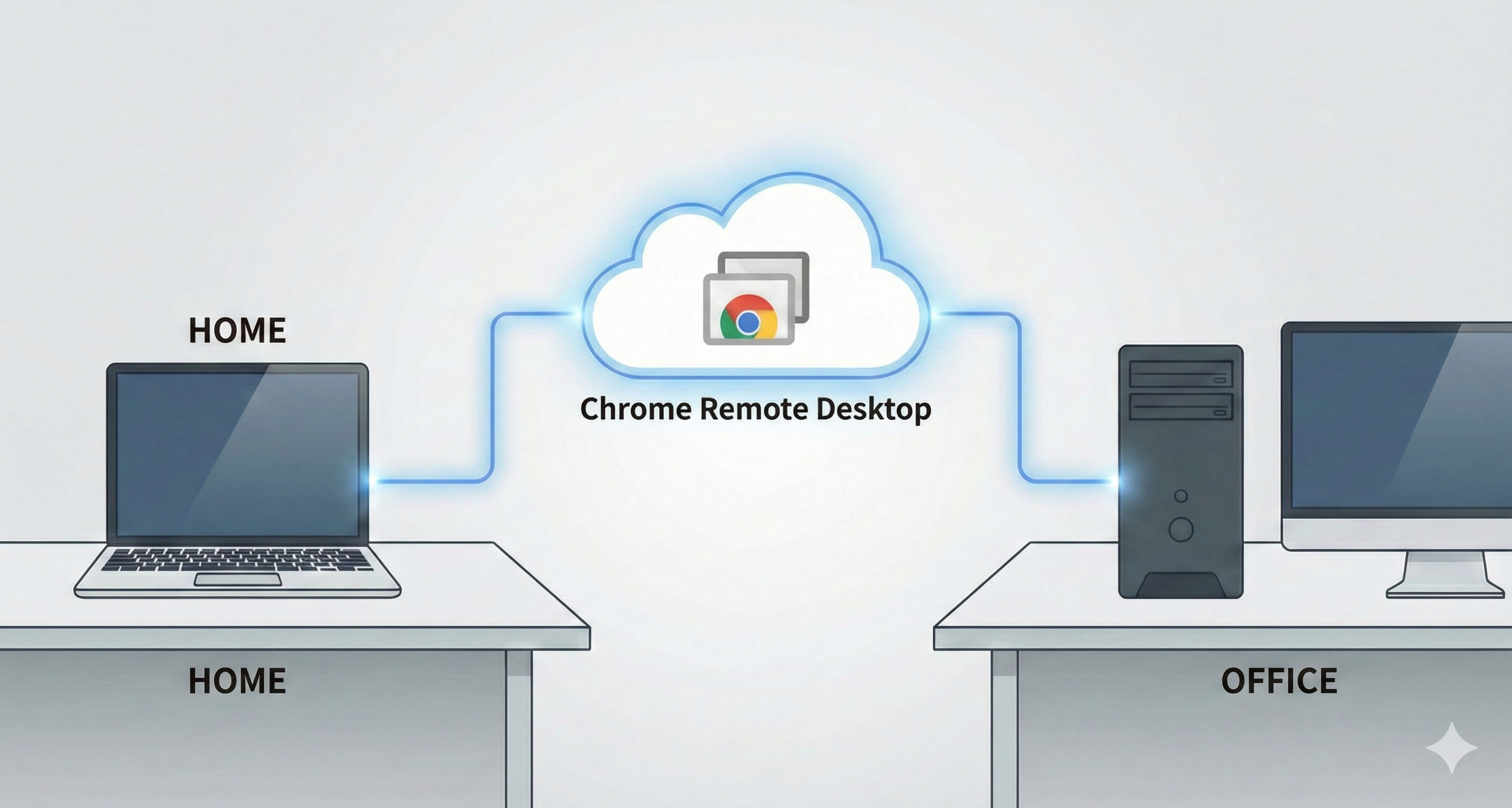
Chrome Remote Desktop (CRD) is a free remote access tool developed by Google. All you need is the Chrome browser and a Google account to remotely control another PC over the internet, from anywhere. No additional hardware is required, making it one of the most accessible ways to get started with remote desktop access.

Why Remote Desktop Is Useful in Japan

Hybrid work has become a fixture across Japan's working culture. Many companies — especially in Tokyo and other major cities — now expect employees to split their time between the office and home. Students, too, often find themselves needing access to files or software left behind on a home PC. And for those who have just joined the workforce as shinshakajin (新社会人 — literally "new members of society," the term for fresh graduates entering their first job, typically in April when Japan's fiscal and academic year begins), juggling unfamiliar tools across multiple environments can be genuinely stressful. Chrome Remote Desktop offers a practical, low-barrier solution for all of these situations.

Recommended Reads:
Which One Is Better, Chrome Remote Desktop Or Microsoft Remote Desktop?

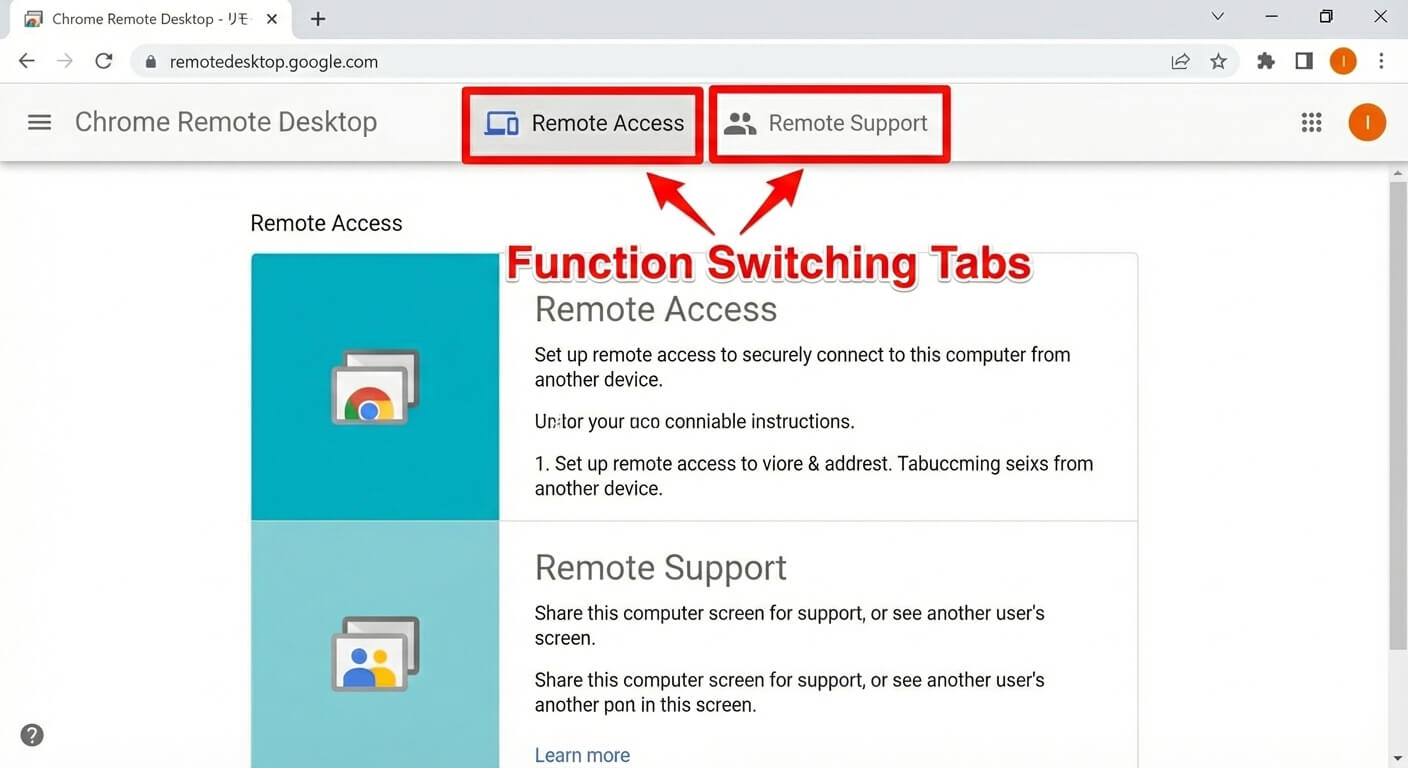
Chrome Remote Desktop's Two Core Features

  1. Remote Access — Connect to Your Own Devices, Anytime

The "Remote Access" feature lets you connect to your home or office PC from any location, at any time. Once the host machine is configured, you can control it remotely as long as it's powered on — even if no one is sitting in front of it. This is ideal for pulling up a file you left on your home PC while you're at school or the office, or for using your full desktop environment from a laptop while you're out.

  1. Remote Support — Temporary Screen Sharing for Troubleshooting

The "Remote Support" feature is built for one-off, temporary sessions. By sharing a connection code, you can let someone else view or control your screen — or do the same for them — without exchanging account credentials. It's a clean and simple way to help a classmate, colleague, or family member work through a technical issue remotely.

Chrome Remote Desktop is designed specifically around these two functions. That focused scope makes it particularly easy to pick up, even if you've never used a remote desktop tool before.

Chrome Remote Desktop feature switching

What You'll Need Before Getting Started

A Google Account

A Google account is required. If you don't already have one, register before you begin. If you're already using Gmail or Google Drive, that same account will work here.

Google Chrome Browser

CRD runs inside the Chrome browser, so Chrome needs to be installed on both the host (the PC you want to access remotely) and the client (the device you're connecting from). Chrome can be installed alongside any other browser without conflict.

A Stable Internet Connection

Remote desktop transmits live screen data over the internet, so a reliable connection on both ends matters. If your Wi-Fi is inconsistent, a wired connection will generally produce a much smoother experience.

Step-by-Step Setup Guide

Setting Up the Host PC (the Computer You Want to Control)

Start by configuring Chrome Remote Desktop on the machine you'll be accessing remotely.

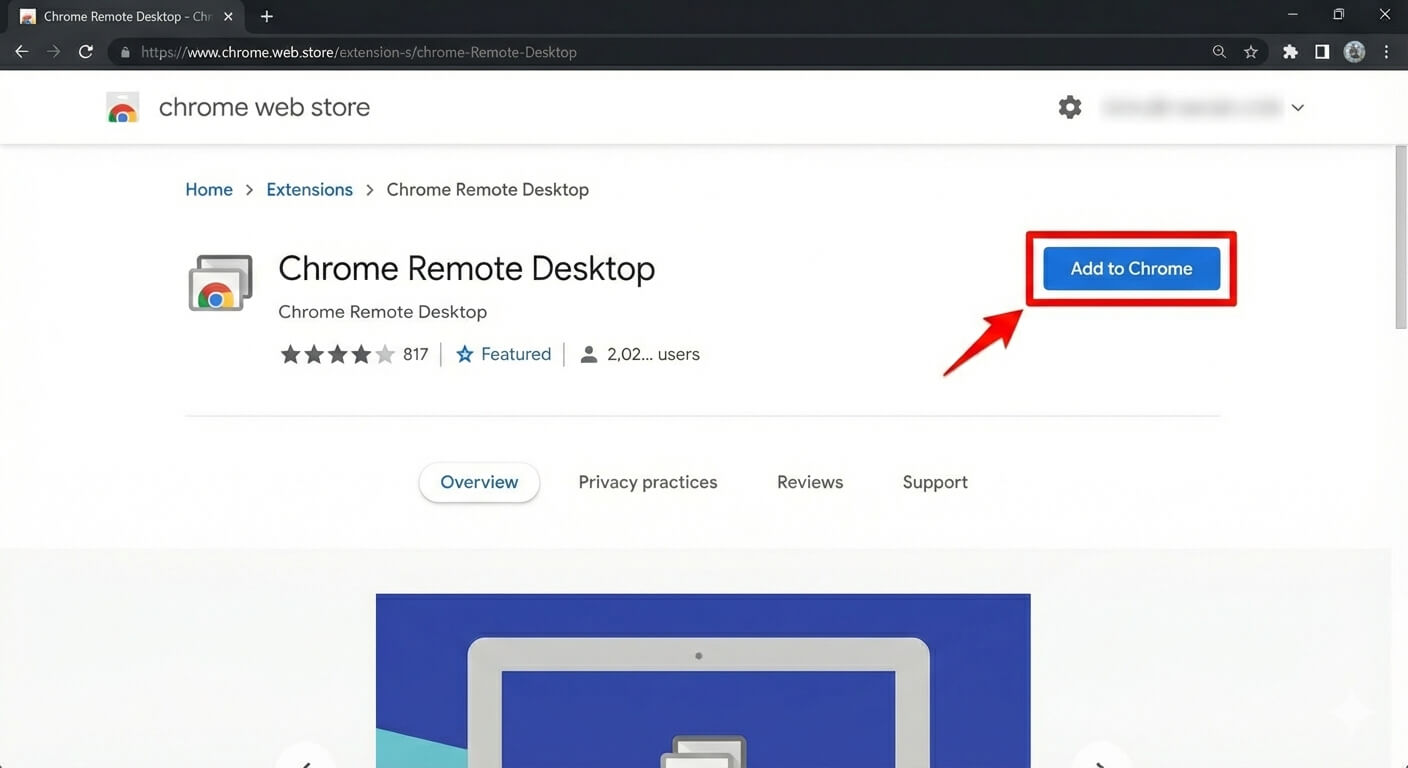
  1. Open Google Chrome and navigate to the Chrome Remote Desktop page.

  2. Follow the on-screen prompts to add the extension and complete the installation.

Chrome Remote Desktop addition and installation procedure
  1. Enable "Remote Access" and follow the steps to set a PIN code of at least six digits.

  2. Once setup is complete, this PC will appear in your list of remotely accessible devices.

Connecting from the Client Device (the Device You're Using to Connect)

Next, prepare the device you'll be connecting from.

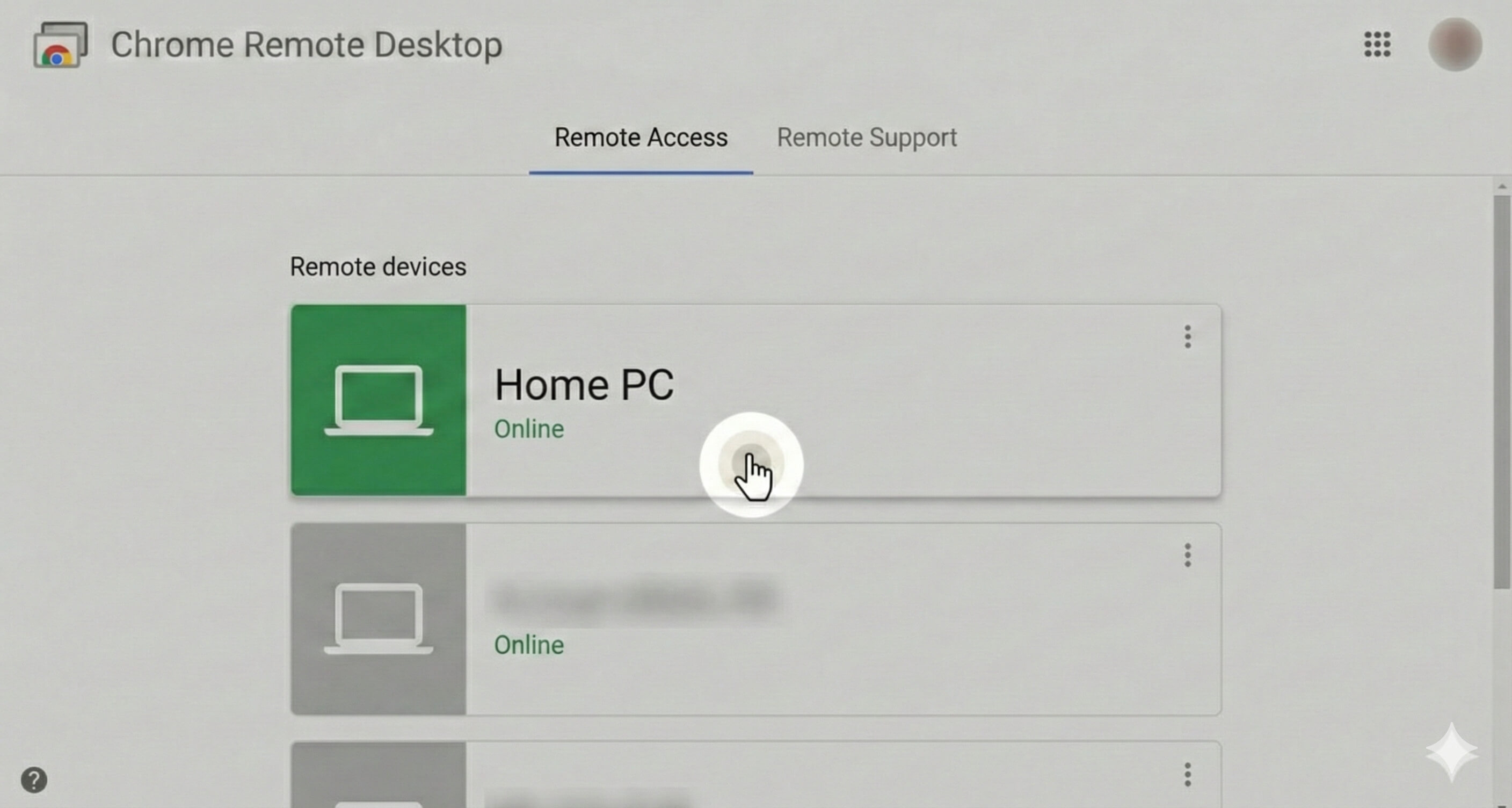
  1. Log into Chrome with the same Google account and open the Chrome Remote Desktop page.

  2. Select the host PC from your device list.

Chrome Remote Desktop device connection screen
  1. If connecting from a smartphone or tablet, download the dedicated iOS or Android app and select your target PC from within the app.

Authenticating with Your PIN Code

After selecting the host PC, you'll be prompted to enter your PIN to verify the connection.

  1. Enter the PIN you created during setup on the client device.

  2. Once authenticated, the host PC's screen will appear on your device and you'll be able to control it with your mouse and keyboard.

  3. The connection is encrypted and can be ended at any time.

Tips for Getting More Out of CRD

Make the Most of Keyboard Shortcuts

Using keyboard shortcuts deliberately can make a real difference to your efficiency in a remote session. This is especially worth thinking about if you're switching between Windows and Mac, where key behaviour differs — particularly around:

  • The difference between the Ctrl and Cmd keys

  • Full-screen toggling and window switching

Familiarising yourself with these basics in advance will help things feel more natural. If shortcuts are being captured by your local device instead of reaching the remote machine, check the settings for an option like "Send all keyboard input to remote" — this is usually the fix.

Using CRD on Mobile: What to Expect

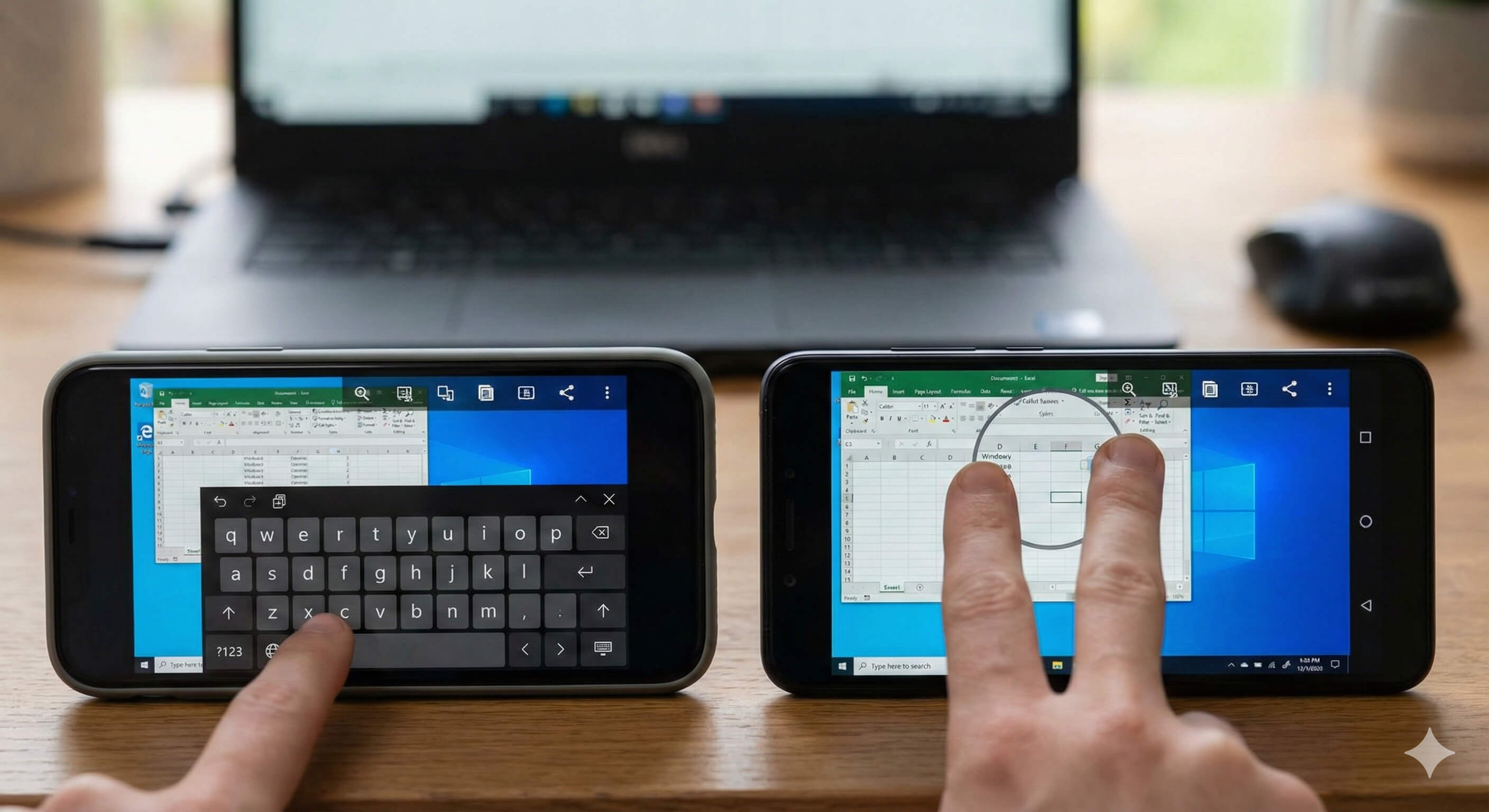
The mobile experience differs quite a bit from working on a desktop. Chrome Remote Desktop's mobile app is built around touch controls:

  • Swipe to move the mouse cursor

  • Pinch to zoom in or out

  • Toolbar at the bottom of the screen to access the keyboard and menu

Precise input — longer text entry, drag-and-drop, clicking small targets — is slower and more effortful on mobile than on a PC. In practice, mobile access works best for quick checks and light tasks. For anything more involved, a laptop or desktop will serve you much better.

Chrome Remote Desktop smartphone operation image

The Limitations of Chrome Remote Desktop

Simplicity Has Its Ceiling

Chrome Remote Desktop is, at its core, a tool built for "Remote Access" and "Remote Support" — nothing more. That focus is part of what makes it easy to use, but it also means that more specialised requirements hit a wall fast. If you need to transfer large files quickly, manage multiple users or devices, or keep detailed logs of remote sessions, you'll find CRD doesn't have the tools for the job.

Instability Inside Japanese Corporate Networks

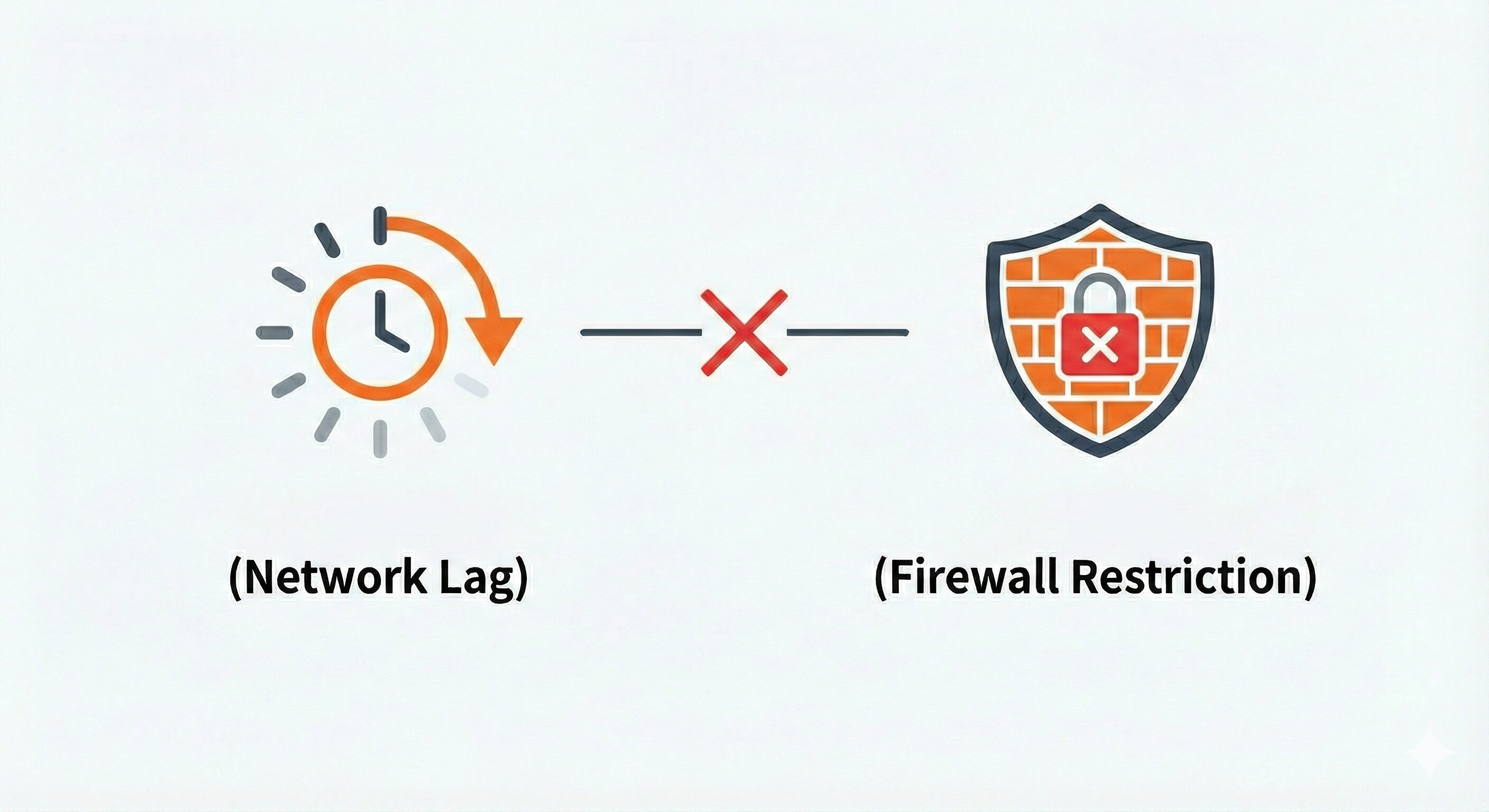
Many Japanese companies — particularly larger organisations — maintain strict internal network environments managed by their IT departments (joho shisutemu-bu, 情報システム部). Firewalls, proxy settings, and restrictions on Google services are common, particularly in finance, manufacturing, and government-adjacent industries. In these environments, Chrome Remote Desktop connections can become unreliable, suffer significant lag, or fail entirely.

If you've started a new job in Japan and found that CRD simply won't connect from the office network, this is almost certainly why.

Network latency and firewall restrictions image

Dependency on Your Google Account

Because CRD is tied to a Google account, any disruption to that account — a forgotten password, an account lock, or a multi-factor authentication hiccup — directly affects your ability to access remote machines. For personal use this is manageable, but for anything business-critical, it's a meaningful single point of failure.

Ready for More? Meet DeskIn — A Professional Remote Desktop Solution

The Natural Next Step Up from CRD

Chrome Remote Desktop is a solid starting point, but as remote work needs become more regular and more demanding, many users find themselves running up against its limits. For those who need a more robust, feature-rich tool suited to daily professional use, DeskIn is the obvious step up.

Built to Handle Japan's Corporate Network Environments

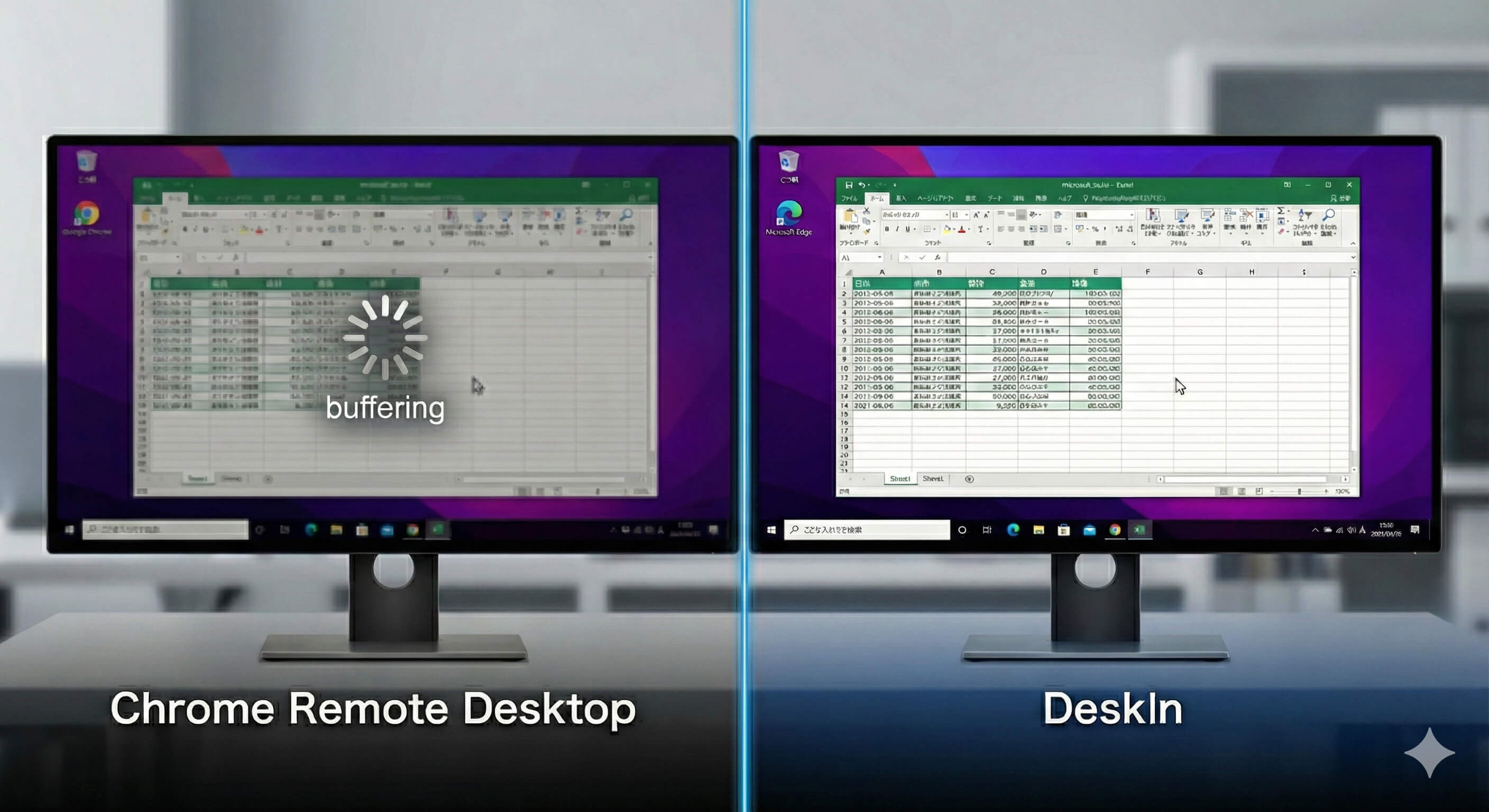
DeskIn is engineered for stability in complex network setups — including the kind of strict firewalls and proxy configurations common in Japanese corporate IT infrastructure. Where CRD struggles in these environments, DeskIn is designed to maintain consistent, low-latency connections even under restrictive conditions.

Image comparison of image quality between Chrome Remote Desktop and Deskin

Professional Performance and an Intuitive Workflow

DeskIn supports 4K display quality and ultra-low-latency response, with a dedicated desktop client that isn't dependent on a browser. For creative work, detailed tasks, or simply getting through a full working day remotely without friction, this level of performance makes a tangible difference. 

→ Try DeskIn for free and explore what's possible

Summary

Chrome Remote Desktop is a free, easy-to-use tool that works well for personal use, occasional remote access, and basic screen sharing. If you're new to remote desktop tools — or if you just need a quick, no-cost way to access your own PC remotely — CRD is a perfectly reasonable place to start.

For day-to-day professional use in Japan, however, particularly within corporate network environments or when you need reliable performance and high display quality, CRD will likely fall short. In those cases, transitioning to or pairing CRD with a tool like DeskIn will give you a remote setup that's genuinely fit for purpose.

Recommended Reads:
9 Benefits of Remote Access & Best Practices for Modern Life

daughter helping her father troubleshooting windows home remote access

Windows Home 無法遠端連線?不用花錢升級,這樣做就能免費遠端控制。

如果你曾試著用 Windows Home 電腦遠端連線到另一台筆電,卻發現系統跳出「Home 版本不支援 Remote Desktop」的提示,你應該對這種挫折感不陌生。最讓人困擾的,通常有三點。第一,Windows Home 無法作為遠端桌面主機(Host),也就是說,不論是桌機還是筆電,都不能被其他裝置直接遠端連入。第二,官方提供的唯一解法,就是升級到 Windows Pro,而每台裝置都得額外支付 US$99 授權費。第三,Microsoft 自家的 Remote Desktop 用戶端 App 也將在 2025 到 2026 年間陸續停止支援,讓 Home 使用者可用的內建選項比以前更少。好消息是,現在其實已有價格更親民、甚至部分免費的替代方案。以下就帶你快速了解,到底改變了什麼、這些變化會如何影響一般使用者,以及有哪些工具能幫你重新把遠端控制權拿回來。

過去的期待:多數 Windows Home 使用者原本怎麼想

大多數人在購買 Windows 筆電時,通常會直覺認為自己拿到的是完整的 Windows 使用體驗。Remote Desktop Protocol(RDP,遠端桌面通訊協定)其實已經是 Windows 作業系統內建超過 20 年的功能之一。只是 Microsoft 將 RDP 的主機功能,也就是「接受其他裝置遠端連入」的能力,只保留給 Windows Pro、Enterprise 與 Education 版本。Windows Home 只能作為用戶端使用,代表你可以從這台電腦連出去到 Pro 版本裝置,但別人無法反向連進你的 Home 電腦。

對於需要用輕薄筆電遠端連回高效能桌機的設計師、把重要檔案留在家中電腦裡的學生,或是想遠端幫家人排除問題的人來說,這其實是很明顯的使用落差。原本大家以為「直接遠端連進去就好」,但實際上,Windows Home 會默默告訴你:不支援。

「那就升級 Pro 吧」的真正成本

Microsoft 官方給出的解法,是購買 Windows 11 Pro 授權。全新 Pro 授權售價約為 US$199,而從 Home 直接升級到 Pro 則需額外支付 US$99。若你手上不只一台設備,例如家中桌機加個人筆電,這筆費用很快就會累積起來。對自由工作者、學生,或重視隱私的一般家庭使用者來說,只為了解鎖一項功能就多花這筆錢,其實門檻不低。

而且,即使完成升級,若你想在家中網路以外的環境使用 RDP,通常還是得另外設定 VPN 或進行 Port Forwarding(連接埠轉發)。這些步驟對多數一般使用者來說並不直覺,操作門檻也不算低。

後來的變化:Microsoft 遠端工具逐步退場,讓問題變得更急迫

更麻煩的是,Microsoft 已在 2025 年 5 月停用 Remote Desktop Store App,並將於 2026 年 3 月 27 日終止對獨立 MSI 版 Remote Desktop 用戶端的支援。這兩款工具之後都會由新的「Windows App」取代,而新版本的重心明顯放在 Azure Virtual Desktop、Windows 365 等雲端服務上。

雖然經典內建工具(mstsc.exe)目前仍可使用,但它依然無法讓 Windows Home 裝置變成可被遠端連入的主機。對原本仰賴 Microsoft 自家工具在不同裝置間切換工作的日常使用者來說,這樣的變化不只增加混亂,也進一步說明:對多數 Home 使用者而言,第三方遠端軟體已經成為更實際的解法。

改用第三方遠端桌面工具

最直接的做法,其實就是跳過 RDP,改用不受 Windows 版本限制的遠端存取工具。目前有三款產品特別值得比較。

AnyDesk

AnyDesk 目前技術上仍提供個人使用的免費方案,但近來的限制已讓它越來越難作為穩定選擇。根據不少使用者回饋,現在免費版的連線最短可能在 5 分鐘內就被中斷,相比過去可使用 30 到 40 分鐘,限制明顯收緊。檔案傳輸功能也已完全從免費版中移除。除此之外,免費方案最多只能綁定 3 台裝置,且同一時間僅能維持 1 個連線工作階段。更麻煩的是,AnyDesk 的商業用途偵測機制常會誤判一般個人使用者,導致無預警斷線。付費方案則從每月 US$14.90 起。整體來看,AnyDesk 已不太適合作為可靠的免費方案。

TeamViewer

TeamViewer 是遠端存取領域中知名度最高的品牌之一。它的免費方案涵蓋個人使用,也包含加密、檔案傳輸與跨平台支援等功能。由於使用者基礎龐大,相關教學與疑難排解資源也相對容易找到。不過,它和 AnyDesk 一樣,也面臨商業用途誤判的問題:不少個人使用者會被系統誤認為商業用途,必須提出申訴後才能恢復使用。至於付費方案,價格則較偏向企業預算,而非一般個人用戶,大約每月 US$58.90 左右。

DeskIn

DeskIn 採取的是不同路線。它的免費方案可讓你完整遠端控制最多 3 台裝置,支援 1080p、30 FPS,沒有連線時長限制,也不會因商業用途誤判而在工作途中被強制中斷。對 Windows Home 使用者來說,如果你的需求只是遠端拿另一台電腦裡的檔案、幫家中長輩排除問題,或旅行時查看家中電腦狀況,免費方案通常就已經夠用。DeskIn 透過自家的雲端中繼服務進行連線,因此不需要另外設定 VPN 或 Port Forwarding。即使是免費方案,也仍提供 AES-256 加密與 ISO 27001 認證。檔案傳輸速度最高可達 12 MB/s,且不設檔案大小上限,不過目前僅限電腦傳送到手機。跨平台能力方面,你可以直接用手機控制家中電腦,或把平板當成筆電延伸螢幕,全程都不需要 Windows Pro 授權。

如果你有更高階的需求,DeskIn 付費方案則從每月 US$9.90 起,提供更高解析度串流、更快的檔案傳輸速度,以及最多支援 100 台裝置的管理能力。

DeskIn:免費也能享有完整遠端存取體驗

這三款工具都能補上 Windows Home 原本缺少的遠端控制能力。AnyDesk 和 TeamViewer 雖然是大家比較熟悉的品牌,但它們的免費方案近年限制越來越多,像是連線時間縮短、部分功能被移除,加上商業用途誤判的情況不穩定,對需要 नियमित使用的人來說,已經不太容易放心依賴。

如果你需要的是適合設計工作的色彩穩定度、每天傳輸大型專案檔案,或只是想要一套不用煩惱網路設定、連線穩定的遠端存取工具,DeskIn 以相對合理的價格提供更完整的功能組合,而且個人方案可免費開始使用。

當然,如果你本身確實需要 RDP 以及其他 Windows Pro 功能,升級到 Windows Pro 仍然是可行選擇。但如果你考慮花 US$99 升級的主要原因,只是為了取得遠端桌面功能,那麼 DeskIn 其實已提供一個免費、低延遲,而且適用於各種 Windows 版本的替代方案

在決定是否花錢升級授權前,不妨先下載 DeskIn 試試遠端工作體驗,或進一步了解它的生產力功能,看看它是否更符合你的實際需求。

爲什麽DeskIn遠端桌面比Splashtop更好用?

如果你正在尋找splashtop的更好替代品,本文將從行動裝置支援、功能全面性、性價比幾個方面對比splashtop和DeskIn,並告訴你爲什麽DeskIn遠端桌面比Splashtop更加好用。

DeskIn vs Splashtop:行動裝置支援

  • DeskIn:免費適用於所有平台,全面支持Android、iOS等主流移動操作系統,讓用戶能隨時隨地通過智能手機或平板訪問和控制遠端桌面。

  • Splashtop:免費版僅限於非商業用途的設備,其遠程訪問範圍極為有限,且缺乏搜索設備的功能,需升級至付費版才能享受行動設備支持。

DeskIn vs Splashtop:功能全面性

  • DeskIn:提供豐富的功能集,包括延伸萤幕、語音通話、標注、共享剪貼板等,這些功能均旨在提升用戶的遠端協作效率和螢幕管理效率。而且還有專門針對遠端遊戲的遊戲鍵盤、遊戲滑鼠、遊戲手把支援等等。

  • Splashtop:雖然也提供了一定數量的功能,但相比之下功能集較為有限,更設和企業去使用,針對個人使用者很多付費功能並用不到。免費版不支援档案傳輸、遠端打印等日常功能,這些功能需升級至更高級版本才能使用。

DeskIn vs Splashtop:廣泛的裝置支援能力

  • DeskIn:支援多達100台裝置的遠端控制,這對於大型企業或需要管理多個設備的用戶來說,無疑是一個巨大的優勢。它允許用戶從一個中心位置訪問和控制所有這些設備。

  • Splashtop:相比之下,Splashtop的裝置支援數量有限,僅支援10台裝置的遠端控制。這可能會限制一些用戶的擴展性和靈活性。

DeskIn vs Splashtop:性價比

  • DeskIn:提供靈活的付費方案,可以進行按月訂閲,内含功能豐富,性價比高。

  • Splashtop:採用按年支付的方式,且付費價格較高,對個人使用者來説不太友好。且部分付費功能是其它軟體免費版就支援的功能。

DeskIn 與 Splashtop免費及付費版本對比:


開始免费试用DeskIn!

第一步,進入官網 DeskIn Personal | 拥有4000多万用户的免费远程桌面应用程序下載安裝DeskIn。


第二步,在個人中心中使用郵箱註冊並完成驗證,開啟Deskln登入使用。


第三步,在主控裝置上輸入被控制的裝置的ID,點擊連缐,使用密碼連缐或免密連缐方式完成連缐。


等待幾秒后,您就可以控制遠端裝置了,遠端裝置就好像在您身邊一樣。


總結

DeskIn遠端桌面在廣域網下的移動設備支持、功能全面性、用戶體驗的友好度以及性價比等方面均優於Splashtop。這些優勢使得DeskIn遠端桌面成為一個更加優秀且實用的遠端桌面解決方案,無論是對個人用戶還是企業用戶而言,都能帶來更加便捷、高效和安全的遠端操作體驗。

Chrome Remote Desktop and setup guide

How to Set Up & Use Chrome Remote Desktop: Complete Beginner's Guide | DeskIn Japan

How to Set Up and Use Chrome Remote Desktop in Japan: A Complete Beginner's Guide to CRD

What You'll Learn in This Article

This article walks through the basic setup and features of Chrome Remote Desktop (CRD), Google's free remote access tool — explained clearly for first-time users.

CRD is free, simple to configure, and integrates smoothly with your existing Google account and Chrome browser. It works across Windows, Mac, and smartphones, making it easy to get started with remote access from virtually any device.

For everyday personal use and one-off remote support sessions, it's an excellent option — though its features are limited to "Remote Access" and "Remote Support." For more advanced requirements — 4K display quality, low latency, or stable connections inside Japanese corporate networks — a professional-grade tool like DeskIn is worth considering.


Introduction

What Is Chrome Remote Desktop?

Chrome Remote Desktop (CRD) is a free remote access tool developed by Google. All you need is the Chrome browser and a Google account to remotely control another PC over the internet, from anywhere. No additional hardware is required, making it one of the most accessible ways to get started with remote desktop access.

Why Remote Desktop Is Useful in Japan

Hybrid work has become a fixture across Japan's working culture. Many companies — especially in Tokyo and other major cities — now expect employees to split their time between the office and home. Students, too, often find themselves needing access to files or software left behind on a home PC. And for those who have just joined the workforce as shinshakajin (新社会人 — literally "new members of society," the term for fresh graduates entering their first job, typically in April when Japan's fiscal and academic year begins), juggling unfamiliar tools across multiple environments can be genuinely stressful. Chrome Remote Desktop offers a practical, low-barrier solution for all of these situations.

Recommended Reads:
Which One Is Better, Chrome Remote Desktop Or Microsoft Remote Desktop?

Chrome Remote Desktop's Two Core Features

  1. Remote Access — Connect to Your Own Devices, Anytime

The "Remote Access" feature lets you connect to your home or office PC from any location, at any time. Once the host machine is configured, you can control it remotely as long as it's powered on — even if no one is sitting in front of it. This is ideal for pulling up a file you left on your home PC while you're at school or the office, or for using your full desktop environment from a laptop while you're out.

  1. Remote Support — Temporary Screen Sharing for Troubleshooting

The "Remote Support" feature is built for one-off, temporary sessions. By sharing a connection code, you can let someone else view or control your screen — or do the same for them — without exchanging account credentials. It's a clean and simple way to help a classmate, colleague, or family member work through a technical issue remotely.

Chrome Remote Desktop is designed specifically around these two functions. That focused scope makes it particularly easy to pick up, even if you've never used a remote desktop tool before.

Chrome Remote Desktop feature switching

What You'll Need Before Getting Started

A Google Account

A Google account is required. If you don't already have one, register before you begin. If you're already using Gmail or Google Drive, that same account will work here.

Google Chrome Browser

CRD runs inside the Chrome browser, so Chrome needs to be installed on both the host (the PC you want to access remotely) and the client (the device you're connecting from). Chrome can be installed alongside any other browser without conflict.

A Stable Internet Connection

Remote desktop transmits live screen data over the internet, so a reliable connection on both ends matters. If your Wi-Fi is inconsistent, a wired connection will generally produce a much smoother experience.

Step-by-Step Setup Guide

Setting Up the Host PC (the Computer You Want to Control)

Start by configuring Chrome Remote Desktop on the machine you'll be accessing remotely.

  1. Open Google Chrome and navigate to the Chrome Remote Desktop page.

  2. Follow the on-screen prompts to add the extension and complete the installation.

Chrome Remote Desktop addition and installation procedure
  1. Enable "Remote Access" and follow the steps to set a PIN code of at least six digits.

  2. Once setup is complete, this PC will appear in your list of remotely accessible devices.

Connecting from the Client Device (the Device You're Using to Connect)

Next, prepare the device you'll be connecting from.

  1. Log into Chrome with the same Google account and open the Chrome Remote Desktop page.

  2. Select the host PC from your device list.

Chrome Remote Desktop device connection screen
  1. If connecting from a smartphone or tablet, download the dedicated iOS or Android app and select your target PC from within the app.

Authenticating with Your PIN Code

After selecting the host PC, you'll be prompted to enter your PIN to verify the connection.

  1. Enter the PIN you created during setup on the client device.

  2. Once authenticated, the host PC's screen will appear on your device and you'll be able to control it with your mouse and keyboard.

  3. The connection is encrypted and can be ended at any time.

Tips for Getting More Out of CRD

Make the Most of Keyboard Shortcuts

Using keyboard shortcuts deliberately can make a real difference to your efficiency in a remote session. This is especially worth thinking about if you're switching between Windows and Mac, where key behaviour differs — particularly around:

  • The difference between the Ctrl and Cmd keys

  • Full-screen toggling and window switching

Familiarising yourself with these basics in advance will help things feel more natural. If shortcuts are being captured by your local device instead of reaching the remote machine, check the settings for an option like "Send all keyboard input to remote" — this is usually the fix.

Using CRD on Mobile: What to Expect

The mobile experience differs quite a bit from working on a desktop. Chrome Remote Desktop's mobile app is built around touch controls:

  • Swipe to move the mouse cursor

  • Pinch to zoom in or out

  • Toolbar at the bottom of the screen to access the keyboard and menu

Precise input — longer text entry, drag-and-drop, clicking small targets — is slower and more effortful on mobile than on a PC. In practice, mobile access works best for quick checks and light tasks. For anything more involved, a laptop or desktop will serve you much better.

Chrome Remote Desktop smartphone operation image

The Limitations of Chrome Remote Desktop

Simplicity Has Its Ceiling

Chrome Remote Desktop is, at its core, a tool built for "Remote Access" and "Remote Support" — nothing more. That focus is part of what makes it easy to use, but it also means that more specialised requirements hit a wall fast. If you need to transfer large files quickly, manage multiple users or devices, or keep detailed logs of remote sessions, you'll find CRD doesn't have the tools for the job.

Instability Inside Japanese Corporate Networks

Many Japanese companies — particularly larger organisations — maintain strict internal network environments managed by their IT departments (joho shisutemu-bu, 情報システム部). Firewalls, proxy settings, and restrictions on Google services are common, particularly in finance, manufacturing, and government-adjacent industries. In these environments, Chrome Remote Desktop connections can become unreliable, suffer significant lag, or fail entirely.

If you've started a new job in Japan and found that CRD simply won't connect from the office network, this is almost certainly why.

Network latency and firewall restrictions image

Dependency on Your Google Account

Because CRD is tied to a Google account, any disruption to that account — a forgotten password, an account lock, or a multi-factor authentication hiccup — directly affects your ability to access remote machines. For personal use this is manageable, but for anything business-critical, it's a meaningful single point of failure.

Ready for More? Meet DeskIn — A Professional Remote Desktop Solution

The Natural Next Step Up from CRD

Chrome Remote Desktop is a solid starting point, but as remote work needs become more regular and more demanding, many users find themselves running up against its limits. For those who need a more robust, feature-rich tool suited to daily professional use, DeskIn is the obvious step up.

Built to Handle Japan's Corporate Network Environments

DeskIn is engineered for stability in complex network setups — including the kind of strict firewalls and proxy configurations common in Japanese corporate IT infrastructure. Where CRD struggles in these environments, DeskIn is designed to maintain consistent, low-latency connections even under restrictive conditions.

Image comparison of image quality between Chrome Remote Desktop and Deskin

Professional Performance and an Intuitive Workflow

DeskIn supports 4K display quality and ultra-low-latency response, with a dedicated desktop client that isn't dependent on a browser. For creative work, detailed tasks, or simply getting through a full working day remotely without friction, this level of performance makes a tangible difference. 

→ Try DeskIn for free and explore what's possible

Summary

Chrome Remote Desktop is a free, easy-to-use tool that works well for personal use, occasional remote access, and basic screen sharing. If you're new to remote desktop tools — or if you just need a quick, no-cost way to access your own PC remotely — CRD is a perfectly reasonable place to start.

For day-to-day professional use in Japan, however, particularly within corporate network environments or when you need reliable performance and high display quality, CRD will likely fall short. In those cases, transitioning to or pairing CRD with a tool like DeskIn will give you a remote setup that's genuinely fit for purpose.

Recommended Reads:
9 Benefits of Remote Access & Best Practices for Modern Life

daughter helping her father troubleshooting windows home remote access

Windows Home 無法遠端連線?不用花錢升級,這樣做就能免費遠端控制。

如果你曾試著用 Windows Home 電腦遠端連線到另一台筆電,卻發現系統跳出「Home 版本不支援 Remote Desktop」的提示,你應該對這種挫折感不陌生。最讓人困擾的,通常有三點。第一,Windows Home 無法作為遠端桌面主機(Host),也就是說,不論是桌機還是筆電,都不能被其他裝置直接遠端連入。第二,官方提供的唯一解法,就是升級到 Windows Pro,而每台裝置都得額外支付 US$99 授權費。第三,Microsoft 自家的 Remote Desktop 用戶端 App 也將在 2025 到 2026 年間陸續停止支援,讓 Home 使用者可用的內建選項比以前更少。好消息是,現在其實已有價格更親民、甚至部分免費的替代方案。以下就帶你快速了解,到底改變了什麼、這些變化會如何影響一般使用者,以及有哪些工具能幫你重新把遠端控制權拿回來。

過去的期待:多數 Windows Home 使用者原本怎麼想

大多數人在購買 Windows 筆電時,通常會直覺認為自己拿到的是完整的 Windows 使用體驗。Remote Desktop Protocol(RDP,遠端桌面通訊協定)其實已經是 Windows 作業系統內建超過 20 年的功能之一。只是 Microsoft 將 RDP 的主機功能,也就是「接受其他裝置遠端連入」的能力,只保留給 Windows Pro、Enterprise 與 Education 版本。Windows Home 只能作為用戶端使用,代表你可以從這台電腦連出去到 Pro 版本裝置,但別人無法反向連進你的 Home 電腦。

對於需要用輕薄筆電遠端連回高效能桌機的設計師、把重要檔案留在家中電腦裡的學生,或是想遠端幫家人排除問題的人來說,這其實是很明顯的使用落差。原本大家以為「直接遠端連進去就好」,但實際上,Windows Home 會默默告訴你:不支援。

「那就升級 Pro 吧」的真正成本

Microsoft 官方給出的解法,是購買 Windows 11 Pro 授權。全新 Pro 授權售價約為 US$199,而從 Home 直接升級到 Pro 則需額外支付 US$99。若你手上不只一台設備,例如家中桌機加個人筆電,這筆費用很快就會累積起來。對自由工作者、學生,或重視隱私的一般家庭使用者來說,只為了解鎖一項功能就多花這筆錢,其實門檻不低。

而且,即使完成升級,若你想在家中網路以外的環境使用 RDP,通常還是得另外設定 VPN 或進行 Port Forwarding(連接埠轉發)。這些步驟對多數一般使用者來說並不直覺,操作門檻也不算低。

後來的變化:Microsoft 遠端工具逐步退場,讓問題變得更急迫

更麻煩的是,Microsoft 已在 2025 年 5 月停用 Remote Desktop Store App,並將於 2026 年 3 月 27 日終止對獨立 MSI 版 Remote Desktop 用戶端的支援。這兩款工具之後都會由新的「Windows App」取代,而新版本的重心明顯放在 Azure Virtual Desktop、Windows 365 等雲端服務上。

雖然經典內建工具(mstsc.exe)目前仍可使用,但它依然無法讓 Windows Home 裝置變成可被遠端連入的主機。對原本仰賴 Microsoft 自家工具在不同裝置間切換工作的日常使用者來說,這樣的變化不只增加混亂,也進一步說明:對多數 Home 使用者而言,第三方遠端軟體已經成為更實際的解法。

改用第三方遠端桌面工具

最直接的做法,其實就是跳過 RDP,改用不受 Windows 版本限制的遠端存取工具。目前有三款產品特別值得比較。

AnyDesk

AnyDesk 目前技術上仍提供個人使用的免費方案,但近來的限制已讓它越來越難作為穩定選擇。根據不少使用者回饋,現在免費版的連線最短可能在 5 分鐘內就被中斷,相比過去可使用 30 到 40 分鐘,限制明顯收緊。檔案傳輸功能也已完全從免費版中移除。除此之外,免費方案最多只能綁定 3 台裝置,且同一時間僅能維持 1 個連線工作階段。更麻煩的是,AnyDesk 的商業用途偵測機制常會誤判一般個人使用者,導致無預警斷線。付費方案則從每月 US$14.90 起。整體來看,AnyDesk 已不太適合作為可靠的免費方案。

TeamViewer

TeamViewer 是遠端存取領域中知名度最高的品牌之一。它的免費方案涵蓋個人使用,也包含加密、檔案傳輸與跨平台支援等功能。由於使用者基礎龐大,相關教學與疑難排解資源也相對容易找到。不過,它和 AnyDesk 一樣,也面臨商業用途誤判的問題:不少個人使用者會被系統誤認為商業用途,必須提出申訴後才能恢復使用。至於付費方案,價格則較偏向企業預算,而非一般個人用戶,大約每月 US$58.90 左右。

DeskIn

DeskIn 採取的是不同路線。它的免費方案可讓你完整遠端控制最多 3 台裝置,支援 1080p、30 FPS,沒有連線時長限制,也不會因商業用途誤判而在工作途中被強制中斷。對 Windows Home 使用者來說,如果你的需求只是遠端拿另一台電腦裡的檔案、幫家中長輩排除問題,或旅行時查看家中電腦狀況,免費方案通常就已經夠用。DeskIn 透過自家的雲端中繼服務進行連線,因此不需要另外設定 VPN 或 Port Forwarding。即使是免費方案,也仍提供 AES-256 加密與 ISO 27001 認證。檔案傳輸速度最高可達 12 MB/s,且不設檔案大小上限,不過目前僅限電腦傳送到手機。跨平台能力方面,你可以直接用手機控制家中電腦,或把平板當成筆電延伸螢幕,全程都不需要 Windows Pro 授權。

如果你有更高階的需求,DeskIn 付費方案則從每月 US$9.90 起,提供更高解析度串流、更快的檔案傳輸速度,以及最多支援 100 台裝置的管理能力。

DeskIn:免費也能享有完整遠端存取體驗

這三款工具都能補上 Windows Home 原本缺少的遠端控制能力。AnyDesk 和 TeamViewer 雖然是大家比較熟悉的品牌,但它們的免費方案近年限制越來越多,像是連線時間縮短、部分功能被移除,加上商業用途誤判的情況不穩定,對需要 नियमित使用的人來說,已經不太容易放心依賴。

如果你需要的是適合設計工作的色彩穩定度、每天傳輸大型專案檔案,或只是想要一套不用煩惱網路設定、連線穩定的遠端存取工具,DeskIn 以相對合理的價格提供更完整的功能組合,而且個人方案可免費開始使用。

當然,如果你本身確實需要 RDP 以及其他 Windows Pro 功能,升級到 Windows Pro 仍然是可行選擇。但如果你考慮花 US$99 升級的主要原因,只是為了取得遠端桌面功能,那麼 DeskIn 其實已提供一個免費、低延遲,而且適用於各種 Windows 版本的替代方案

在決定是否花錢升級授權前,不妨先下載 DeskIn 試試遠端工作體驗,或進一步了解它的生產力功能,看看它是否更符合你的實際需求。

專業、穩定、安全。

專業、穩定、安全。

聯絡我們

電子郵件: support@deskin.io

總部: 991D Alexandra Road #02-17, Singapore 119972

版權所有 © 2026 Zuler Technology PTE. LTD. 保留所有權利。

版權所有 © 2026 Zuler Technology PTE. LTD. 保留所有權利。

聯絡我們

電子郵件: support@deskin.io

總部: 991D Alexandra Road #02-17, Singapore 119972

版權所有 © 2026 Zuler Technology PTE. LTD. 保留所有權利。

低至2.4折

春季限時特價 🎉 年付方案每月僅 US$2.91 起

👉 請使用折扣碼 [DESKINSPRING]

低至2.4折

春季限時特價 🎉 年付方案每月僅 US$2.91 起

👉 請使用折扣碼 [DESKINSPRING]

低至2.4折

春季限時特價 🎉 年付方案每月僅 US$2.91 起

👉 請使用折扣碼 [DESKINSPRING]